
Key takeaways
- Four Apple MacBooks compared for video editing, from the M4 Max MacBook Pro to two M4 MacBook Air configurations, using only the chip, memory, and storage figures stated on their Amazon listings.
What's inside
As an Amazon Associate I earn from qualifying purchases. This post may contain affiliate links at no extra cost to you.
Choosing a Mac for video editing is really a decision about memory and sustained chip power, not screen size. Timelines stutter when unified memory runs out, exports crawl when the chip throttles, and a small internal drive fills with footage faster than any other part of the purchase. The right pick depends on how heavy your projects are, not on which machine looks most professional.
This guide serves three kinds of editor: professionals cutting client work on deadlines, creators producing weekly online video, and travelers who edit on the move and want the lightest bag. All four machines are Apple laptops taken from their Amazon listings, and every figure quoted here, from core counts to storage, comes straight from those product pages.
Quick Picks
As an Amazon Associate we earn from qualifying purchases.
| Product | Best for | Key spec from title |
|---|---|---|
| Apple MacBook Pro 14-inch (M4 Max) | Client deadlines and heavy timelines | M4 Max, 36GB unified memory, 1TB SSD, Liquid Retina XDR |
| Apple MacBook Pro 14-inch (M4) | Serious editing in a balanced package | M4, 16GB unified memory, 1TB SSD, Liquid Retina XDR |
| Apple MacBook Air 13-inch (M4, 512GB) | Travel editing with real headroom | M4, 24GB unified memory, 512GB SSD, Touch ID |
| Apple MacBook Air 13-inch (M4, 256GB) | Light editing and learning the craft | M4, 16GB unified memory, 256GB SSD, 13.6-inch Liquid Retina |
How to Choose
Start with the chip tier, because it sets your export ceiling
Apple sells the M4 family in clear tiers. The standard M4 in the MacBook Air handles short-form editing and moderate 4K timelines, while the M4 Max in the 14-inch Pro, with its 14-core CPU and 32-core GPU as listed, is built for layered effects, color work, and fast exports. There is no upgrade path after purchase, so buy the tier your next two years of projects need, not the tier your current hobby projects suggest. Editors who grade color should also remember that the Pro models’ XDR panel and the higher chip tiers are designed to work together under load.
Treat unified memory as the editing budget you cannot refill
On a Mac, memory is shared between the system and the graphics cores, and video applications consume it quickly once effects and multiple streams stack up. The listings here span 16GB in the base Air to 36GB in the M4 Max Pro. Editors who work with long 4K timelines, noise reduction, or several apps at once should read 16GB as a floor for light work and look to the 24GB Air or 36GB Pro for headroom. A useful habit is to render a one-minute test export on any new machine during the return window, using your own typical project settings.
Size the internal drive for footage, not for the operating system
A single day of shooting can produce more data than a small drive holds comfortably, and editing directly from a nearly full internal SSD slows everything down. The 256GB Air configuration fills quickly once applications and a media library land on it, while the 1TB Pro models leave working room for active projects. If you archive to external drives religiously, a smaller internal drive is survivable; if you do not, storage is where money is best spent. Storage you can add externally is flexible; memory and chip tier are not, so spend internally where the machine cannot grow.
Decide whether the fanless Air design fits your render pattern
The MacBook Air has no fan, which makes it silent and light, but long exports can slow as the chassis warms. The MacBook Pro models are built to sustain performance through repeated renders. If your editing is mostly short clips with quick turnarounds, the Air’s silence is a genuine pleasure. If you export hour-long projects every week, the Pro’s sustained performance is the deciding factor, more than any single specification. Battery editing is a bonus on every model here, but sustained export work belongs on mains power wherever the deadline matters.
The 4 Best Options
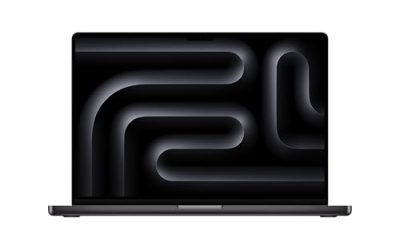
Apple MacBook Pro 14-inch (M4 Max)

The M4 Max MacBook Pro is the heavy lifter of this group: the listing pairs a 14-core CPU and 32-core GPU with 36GB of unified memory and a terabyte of storage, which is the combination that keeps layered 4K timelines and effects work moving. The 14.2-inch Liquid Retina XDR display gives color work a reference-grade panel in the same machine. It suits editors whose income depends on turnaround time. The Pro chassis also carries the port selection editors need for drives, cards, and external displays.
Specs
- Apple M4 Max chip, 14-core CPU and 32-core GPU
- 36GB unified memory
- 1TB SSD storage
- 14.2-inch Liquid Retina XDR display
- Built for Apple Intelligence
- Space Black finish
- Model MX2K3LL/A
Best for: Professional editors running layered timelines, effects, and color work against deadlines.
Watch out for: This is the most powerful and least portable direction in the guide; if your projects are short social clips, its capacity will mostly sit idle.
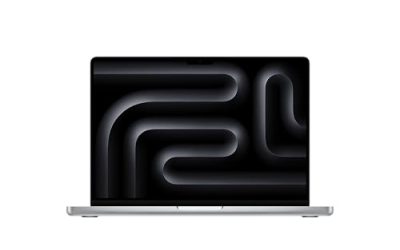
Apple MacBook Pro 14-inch (M4)

The standard M4 MacBook Pro keeps the same 14.2-inch Liquid Retina XDR display and a full terabyte of storage, with a 10-core CPU and 10-core GPU and 16GB of unified memory. For creators cutting weekly long-form video, that is a workable balance of screen quality, storage room, and export speed. It is the natural step up for an editor who has outgrown an Air but does not run effects-heavy projects.
Specs
- Apple M4 chip, 10-core CPU and 10-core GPU
- 16GB unified memory
- 1TB SSD storage
- 14.2-inch Liquid Retina XDR display
- Built for Apple Intelligence
- Silver finish
- Model MW2X3LL/A
Best for: Creators producing regular long-form video who need the XDR screen and a terabyte of storage.
Watch out for: The 16GB of unified memory is the ceiling here; editors stacking heavy effects should compare it carefully with the 36GB M4 Max model.
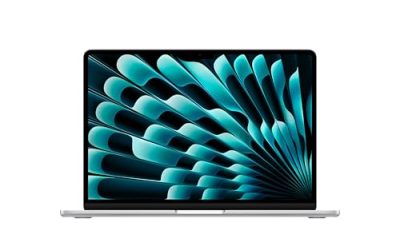
Apple MacBook Air 13-inch (M4, 512GB)

This MacBook Air configuration is the interesting one for editors on the move: 24GB of unified memory and 512GB of storage give the M4 chip room to handle genuine 4K projects, in a fanless 13.6-inch body that disappears into a camera bag. The 12MP Center Stage camera also covers quick client calls between edits. It will not match a Pro on long exports, but for field editing it is remarkably capable.
Specs
- Apple M4 chip
- 24GB unified memory
- 512GB SSD storage
- 13.6-inch Liquid Retina display
- 12MP Center Stage camera
- Touch ID
- Silver finish; model MC654LL/A
Best for: Traveling editors and creators who cut in the field and value silence and low weight.
Watch out for: Sustained exports slow as the fanless chassis warms, so plan renders in batches rather than back-to-back on deadline day.
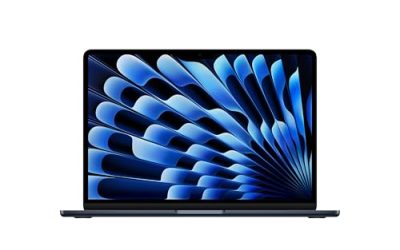
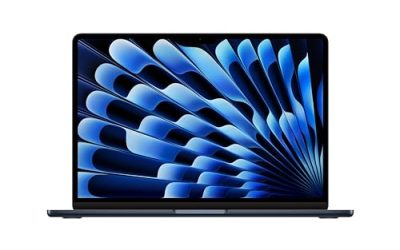
Apple MacBook Air 13-inch (M4, 256GB)

The entry MacBook Air with 16GB of memory and 256GB of storage is the right scale for students, new creators, and anyone editing short clips for social platforms. The M4 chip cuts HD and light 4K footage comfortably, and Touch ID and the bright Liquid Retina display make it a pleasant daily machine. Its limits are honest ones: storage fills fast, and complex timelines will test the memory before they test the chip.
Specs
- Apple M4 chip
- 16GB unified memory
- 256GB SSD storage
- 13.6-inch Liquid Retina display
- 12MP Center Stage camera
- Touch ID
- Midnight finish; model MW123LL/A
Best for: Students and new creators editing short-form video who want a quiet, light machine.
Watch out for: The 256GB drive is the tightest in this guide; budget for external storage from day one if you shoot regularly.
Which One Fits Your Situation
Your editing pays the bills
Choose the M4 Max MacBook Pro. The 36GB of memory and 32-core GPU exist for the days when three projects land at once, and the XDR display keeps color decisions consistent without an external reference monitor. The extra GPU cores also shorten the wait on stabilization, denoising, and title rendering, the small delays that quietly eat a deadline day.
You publish every week, not every day
The standard M4 MacBook Pro fits a weekly cadence: a terabyte of storage for active projects, the same XDR screen as the flagship, and enough chip for 4K timelines without paying for capacity you will rarely use. That cadence also suits the XDR screen: regular color work benefits from a reference panel without needing a separate grading monitor at home.
You edit wherever the shoot ends
Take the 24GB MacBook Air. It is light enough to live in a camera bag, silent on location, and strong enough for real timelines, as long as you render patiently and archive footage to external drives. Pack a fast external SSD for footage overflow and the Air becomes a complete field kit that fits beside the camera, not instead of it.
You are learning to edit
Start with the 16GB MacBook Air and spend the difference on storage and a backup drive. It teaches the same software on the same chip family, and you will know exactly which limit you hit first when it is time to upgrade. You will also learn the ecosystem properly from day one, since the software, shortcuts, and workflow habits transfer unchanged to a future Pro.
Common Mistakes
- Buying the smallest internal drive and then editing from a permanently full SSD, which slows the whole machine.
- Comparing chip names without checking memory, when unified memory is usually the first limit an editor actually hits.
- Assuming the fanless Air renders like a Pro over long exports; sustained work is where the two lines genuinely differ.
- Paying for the M4 Max tier to cut short social clips that the standard M4 handles without effort.
- Forgetting that MacBook memory and storage cannot be upgraded later, so the listing configuration is the final one.
Frequently Asked Questions
How much unified memory do I need for 4K editing?
For short 4K projects with simple cuts, 16GB works, though you will feel it when effects stack up. The 24GB Air configuration gives comfortable headroom for most creators, and the 36GB in the M4 Max Pro suits long, layered timelines. Because memory cannot be added later, choosing one step above your current need is the safer purchase.
Can a MacBook Air really edit video, or do I need a Pro?
The M4 MacBook Air edits HD and 4K footage well for short and medium projects, and its silence is pleasant in shared spaces. The difference appears during long exports and heavy effects, where the Pro sustains speed and the fanless Air slows as it warms. Match the machine to your render pattern, not to the label.
Is 256GB of storage enough for a video editor?
Only if you are disciplined about external drives. Applications, one active project, and a modest media library can crowd a 256GB drive quickly, and a nearly full drive slows editing. The 512GB Air eases the pressure, while the 1TB Pro models let most editors keep several projects live at once.
What does the Liquid Retina XDR display matter for editing?
The XDR panel in both MacBook Pro models offers the brightness and contrast range that color grading decisions depend on, so what you approve on the laptop screen holds up better on other displays. The standard Liquid Retina panel in the Air is accurate for general work, but the Pro screen is the safer choice for client color work.
Related guides
- Best Laptops to Play Roblox: From Budget Integrated Graphics to Dedicated GPUs
- Best Laptops for Zoom Teaching: Clear Video, Reliable Audio and All-Day Class Power
- Best Laptops for Video Editing and Music Production: Power, Screen and Storage
- Best Laptops for Network Engineers: Ethernet, RAM for Labs and Ports That Matter
More from Amazon
Programs that pair well with the guide above. Offers and eligibility are set by Amazon and may change.
Free shipping on eligible items, Prime Video and more. Eligible new members can start with a free trial.
Start a Prime free trialAd-free music streaming. Eligible new subscribers can start with a free trial.
Try Music Unlimited freeA Prime membership for ages 18-24 with a trial period. Eligibility is set by Amazon.
See Prime for Young AdultsAudiobooks and podcasts to listen to on the go. Eligible new members can start with a free trial.
Try Audible freeAs an Amazon Associate we earn from qualifying purchases.


Write Your Review
No reviews yet. Be the first to share your experience!