
Key takeaways
- Compare the best laptops for network engineers on built-in Ethernet, RAM for virtual labs, ports and durability, from ThinkPad T14 and E14 models to the P14s workstation and EliteBook 840.
What's inside
- What network engineering actually demands from a laptop
- Quick picks
- 1. Lenovo ThinkPad T14 Gen 5 — best overall for field and lab work
- 2. Lenovo ThinkPad E14 Gen 6 — best value route to 32GB and Ethernet
- 3. Lenovo ThinkPad P14s Gen 5 — best for heavy virtual labs
- 4. HP EliteBook 840 G11 — best compact option for docked work
- How to choose a laptop for network engineering
- FAQs
- Conclusion
As an Amazon Associate I earn from qualifying purchases. This post may contain affiliate links at no extra cost to you.
As an Amazon Associate we earn from qualifying purchases.
Disclosure: This article contains affiliate links to Amazon. If you buy through those links, the site may earn a commission at no additional cost to you, and the specifications below are taken from the Amazon product listings for each configuration named.
What network engineering actually demands from a laptop
A network engineer’s laptop is a tool of the trade in a way that most office laptops are not.
First, wired connectivity. A built-in Ethernet port, listed as RJ-45, still matters because the whole point of the job is often to connect to equipment directly, on a management network, in a room where wireless is unavailable, untrusted or part of the problem you are diagnosing. Two of the laptops below list a built-in Ethernet port in their Amazon listings, and two do not — and this guide says so plainly for each one, because assuming a port exists is exactly how an engineer ends up on site without one. Second, memory. Virtual labs are limited by RAM before they are limited by almost anything else, so the picks here start at 16GB and favour 32GB configurations. Third, ports in general: Thunderbolt and USB-C for docks and adapters, USB-A for the console cables and drives you already own, and HDMI for the wall screen in a meeting room.
Quick picks
- Best overall for field and lab work: Lenovo ThinkPad T14 Gen 5 — Intel Core Ultra 5 125U, 32GB DDR5 RAM, 1TB SSD, built-in Ethernet (RJ-45), two Thunderbolt 4 ports and HDMI 2.1.
- Best value route to 32GB and Ethernet: Lenovo ThinkPad E14 Gen 6 — AMD Ryzen 7 7735U, 32GB DDR5 RAM, 1TB SSD and a built-in Ethernet (RJ-45) port.
- Best for heavy virtual labs: Lenovo ThinkPad P14s Gen 5 — Intel Core Ultra 7 155H, 32GB DDR5 memory, 1TB SSD and NVIDIA RTX 500 Ada graphics; note that its listing does not list a built-in Ethernet port.
- Best compact option for docked work: HP EliteBook 840 G11 — Intel Core Ultra 7 155U, 16GB DDR5 memory, 512GB SSD, two Thunderbolt 4 ports and HDMI 2.1; its listing does not list a built-in Ethernet port either.
1. Lenovo ThinkPad T14 Gen 5 — best overall for field and lab work

The T14 Gen 5 is the most complete match for the network engineering checklist in this guide, and the reason starts with its port list. The Amazon listing for this configuration describes a ThinkPad T14 Gen 5 business laptop with a 14-inch FHD+ IPS display, an Intel Core Ultra 5 125U processor, 32GB of DDR5 RAM, a 1TB SSD, a 5MP webcam, a fingerprint reader, a backlit keyboard, Wi-Fi 6E and two Thunderbolt 4 ports, running Windows 11 Pro. Crucially, the same listing names Ethernet (RJ-45) among its ports, alongside two USB-A 3.2 Gen 1 ports and HDMI 2.1 — which means you can plug straight into a switch, keep a console adapter on USB-A, and drive an external screen without a pocket full of dongles.
The 32GB of DDR5 memory is the second reason this machine leads the guide. A typical home lab session — a couple of router images, a virtual firewall, a Linux administration box and your everyday browser and documentation load — fits far more comfortably in 32GB than in 16GB, and it leaves headroom for a packet capture running in the background. The 1TB SSD gives those lab images a local home instead of an external drive.
Day to day, the backlit keyboard and fingerprint reader named in the listing suit comms-room work and quick, secure sign-ins, and Wi-Fi 6E covers the wireless side of site surveys and office work. Windows 11 Pro fits corporate and client environments where Pro management features are expected. If you buy one laptop from this guide to do everything — field diagnostics, lab study for certifications, and ordinary office work — this configuration is the one to beat.
Specifications from the listing
- Processor: Intel Core Ultra 5 125U
- Memory: 32GB DDR5 RAM
- Storage: 1TB SSD
- Display: 14-inch FHD+ IPS display
- Ports named in the listing: Ethernet (RJ-45), 2 x Thunderbolt 4, 2 x USB-A 3.2 Gen 1, HDMI 2.1, headphone and microphone combo jack
- Wireless: Wi-Fi 6E and Bluetooth 5.3 named in the listing
- Camera and security: 5MP webcam, fingerprint reader, backlit keyboard
- Operating system: Windows 11 Pro
Pros
- Built-in Ethernet (RJ-45) for direct connection to switches and management networks
- 32GB of RAM and a 1TB SSD give a virtual lab real room to run
- Two Thunderbolt 4 ports plus USB-A and HDMI cover docks, console cables and screens
Cons
- A 14-inch screen is workable for lab windows, but long multi-window sessions benefit from a dock and monitor
- The Ultra 5 processor favours efficiency, so extremely heavy simultaneous labs suit the P14s below better
See the Lenovo ThinkPad T14 Gen 5 on Amazon
2. Lenovo ThinkPad E14 Gen 6 — best value route to 32GB and Ethernet

The E14 Gen 6 delivers the two specifications network engineers ask for first — built-in Ethernet and 32GB of memory — in a 14-inch business laptop built around an AMD processor. The Amazon listing describes a ThinkPad E14 Gen 6 business laptop with a 14-inch WUXGA display, an AMD Ryzen 7 7735U processor running up to 4.75 GHz, 32GB of DDR5 RAM, a 1TB SSD, a fingerprint reader, a backlit keyboard, HDMI, Wi-Fi 6 and Windows 11 Pro. Its connectivity list names one Ethernet (RJ-45) port, two USB-C ports, two USB-A ports and HDMI 2.1 supporting up to 4K at 60Hz.
That port mix is well judged for site work. Ethernet handles the direct equipment connection. One USB-C port can run a dock or a display while the other stays free. The two USB-A ports take a console cable and a USB drive at the same time, which is a small thing until you are standing in a rack aisle trying to swap adapters one-handed. The Ryzen 7 7735U, described in the listing as 8 cores and 16 threads, is a strong multitasking processor for running lab software alongside captures and documentation, and 32GB of DDR5 memory means your virtual network does not have to shrink every time your browser grows.
The listing for this configuration mentions a bundled external drive in some offers, so read the exact offer details on the product page before you buy and confirm what is in the box for the seller you choose — bundle contents vary by listing, and the laptop’s own specifications are the part to rely on.
Specifications from the listing
- Processor: AMD Ryzen 7 7735U, 8 cores and 16 threads, up to 4.75 GHz
- Memory: 32GB DDR5 RAM
- Storage: 1TB SSD
- Display: 14-inch WUXGA display
- Ports named in the listing: Ethernet (RJ-45), 2 x USB-C, 2 x USB-A, HDMI 2.1, headphone and microphone combo jack
- Wireless: Wi-Fi 6 named in the listing
- Security and input: fingerprint reader and backlit keyboard named in the listing
- Operating system: Windows 11 Pro
Pros
- Built-in Ethernet (RJ-45) plus a full mix of USB-C, USB-A and HDMI ports
- 32GB of DDR5 memory and a 1TB SSD suit certification labs and captures
- Ryzen 7 processor gives strong multitasking headroom for lab software
Cons
- Wi-Fi 6 rather than Wi-Fi 6E, if your site work specifically needs the newer standard
- Bundle contents can vary by offer, so confirm what is included before ordering
See the Lenovo ThinkPad E14 Gen 6 on Amazon
3. Lenovo ThinkPad P14s Gen 5 — best for heavy virtual labs

When the lab is the job — nested virtualisation, several heavy network appliances at once, large topology simulations, or a study environment for an expert-level certification — processing power and memory bandwidth move to the top of the list. The P14s Gen 5 is a mobile workstation rather than a standard business laptop. The Amazon listing for this configuration describes a ThinkPad P14s Gen 5 with an Intel Core Ultra 7 155H processor, a 14.5-inch 3K non-touch display at 120Hz, 32GB of DDR5-5600MHz memory in two 16GB modules, a 1TB SSD, NVIDIA RTX 500 Ada Generation graphics with 4GB of GDDR6 memory, a 5MP RGB+IR camera and Windows 11 Pro.
The Ultra 7 155H is a step up in sustained performance from the U-series processors in the other picks, which matters when several virtual machines compete for CPU at the same time. The 32GB of memory is fitted as two SODIMM modules in this listing, a configuration detail that service-minded buyers tend to appreciate. The RTX 500 Ada graphics are more than packet work requires, but they make this the natural choice for engineers whose role also touches visualisation, modelling or GPU-assisted tools.
Now the important caveat, stated plainly: the port list in this listing names USB-A ports, two USB-C ports with Thunderbolt 4 and HDMI 2.1, but it does not list a built-in Ethernet port. For a desk-based lab machine connected through a dock, that may be perfectly acceptable. For field work, plan on carrying a USB-C to Ethernet adapter as part of the kit, and treat that adapter as essential equipment rather than an accessory. Buy this laptop for its lab power, not for walk-up wired access.
Specifications from the listing
- Processor: Intel Core Ultra 7 155H
- Memory: 32GB DDR5-5600MHz memory, fitted as 2 x 16GB SODIMM modules in the listing
- Storage: 1TB SSD, M.2 2280 PCIe Gen4
- Display: 14.5-inch 3K display, 3072 x 1920, 120Hz, non-touch
- Graphics: NVIDIA RTX 500 Ada Generation laptop GPU, 4GB GDDR6
- Ports named in the listing: 2 x USB-A, 2 x USB-C with Thunderbolt 4, HDMI 2.1
- Camera and security: 5MP RGB+IR camera with privacy shutter, fingerprint reader
- Operating system: Windows 11 Pro
Pros
- Strongest processor and memory combination here for large, demanding virtual labs
- High-resolution 3K display keeps diagrams, consoles and captures visible together
- Workstation graphics extend the machine to visualisation and modelling tasks
Cons
- Its listing does not list a built-in Ethernet port, so field work needs a USB-C adapter
- Workstation power is more than pure routing and switching study requires
See the Lenovo ThinkPad P14s Gen 5 on Amazon
4. HP EliteBook 840 G11 — best compact option for docked work
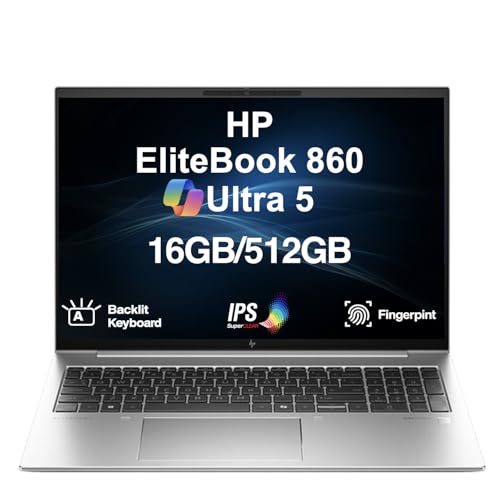
The EliteBook 840 G11 suits the engineer whose wired work happens at a desk or through a dock — in a network operations centre, a lab bench or a home office — and who wants a compact, professional 14-inch laptop for everything else. The Amazon listing record for this configuration describes an HP EliteBook 840 G11 business laptop with a 14-inch IPS WUXGA display, an Intel Core Ultra 7 155U processor, 16GB of DDR5 memory, a 512GB SSD, Intel graphics, a backlit keyboard, a fingerprint reader, two Thunderbolt 4 ports, Wi-Fi 6E, an FHD webcam and Windows 11 Pro, with a 3-cell 56Wh battery and USB-C power.
Two Thunderbolt 4 ports are the centre of this machine’s story. A single-cable dock on your bench can provide your monitors, your wired network connection and power, which is a clean way to work a lab for hours — and it is also why the absence of a built-in Ethernet port in this listing matters less at a desk, and more on the road. Read that sentence as the buying rule for this laptop: docked, it is excellent; walking into an unfamiliar comms room, you will want a USB-C to Ethernet adapter in the bag, because the listing’s port list — HDMI 2.1, two Thunderbolt 4 ports and a headphone and microphone combo jack — does not include RJ-45.
With 16GB of memory, this configuration runs a modest lab comfortably — a few router images and a Linux box alongside your daily tools — but engineers who routinely run larger topologies should choose one of the 32GB ThinkPads above instead. What the EliteBook offers in return is a lighter daily carry, Wi-Fi 6E for modern wireless environments, and Windows 11 Pro in a machine that fits client-site professionalism as well as it fits the operations floor.
Specifications from the listing
- Processor: Intel Core Ultra 7 155U, up to 4.8 GHz in the listing description
- Memory: 16GB DDR5 memory
- Storage: 512GB PCIe NVMe SSD
- Display: 14-inch IPS WUXGA display, 1920 x 1200
- Ports named in the listing: 2 x Thunderbolt 4, HDMI 2.1, headphone and microphone combo jack
- Wireless: Wi-Fi 6E and Bluetooth 5.3 named in the listing description
- Battery and power: 3-cell 56Wh battery, USB-C power named in the listing description
- Operating system: Windows 11 Pro
Pros
- Two Thunderbolt 4 ports make single-cable docked lab work simple and tidy
- Compact 14-inch design with Wi-Fi 6E suits travel between offices and client sites
- Windows 11 Pro, fingerprint reader and backlit keyboard fit professional environments
Cons
- Its listing does not list a built-in Ethernet port, so carry a USB-C to Ethernet adapter
- 16GB of memory and a 512GB SSD limit the size of the virtual labs you can run locally
See the HP EliteBook 840 G11 on Amazon
How to choose a laptop for network engineering
Begin with the wired question, because it cannot be fixed by software. If your work takes you to switches, patch panels and management ports, choose a laptop whose listing explicitly names a built-in Ethernet (RJ-45) port — here, the ThinkPad T14 Gen 5 and the ThinkPad E14 Gen 6. If your wired work is dock-based, a Thunderbolt machine such as the EliteBook or the P14s can serve you well, provided an adapter or dock is genuinely part of your everyday kit and not something you hope to borrow on site.
Next, size your memory to your lab, not to your documents. Sixteen gigabytes runs a small study lab; 32GB runs a serious one, with captures and browsers alongside. Storage follows the same logic: lab images are large, so the 1TB drives in the three ThinkPads give you breathing room that a 512GB drive does not. Then check the small ports you already depend on — USB-A for existing console cables, HDMI for room screens — against the listing for the exact configuration, because port lists vary between configurations of the same model name.
FAQs
Do network engineers still need a built-in Ethernet port?
For field work, yes, often. Direct connection to a switch or a management network is a core part of diagnosis and configuration, and wireless may be unavailable or untrusted in exactly the rooms where the work happens. Two laptops in this guide list a built-in RJ-45 port; the other two are better suited to docked work or need a USB-C to Ethernet adapter, and their sections say so clearly.
How much RAM do I need for a virtual network lab?
Plan on 32GB if you run several virtual routers, a firewall and a Linux machine at the same time, which is why three of the four picks here are 32GB configurations. A 16GB machine such as the EliteBook configuration listed can run a smaller lab, but you will close images more often to free memory for captures and everyday software.
Is a workstation laptop worth it for network engineering?
Only if your lab or your wider role demands it. The P14s Gen 5 offers a stronger processor and workstation graphics that help with large simulations and visualisation tools. For routing, switching and certification study alone, the T14 Gen 5 or E14 Gen 6 specifications are the more balanced spend, and both add the built-in Ethernet port the workstation listing does not name.
What should I check in a listing before buying?
Check the exact configuration, not just the model name. Confirm the processor, memory amount and type, SSD size, and the port list — especially whether Ethernet (RJ-45) is explicitly listed — plus the operating system edition. Configurations vary within a laptop family, so trust the specific listing’s port and memory lines.
Conclusion
The best laptops for network engineers are defined by connections and capacity, not by headline speed. Choose the ThinkPad T14 Gen 5 if you want the complete field kit in one machine: built-in Ethernet, 32GB of memory, a 1TB drive and Thunderbolt for the desk. Choose the ThinkPad E14 Gen 6 for the same two essentials — Ethernet and 32GB — in an AMD-based alternative. Choose the ThinkPad P14s Gen 5 when the virtual lab is the heaviest part of your work, and pack an Ethernet adapter for the field. Choose the EliteBook 840 G11 if your wired life runs through a dock. Whichever you pick, verify the port list of the exact configuration before you order.
Related guides
- Best Laptops to Play Roblox: From Budget Integrated Graphics to Dedicated GPUs
- Best Laptops for Zoom Teaching: Clear Video, Reliable Audio and All-Day Class Power
- Best Laptops for Video Editing and Music Production: Power, Screen and Storage
- Best Laptops for Digital Nomads: Light Machines for Working From Anywhere
More from Amazon
Programs that pair well with the guide above. Offers and eligibility are set by Amazon and may change.
Free shipping on eligible items, Prime Video and more. Eligible new members can start with a free trial.
Start a Prime free trialAd-free music streaming. Eligible new subscribers can start with a free trial.
Try Music Unlimited freeA Prime membership for ages 18-24 with a trial period. Eligibility is set by Amazon.
See Prime for Young AdultsAudiobooks and podcasts to listen to on the go. Eligible new members can start with a free trial.
Try Audible freeAs an Amazon Associate we earn from qualifying purchases.

Write Your Review
No reviews yet. Be the first to share your experience!