
Key takeaways
- Discover the best laptops for rendering video in Premiere Pro and DaVinci Resolve — powerful GPUs, ample RAM, accurate displays and faster exports for creators.
What's inside
As an Amazon Associate I earn from qualifying purchases. This post may contain affiliate links at no extra cost to you.
Finding the best laptops for rendering video is less about one fast specification and more about matching a complete system to the way video work behaves. Rendering is a sustained workload: a timeline must play back smoothly while effects, colour grades and motion graphics are applied, and then the finished sequence must be encoded without long waits or dropped frames.


The quick answer is that a strong rendering laptop pairs a modern multi-core processor with a discrete graphics card that has dedicated video memory, at least 32GB of memory for serious 4K work, a fast NVMe drive with room for media and cache files, and a colour-accurate display. For many editors, that points to the Apple MacBook Pro 14 with M4 Pro for portable macOS work, or to the ASUS ProArt P16 for a colour-accurate OLED screen on Windows. Editors who want maximum graphics headroom for DaVinci Resolve effects should look at the Lenovo Legion Pro 7i with an RTX 5070 Ti, while the MSI Katana 15 HX and the Acer Nitro V 16S AI cover the value end of the range.
Quick Picks
Our Short List of 3
All 5 Picks at a Glance
| Product | Specs | Action |
|---|---|---|
| Apple MacBook Pro 14 with M4 Pro (B0DLHY2BJ6) | Check price on Amazon | |
| ASUS ProArt P16 (B0GV57SGK9) | Check price on Amazon | |
 Lenovo Legion Pro 7i (B0DXXMLXVD) | Check price on Amazon | |
 MSI Katana 15 HX (B0DZFVBQLK) | Check price on Amazon | |
 Acer Nitro V 16S AI (B0F195W823) | Check price on Amazon |
How to Choose
Match the GPU to Your Editor First
DaVinci Resolve leans heavily on the GPU for colour grading, noise reduction and Fusion effects, which makes graphics memory and CUDA performance especially important there. Premiere Pro uses GPU acceleration too, but it is also more sensitive to memory and storage speed, so a balanced system often matters more than a flagship card alone. Final Cut Pro on Apple Silicon benefits from built-in media engines that handle ProRes efficiently. List your main editor and the effects you use every week, then favour the machine whose strengths line up with that list.
Look for Enough VRAM for Your Footage
Video RAM, or VRAM, is the memory on a discrete graphics card, and it sets a ceiling on how much footage, cache and effect data the GPU can hold at once. For 1080p timelines with light effects, 8GB is a workable starting point. For 4K timelines, multicam edits, noise reduction and Fusion compositions, more VRAM gives the timeline more room to breathe. The laptops here carry 8GB on the RTX 5060 and RTX 5070 models, while the RTX 5070 Ti in the Legion Pro 7i carries 12GB. If your work involves 4K RAW or complex Fusion nodes, treat VRAM as a first-class specification.
Choose a CPU With Sustained Multi-Core Power
Exporting video is a multi-core task. A processor with more cores and threads can split encoding, decoding and background rendering across more workers, which shortens export times. Sustained performance matters as much as peak speed: a laptop that boosts briefly and then slows down under heat will take longer to finish a twenty-minute export than a laptop with stronger cooling that holds its pace. Favour a recent high-core-count processor over a thin-and-light chip tuned mainly for battery life.
Get at Least 32GB of RAM for 4K Rendering
Memory is where editors hold timeline data, previews, cached frames and background processes. With 16GB, a laptop can edit 1080p and light 4K, but a 4K project with multiple tracks and adjustment layers can fill that memory quickly and force the system to lean on slower storage. For that reason, 32GB is the sensible target here, and every Windows laptop in this guide meets it. The MacBook Pro 14 carries 24GB of unified memory, which Apple Silicon uses efficiently, but it is still a tighter ceiling than 32GB. Where memory is soldered, choose the capacity you expect to need in two years.
Prioritise Fast, Spacious NVMe Storage
Video files are large, and rendering creates cache files, proxies and exports that also need fast storage. A PCIe NVMe drive reads and writes far faster than an older SATA drive or a hard disk, which helps when you scrub a timeline or generate proxies. Capacity matters as much as speed: a 512GB drive fills quickly once a few 4K projects live on the same disk. The ProArt P16 stands out with 2TB of PCIe storage, while the other Windows picks carry 1TB. The MacBook Pro 14 carries 512GB, its clearest practical limit, so most owners will want a fast external drive.
Judge the Display by Colour Accuracy, Not Just Resolution
A rendering laptop is also a grading monitor. A display that covers a wide colour gamut and holds accurate whites helps you make colour decisions you can trust. OLED panels, such as those on the ProArt P16 and the Legion Pro 7i, provide deep blacks and strong contrast that make shadow detail easier to judge, while the Liquid Retina XDR display on the MacBook Pro 14 is built for high dynamic range work. A 2.8K or QHD panel also shows more of a 4K timeline than a basic Full HD screen. Check the colour coverage for the exact configuration you buy, because the same model name can be sold with different panels.
The Best Laptops for Rendering Video Reviewed
Apple MacBook Pro 14 with M4 Pro (B0DLHY2BJ6)
The Apple MacBook Pro 14 with M4 Pro suits editors who want a portable machine for Final Cut Pro, DaVinci Resolve and Premiere Pro on macOS, with strong ProRes handling and a display built for high dynamic range work. The configuration listed here pairs the M4 Pro chip, with a 12-core CPU and a 16-core GPU, with 24GB of unified memory and a 512GB SSD, in a 14.2-inch Liquid Retina XDR display model in Space Black. Unified memory means the CPU and GPU share the same pool, and the media engines in the M4 Pro handle ProRes encoding and decoding efficiently.
Its limits are practical: 24GB is less headroom than the 32GB in the Windows laptops here, and the 512GB SSD fills quickly with video media and cache files, so most editors will need fast external storage. Editors who need a discrete NVIDIA card for CUDA-specific effects, or whose plug-ins require Windows, should look at the Windows picks instead.
Who it suits: macOS editors and creators who value portability, a high dynamic range display and efficient ProRes handling. Who should skip it: editors who need 32GB or more of memory, editors who keep large media libraries on the internal drive, and editors whose plug-ins require Windows or NVIDIA CUDA.
ASUS ProArt P16 (B0GV57SGK9)
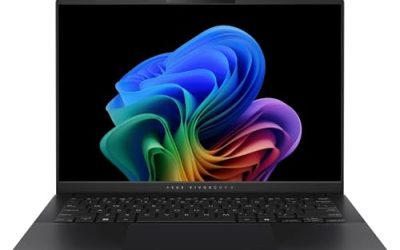
The ASUS ProArt P16 suits Windows creators who want a laptop designed for editing and grading rather than adapted from a gaming machine. The configuration listed here pairs an AMD Ryzen AI 9 HX 370 processor with an NVIDIA GeForce RTX 5070 graphics card, 32GB of LPDDR5X memory and a 2TB PCIe SSD, with a 16-inch OLED 2.8K touchscreen display. That covers the three pillars of a rendering laptop at once: a modern 12-core processor for encoding and multicam work, a discrete NVIDIA card with hardware encoding, and a large, fast drive with room for active projects, proxies and cache files.
One limit is that the RTX 5070 here carries 8GB of dedicated graphics memory, so editors working with 8K footage, heavy noise reduction or very complex Fusion compositions should weigh that ceiling against the 12GB card in the Legion Pro 7i below. The listing for this ASIN also includes a bundled wireless mouse from the seller, so confirm the exact bundle contents on the product page before ordering.
Who it suits: Windows editors in Premiere Pro and DaVinci Resolve, colourists who want an OLED display, and creators who need 2TB of internal storage. Who should skip it: editors who need more than 8GB of graphics memory for 8K or heavy Fusion work, and editors who prefer a non-touch display or a smaller machine.
Lenovo Legion Pro 7i (B0DXXMLXVD)
The Lenovo Legion Pro 7i suits editors who want the most graphics headroom in this guide for DaVinci Resolve effects, Fusion work and demanding 4K timelines. The configuration listed here pairs an Intel Core Ultra 9 275HX processor with an NVIDIA GeForce RTX 5070 Ti graphics card, 32GB of memory and 1TB of storage, with a 16-inch WQXGA OLED display running at 240Hz. The RTX 5070 Ti carries 12GB of dedicated graphics memory, which gives Resolve more room for colour nodes, noise reduction, stabilisation and Fusion compositions than the 8GB cards in the other Windows picks.
In practice, this Legion Pro 7i is a desktop-replacement laptop that trades portability for performance. Its OLED display provides deep blacks and strong contrast for grading, and its cooling system is built to sustain high performance during long renders. The trade-offs are familiar for a performance gaming laptop: it is larger and heavier than a creator ultrabook, its fans become audible under a sustained render, and its battery drains quickly under load, so it is best used plugged in for serious exports.
Who it suits: DaVinci Resolve editors, Fusion and effects-heavy creators, and editors who want 12GB of graphics memory for complex 4K projects. Who should skip it: editors who need a light travel laptop, editors who render mainly on battery, and editors who want a quiet machine for recording voiceover.
MSI Katana 15 HX (B0DZFVBQLK)
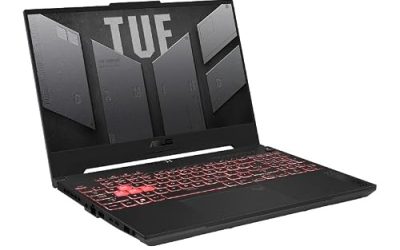
The MSI Katana 15 HX suits editors who want a high-core-count processor and a current NVIDIA graphics card for rendering without moving to a workstation-class machine. The configuration listed here pairs an Intel Core i9-14900HX processor with an NVIDIA GeForce RTX 5070 graphics card, 32GB of DDR5 memory and a 1TB NVMe SSD, with a 15.6-inch QHD display running at 165Hz. The i9-14900HX is a 24-core processor, which gives exports and proxy generation plenty of parallel workers, and the RTX 5070 brings NVIDIA hardware encoding and CUDA acceleration to Premiere Pro and DaVinci Resolve. Its memory can be upgraded later, which is useful as projects grow heavier.
The limits are in the areas where creator laptops usually pull ahead: its display is a QHD IPS panel rather than a factory-calibrated OLED panel, so colour-critical grading should be checked on a calibrated external monitor, and its fans are tuned for performance rather than silence. Its RTX 5070 also carries 8GB of dedicated graphics memory, so the same ceiling that applies to the ProArt P16 applies here for the heaviest Fusion work.
Who it suits: editors who want a 24-core processor for exports, Premiere Pro and Resolve users on a tighter budget, and creators who also use the laptop for gaming or 3D work. Who should skip it: colourists who need a factory-calibrated OLED display built in, editors who need more than 8GB of graphics memory, and editors who want a quiet, light machine for travel.
Acer Nitro V 16S AI (B0F195W823)
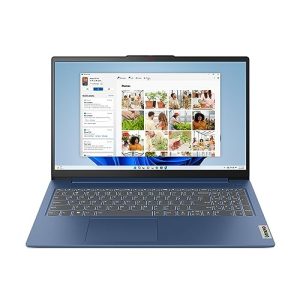
The Acer Nitro V 16S AI suits editors buying their first serious rendering laptop for 1080p and light 4K work. The configuration listed here pairs an AMD Ryzen 7 260 processor with an NVIDIA GeForce RTX 5060 Laptop GPU, 32GB of DDR5 memory and a 1TB Gen 4 SSD, with a 16-inch WUXGA IPS display running at 180Hz. That is notable for an entry-level pick: 32GB is the capacity this guide recommends for 4K work, the 1TB Gen 4 SSD is fast enough for timeline scrubbing and proxy generation, and the RTX 5060 brings NVIDIA hardware encoding and CUDA acceleration to Premiere Pro and DaVinci Resolve.
The honest limit is its graphics memory and its display. The RTX 5060 carries 8GB of dedicated graphics memory, which is workable for 1080p and light 4K, but it will reach its ceiling sooner than the 12GB card in the Legion Pro 7i when noise reduction, stabilisation and Fusion effects are stacked. Its WUXGA display, at 1920 by 1200, is less detailed and less colour-accurate than the OLED panels here, so final colour decisions should be checked on a calibrated external monitor. The Ryzen 7 260 also has fewer cores than the processors in the other picks, so long 4K exports will take longer.
Who it suits: beginners and students, editors cutting 1080p and light 4K, and creators who want 32GB of memory and a discrete NVIDIA card in a first rendering laptop. Who should skip it: editors working with 4K RAW, heavy noise reduction or complex Fusion compositions, and colourists who need a colour-accurate OLED display built in.
What to Check Before You Buy
Before you order, confirm the exact configuration on the Amazon product page, because the same model name is often sold in several configurations with different processors, graphics cards, memory, storage and displays. Check the processor, the graphics card and its dedicated memory, the installed memory, the SSD capacity, the display and the operating system.
Next, think about your footage. Editors who shoot 4K H.264 or H.265 need strong hardware decoding and encoding, editors who shoot ProRes benefit from Apple Silicon media engines, and editors who shoot RAW need more memory, more graphics memory and more storage. Match the laptop to the heaviest footage you expect to cut in the next year. Then plan storage and backup: keep active projects on the internal NVMe drive, keep a fast external drive for media and exports, and keep a separate backup for finished projects. If you choose a laptop with 512GB of internal storage, such as the MacBook Pro 14 here, that external storage plan is essential. Finally, check the ports, cooling and warranty, and confirm that the listing is for a new laptop rather than a renewed or refurbished unit unless you intended to buy one.
FAQ
How much RAM do I need for rendering video on a laptop?
For 1080p editing with light effects, 16GB can work, but for 4K rendering with several tracks and effects, 32GB is the practical target in this guide. Both editors use memory for timeline data, cached frames and previews, and running out of memory forces the system to use slower storage. If memory is soldered, choose 32GB from the start where possible.
Is a discrete GPU necessary for rendering video?
A discrete GPU is strongly recommended for serious rendering work. Integrated graphics can handle basic 1080p editing, but a discrete NVIDIA card with dedicated memory accelerates effects, colour grading, noise reduction and hardware encoding in Premiere Pro and DaVinci Resolve. Apple Silicon laptops are an exception, because their integrated GPU and media engines are designed for video work, but on Windows, a discrete RTX card is the safer choice.
Which is better for rendering video, Premiere Pro or DaVinci Resolve?
Neither editor is better for every workflow, because they use hardware differently. Premiere Pro is more sensitive to memory and storage speed, while DaVinci Resolve leans harder on the GPU for colour grading, noise reduction and Fusion effects. Choose the laptop that fits the editor you already use, and favour more graphics memory if Resolve is your main tool.
Can a laptop render 4K video smoothly?
Yes, a laptop with a modern multi-core processor, a discrete GPU with at least 8GB of dedicated memory, 32GB of RAM and a fast NVMe SSD can render 4K video smoothly for most projects. Heavier work, such as 4K RAW, multicam timelines and complex Fusion compositions, benefits from more graphics memory and stronger cooling. For the heaviest projects, proxy workflows can also help maintain smooth playback.
Bottom Line
The best laptops for rendering video balance a multi-core processor, a discrete GPU with enough dedicated memory, 32GB of RAM for 4K work, fast NVMe storage and a colour-accurate display, with cooling strong enough to sustain that performance. The MacBook Pro 14 with M4 Pro is the strongest portable choice for macOS editors and ProRes workflows, the ASUS ProArt P16 is the most complete Windows creator laptop here with its OLED display and 2TB of storage, and the Lenovo Legion Pro 7i provides the most graphics headroom for DaVinci Resolve effects with its 12GB RTX 5070 Ti. The MSI Katana 15 HX gives editors a 24-core processor and RTX 5070 graphics at a lower entry point, while the Acer Nitro V 16S AI is a sensible first rendering laptop for 1080p and light 4K work. Choose the machine that matches your editor, footage and grading needs, and confirm the exact configuration before you order.
Disclosure: As an Amazon Associate, we may earn from qualifying purchases.
Related guides
More from Amazon
Programs that pair well with the guide above. Offers and eligibility are set by Amazon and may change.
Free shipping on eligible items, Prime Video and more. Eligible new members can start with a free trial.
Start a Prime free trialAd-free music streaming. Eligible new subscribers can start with a free trial.
Try Music Unlimited freeA Prime membership for ages 18-24 with a trial period. Eligibility is set by Amazon.
See Prime for Young AdultsAudiobooks and podcasts to listen to on the go. Eligible new members can start with a free trial.
Try Audible freeAs an Amazon Associate we earn from qualifying purchases.
Write Your Review
No reviews yet. Be the first to share your experience!