
Our Short List of 3

- Chip: Apple M4, 10-core CPU, 8-core GPU
- Memory: 16 GB unified memory
- Storage: 256 GB SSD
- Display: 13.6-inch Liquid Retina, 2560 x 1664, 500 nits, P3 wide color
- Chip: Apple M4, 10-core CPU, 10-core GPU
- Memory: 16 GB unified memory
- Storage: 512 GB SSD
- Display: 13.6-inch Liquid Retina, 2560 x 1664, 500 nits, P3 wide color

- Chip: Apple M4, 10-core CPU, 10-core GPU
- Memory: 16 GB unified memory
- Storage: 256 GB SSD
- Display: 15.3-inch Liquid Retina, 2880 x 1864, 500 nits, P3 wide color
All 5 Picks at a Glance
| Product | Specs | Action |
|---|---|---|
| Apple MacBook Air 13-inch with M4 Chip, 16GB Memory, 256GB SSD, Midnight — Budget |
| Check price on Amazon |
| Apple MacBook Air 13-inch with M4 Chip, 16GB Memory, 512GB SSD, Midnight — Mid-Range |
| Check price on Amazon |
| Apple MacBook Air 15-inch with M4 Chip, 16GB Memory, 256GB SSD, Sky Blue — Mid-Range |
| Check price on Amazon |
 Apple MacBook Pro 14-inch with M4 Chip, 16GB Memory, 512GB SSD, Space Black — Premium |
| Check price on Amazon |
| Apple MacBook Pro 14-inch with M4 Pro Chip, 24GB Memory, 512GB SSD, Space Black — Premium |
| Check price on Amazon |
Key takeaways
- Every pick is a MacBook, because Photoshop Elements runs natively on macOS but not on ChromeOS. Compare chips, memory, storage, and displays for editing.
What's inside
- Apple MacBook Air 13-inch with M4 Chip, 16GB Memory, 256GB SSD, Midnight — Budget
- Apple MacBook Air 13-inch with M4 Chip, 16GB Memory, 512GB SSD, Midnight — Mid-Range
- Apple MacBook Air 15-inch with M4 Chip, 16GB Memory, 256GB SSD, Sky Blue — Mid-Range
- Apple MacBook Pro 14-inch with M4 Chip, 16GB Memory, 512GB SSD, Space Black — Premium
- Apple MacBook Pro 14-inch with M4 Pro Chip, 24GB Memory, 512GB SSD, Space Black — Premium
- How to Choose
- Frequently Asked Questions
- Final Verdict
- Product and ASIN Reference
As an Amazon Associate I earn from qualifying purchases. This post may contain affiliate links at no extra cost to you.
If you want a laptop for Adobe Photoshop Elements and you do not want Windows, the honest answer is that every pick in this roundup is a Mac. That is not a shortcut or a bias toward one brand. Photoshop Elements is published for exactly two desktop operating systems: Windows and macOS. It has no ChromeOS version, no Linux version, and the Android app with a similar name is Photoshop Express, a much lighter tool that cannot open an Elements catalog or run the Guided and Expert edit modes. So a Chromebook, however appealing its price or battery life, simply cannot run this software, and any non-Windows list that includes one would be setting you up for a return.
The Mac side, fortunately, is a good place to land. Current MacBooks run the macOS edition of Elements natively on Apple silicon, they all ship with color-accurate P3 wide-gamut displays that suit photo work, and even the entry model clears Adobe’s hardware bar with room to spare.
One version note before the picks. The “18” in this search refers to the older version numbering Adobe used through Photoshop Elements 2020. Adobe now sells Elements by year instead, as a term license, and the current yearly releases carry the same class of system requirements as version 18 did: a modern multi-core processor and 8 GB of memory as a floor, with 16 GB far more comfortable once your photo catalog grows. The hardware advice below therefore holds whether your license says 18, 2020, or a recent year. Every model listed is a MacBook sold on Amazon US, pinned to one exact configuration so the specifications quoted are the ones you would actually receive.
As an Amazon Associate, we earn from qualifying purchases.
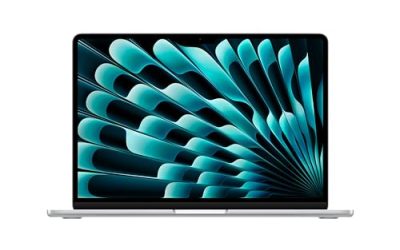
Apple MacBook Air 13-inch with M4 Chip, 16GB Memory, 256GB SSD, Midnight — Budget
- Chip: Apple M4, 10-core CPU, 8-core GPU
- Memory: 16 GB unified memory
- Storage: 256 GB SSD
- Display: 13.6-inch Liquid Retina, 2560 x 1664, 500 nits, P3 wide color
The entry point into this lineup is also the sensible default for most Elements users. The 13-inch MacBook Air with the M4 chip pairs 16 GB of unified memory with a fast 256 GB SSD, and that memory figure matters more than anything else at this level: Elements keeps your open images, undo history, and the Organizer catalog in RAM, and 16 GB is the point where large camera files stop feeling sluggish. The M4’s media engine and efficient cores keep exports and Photomerge panoramas moving without any fan noise, because the Air has no fan at all.
The 13.6-inch Liquid Retina display covers the P3 wide color gamut at 500 nits of brightness, which is the same color space recent iPhones shoot in, so edits on screen translate predictably to phones and prints. At 2.7 pounds it disappears into a camera bag, and the rated battery life stretches to a full day of sorting and culling away from an outlet. The trade-offs are storage and ports. A 256 GB drive fills quickly if you shoot RAW, so plan on an external drive for archives, and with two Thunderbolt 4 ports plus MagSafe charging you will likely want a small hub or a USB-C card reader for camera cards.
Tier: budget
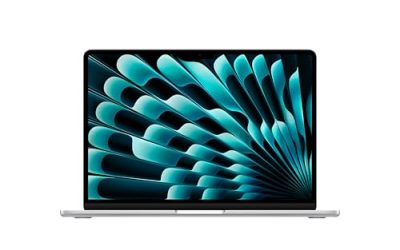
Apple MacBook Air 13-inch with M4 Chip, 16GB Memory, 512GB SSD, Midnight — Mid-Range
- Chip: Apple M4, 10-core CPU, 10-core GPU
- Memory: 16 GB unified memory
- Storage: 512 GB SSD
- Display: 13.6-inch Liquid Retina, 2560 x 1664, 500 nits, P3 wide color
This pick is the same slim MacBook Air with the two quiet upgrades that photo editors feel most: double the internal storage and the full 10-core GPU. The 512 GB SSD gives an Elements catalog, a working library of current shoots, and the application itself room to coexist without constant offloading, and Elements uses free disk space as a scratch area during big operations like panorama merges and batch processing, so headroom here is a genuine performance feature rather than a luxury.
The extra GPU cores help with the filter previews and AI-assisted tools in recent Elements releases, which lean on the graphics processor more than older versions did. You also get the dual-port USB-C power adapter in the box with this configuration, handy when the laptop shares a desk with a phone. Everything else matches the base Air: the same P3 Liquid Retina panel, the same silent fanless design, the same 2.7-pound chassis that makes it the easiest machine in this list to carry to a shoot. Choose this one if you like the Air form factor but know your photo library is not small.
Tier: mid-range
Apple MacBook Air 15-inch with M4 Chip, 16GB Memory, 256GB SSD, Sky Blue — Mid-Range
- Chip: Apple M4, 10-core CPU, 10-core GPU
- Memory: 16 GB unified memory
- Storage: 256 GB SSD
- Display: 15.3-inch Liquid Retina, 2880 x 1864, 500 nits, P3 wide color
Photo editing is one of the tasks where screen size earns its keep, and the 15-inch MacBook Air exists for buyers who want the bigger canvas without stepping up to a Pro. The 15.3-inch Liquid Retina display shows more of the Elements workspace at once: panels and tool options stay open while the image itself remains large enough to judge focus and fine detail, and side-by-side before-and-after views are genuinely usable. It carries the same M4 chip with the 10-core GPU as standard, 16 GB of memory, and a 256 GB SSD.
Despite the larger panel it stays a true Air: 3.3 pounds, fanless, and thin enough for a tote or backpack sleeve. The six-speaker sound system is a small bonus for anyone who also assembles Elements slideshows with music. Storage is the same caveat as the base 13-inch model, so high-volume shooters should treat an external SSD as part of the purchase. If you mostly edit at a desk or kitchen table and rarely connect an external monitor, this is the most comfortable screen-per-carry-weight balance in the roundup.
Tier: mid-range
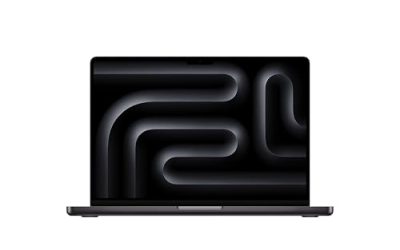
Apple MacBook Pro 14-inch with M4 Chip, 16GB Memory, 512GB SSD, Space Black — Premium
- Chip: Apple M4, 10-core CPU, 10-core GPU
- Memory: 16 GB unified memory
- Storage: 512 GB SSD
- Display: 14.2-inch Liquid Retina XDR, 3024 x 1964, ProMotion up to 120 Hz, P3 wide color
The 14-inch MacBook Pro is where this list stops being about portability first and starts being about the display and the desk setup. Its Liquid Retina XDR panel is a mini-LED screen with ProMotion refresh up to 120 Hz, far higher brightness than the Air models, and the same P3 wide gamut, which makes it the best screen here for judging shadow detail and subtle color gradations in portraits and landscapes. The base M4 chip brings the same 10-core CPU and GPU as the stronger Air configuration, backed by active cooling, so long batch exports and big Photomerge jobs hold their pace instead of throttling in a silent chassis.
Photographers will also appreciate what the Pro adds around the edges: an SDXC card slot for pulling images straight from a camera card, an HDMI port for a television or projector, and three Thunderbolt 4 ports for drives and docks. The 512 GB SSD and 16 GB of memory match the recommended working configuration for a serious Elements library. At 3.4 pounds it is still travel-friendly, just less featherweight than the Airs. Pick it if editing is the main job and the laptop will spend real time connected to external storage or a second screen.
Tier: premium
Apple MacBook Pro 14-inch with M4 Pro Chip, 24GB Memory, 512GB SSD, Space Black — Premium
- Chip: Apple M4 Pro, 12-core CPU, 16-core GPU
- Memory: 24 GB unified memory
- Storage: 512 GB SSD
- Display: 14.2-inch Liquid Retina XDR, 3024 x 1964, ProMotion up to 120 Hz, P3 wide color
The M4 Pro version of the 14-inch MacBook Pro is the headroom pick, aimed at editors whose Elements use sits inside a heavier overall workflow. Its 12-core CPU and 16-core GPU roughly double the graphics muscle of the base M4, memory bandwidth more than doubles, and the standard 24 GB of unified memory leaves space for Elements to run alongside a browser full of research tabs, a cloud backup, and a second creative app without anything swapping to disk. Recent Elements releases offload more work to the GPU each year, and this is the configuration least likely to feel old before the laptop does.
It keeps everything that makes the base Pro attractive for photographers: the XDR display, the SDXC slot, HDMI, and MagSafe, while upgrading its three USB-C ports to Thunderbolt 5 for faster external SSD transfers when you are ingesting a full card after a trip. Battery ratings stay strong despite the faster chip. This is more computer than Elements alone demands, and the article is better for saying so plainly: buy it because you also cut video, work in full Photoshop or Lightroom on the side, or simply keep laptops for many years and want the specification ceiling out of the way.
Tier: premium
How to Choose
Start with the constraint that defines this whole category: the software decides the operating system. Photoshop Elements runs on macOS and Windows only, so a non-Windows shortlist is a Mac shortlist. Once that is settled, the buying decision comes down to memory, storage, and screen, in that order.
Memory is the specification Elements feels most. Adobe’s floor is 8 GB, and older MacBooks with 8 GB do run the program, but every model in this roundup starts at 16 GB because catalog browsing, multi-image edits, and Photomerge operations all draw on RAM at once. Unified memory on Apple silicon cannot be upgraded after purchase, so the figure on the box is the figure for the life of the machine. Only heavy multitaskers need the 24 GB in the M4 Pro model.
Storage is the second decision, and it is really about how you shoot. JPEG photographers with a tidy library can live on 256 GB with an external drive for archives. RAW shooters, or anyone whose catalog holds years of family photos, should start at 512 GB: Elements needs free space for its catalog database and scratch files, and a nearly full drive slows everything down. Remember that internal storage cannot be added later on any of these models.
For the screen, all five displays cover the P3 wide color gamut, which is the important part for accurate editing. Choose the 13-inch Air for maximum portability, the 15-inch Air if you edit on the laptop screen itself most of the time, and a Pro model if you want the brighter XDR panel, the convenience of a built-in SD card slot, or ports for a permanent desk setup. Chip choice matters least for Elements alone: the base M4 is already comfortably fast, and the M4 Pro earns its place through memory and multitasking headroom rather than through anything Elements strictly requires.
Frequently Asked Questions
Why are all the picks MacBooks when I only said not Windows?
Because Adobe publishes Photoshop Elements for Windows and macOS only. Excluding Windows leaves macOS as the one remaining platform with a native version of the program, so every laptop that can genuinely run Elements without Windows is a MacBook. Lists that suggest otherwise are usually pointing at Photoshop Express or web editors, which are different, lighter tools.
Can Photoshop Elements run on a Chromebook instead?
No. There is no ChromeOS edition of Photoshop Elements, and the program cannot be installed through the Chromebook Linux container in any supported way. Chromebooks can run Photoshop Express from the Android app store and Adobe’s web-based editors, but neither opens an Elements catalog or offers the full Guided and Expert editing modes.
How much memory and storage does Photoshop Elements really need?
Adobe lists 8 GB of memory as the minimum for recent versions, and the program does run at that level, but 16 GB is the comfortable working figure once your catalog grows and you edit large camera files. For storage, 256 GB works if you archive to an external drive, while 512 GB suits RAW shooters and large libraries. Elements also needs free drive space beyond the install itself for its catalog and scratch files during big jobs.
Does it matter that my license is Elements 18 rather than a newer year-named release?
Not for the hardware decision. Elements 18 was the version numbering used through the 2020 release, and Adobe has since moved to year-named releases sold as term licenses. The system requirements across these versions sit in the same class, and every MacBook in this roundup exceeds them by a wide margin, so the same pick suits an older 18 license or a current yearly one.
Final Verdict
For most people searching for a non-Windows laptop for Photoshop Elements, the 13-inch MacBook Air with the M4 chip and 256 GB of storage is the right answer: it is the lightest and least complicated route into macOS, its 16 GB of memory clears Adobe’s requirements with headroom, and its P3 display is properly suited to photo work. Step up to the 512 GB Air if your library lives on the internal drive, choose the 15-inch Air if screen space is your daily comfort, and look at the two Pro models when you want the XDR display, the SD card slot, or the extra memory and graphics headroom of the M4 Pro. The platform question, at least, is simple: if it must run Elements and it must not be Windows, it is a Mac.
Product and ASIN Reference
| Product | ASIN |
|---|---|
| Apple MacBook Air 13-inch with M4 chip, 16GB unified memory, 256GB SSD, Midnight | B0DZD9S5GC |
| Apple MacBook Air 13-inch with M4 chip, 16GB unified memory, 512GB SSD, Midnight | B0DZD96R5S |
| Apple MacBook Air 15-inch with M4 chip, 16GB unified memory, 256GB SSD, Sky Blue | B0DZDBWM5B |
| Apple MacBook Pro 14-inch with M4 chip, 16GB unified memory, 512GB SSD, Space Black | B0DLHBYRPS |
| Apple MacBook Pro 14-inch with M4 Pro chip, 24GB unified memory, 512GB SSD, Space Black | B0DLHY2BJ6 |
Related guides
More from Amazon
Programs that pair well with the guide above. Offers and eligibility are set by Amazon and may change.
Free shipping on eligible items, Prime Video and more. Eligible new members can start with a free trial.
Start a Prime free trialAd-free music streaming. Eligible new subscribers can start with a free trial.
Try Music Unlimited freeA Prime membership for ages 18-24 with a trial period. Eligibility is set by Amazon.
See Prime for Young AdultsAudiobooks and podcasts to listen to on the go. Eligible new members can start with a free trial.
Try Audible freeAs an Amazon Associate we earn from qualifying purchases.
Write Your Review
No reviews yet. Be the first to share your experience!