
Key takeaways
- Looking for the best non windows operating system for laptops? Compare Linux, macOS, ChromeOS and FreeBSD to find the right fit for your laptop and workflow.
What's inside
As an Amazon Associate I earn from qualifying purchases. This post may contain affiliate links at no extra cost to you.
If you are looking for the best non windows operating system for laptops, the short answer is that there is no single winner for everyone. The right choice depends on your laptop hardware, the software you rely on every day, how much control you want over your system, and how comfortable you are learning something new. For most people switching away from Windows, Ubuntu or Linux Mint provides the easiest transition, ChromeOS suits simple web-first use, and macOS is the natural choice if you already use Apple hardware and services.
Windows is familiar, widely supported, and installed on most laptops by default. That familiarity is also why many people stay with it even when it no longer fits how they work. Some want a lighter system that runs faster on older hardware. Others want stronger privacy, fewer background updates, a cleaner interface, or a system that matches a specific workflow such as software development, writing, or study. A different operating system can solve those problems, but only if it matches your laptop and your habits.
This guide compares the realistic non-Windows options for laptops in plain terms. It explains what each system does well, where it falls short, who should consider it, and who should skip it, plus the practical questions to ask before you switch, so you do not end up with a laptop that cannot run the tools you need.
Quick Comparison
| Operating System | Best For | Key Strength |
|---|---|---|
| Ubuntu | General users switching from Windows | Large community, broad hardware support, familiar desktop |
| Linux Mint | Beginners who want a Windows-like layout | Comfortable interface, stable, light on resources |
| Fedora | Developers and users who want current software | Modern packages, strong security defaults, active development |
| Pop!_OS | Creators, developers, and gamers on Linux | Good graphics support, clean workflow, tiling window management |
| elementary OS | Users who value design and simplicity | Polished, minimal interface, focused app experience |
| ChromeOS / ChromeOS Flex | Web-first users and older laptops | Fast startup, simple updates, low maintenance |
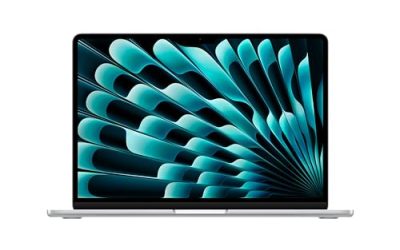
| macOS | Apple laptop owners and creative professionals | Tight hardware integration, strong app ecosystem, polished design |
| FreeBSD | Advanced users and servers | Stability, clean design, strong networking and security |
How to Choose
Choosing the best non windows operating system for laptops starts with an honest look at how you actually use your laptop. A system that is excellent for a programmer may frustrate a student who needs a specific classroom app, and one that revives an old laptop may not suit someone who edits video every day. Work through the factors below before you commit.
Hardware Compatibility
Hardware compatibility is the first filter, and it matters more than features. Before switching, check whether your laptop’s Wi-Fi adapter, Bluetooth, touchpad, webcam, fingerprint reader, and graphics card work with the system you are considering. Linux distributions vary in how well they support newer Wi-Fi chips and hybrid graphics, while ChromeOS Flex supports a wide range of older machines but not every model. macOS is designed for Apple hardware, so it is not a practical option for most Windows laptops.
A useful test is to run the new system from a live USB drive before installing it. That lets you check Wi-Fi, sound, display brightness, and trackpad gestures without changing anything on your laptop.
Software You Need Every Day
Make a list of the software you cannot do without. That list decides more than any feature comparison. If you depend on a Windows-only program for work or study, switching may mean finding an alternative, running the program through a compatibility layer, or keeping Windows on a second partition.
Check each essential program individually. Look for a native version, a web version, or a well-supported alternative with the same file formats, and pay special attention to niche tools such as accounting software, exam software, and printer utilities.
Privacy and Control
Privacy is a common reason people leave Windows. Linux distributions generally collect little or no usage data by default and give you full control over updates and system settings. FreeBSD takes a similar approach and appeals to users who want a transparent, minimal base system.
ChromeOS is convenient, but it is built around a Google account and cloud services, so it suits people who are comfortable with that trade-off. macOS sits in the middle: Apple emphasizes on-device processing and privacy controls, while still tying many features to an Apple account.
Learning Curve
Every operating system has a learning curve, even one designed to feel familiar. Linux Mint is often recommended to Windows users because its menu, taskbar, and window controls feel recognizable. Ubuntu is also approachable, with a large community and plenty of beginner guides. ChromeOS has the gentlest learning curve of all, because most work happens in the browser.
Fedora, Pop!_OS, and elementary OS are also usable by beginners, but they reward a little curiosity. FreeBSD is the exception: it expects comfort with the command line and is best treated as an advanced choice rather than a first switch.
Performance on Older Hardware
One of the strongest reasons to switch is to extend the life of an older laptop. Lightweight Linux distributions and ChromeOS Flex can make a slow machine feel responsive again, because they use fewer resources at idle and place fewer demands on the processor and memory. Linux Mint with a light desktop environment, or a minimal Ubuntu-based system, can work well on laptops that struggle with current Windows versions.
A machine with very little memory or a slow storage drive will still have limits, and no operating system can fix failing hardware. Still, if your laptop is slow mainly because the operating system has grown heavier over the years, a lighter alternative is often the cheapest upgrade you can make.
Updates and Maintenance
Think about how much maintenance you want to do. ChromeOS updates itself in the background with little input from you. macOS also handles updates smoothly, and Ubuntu and Linux Mint provide regular updates through a graphical software center.
Fedora updates more frequently, which brings newer software but also more change. FreeBSD gives you the most control over updates, and that control comes with more responsibility. If you want a system you can largely forget about, favor one with automatic or simple graphical updates.
Community and Support
Support matters most when something goes wrong. Ubuntu has one of the largest user communities of any Linux distribution, which means most problems have already been discussed and solved somewhere. Linux Mint, Fedora, and Pop!_OS also have active forums and documentation. ChromeOS and macOS benefit from official support channels, help pages, and repair networks.
Before choosing, search for your laptop model together with the operating system name. If other people with the same model report a smooth experience, that is a good sign. If you find repeated reports of the same Wi-Fi or graphics problem with no clear fix, take that seriously.
Ubuntu
Ubuntu is the most common recommendation for people leaving Windows, and for good reason. It runs on a wide range of laptops, has a clean modern desktop, and has a large community behind it. Software installation is straightforward through its app store.
Ubuntu suits general users who want a stable, well-supported system without a steep learning curve. It also works well for students, office work, web browsing, media, and light development.
Who should skip it? People who want the lightest possible system may prefer a leaner Linux distribution, and people who dislike its default desktop layout may prefer Linux Mint or Fedora. Overall, though, it remains a safe and sensible first choice for most switchers.
Linux Mint
Linux Mint is built for comfort. Its desktop feels familiar to Windows users, with a start-style menu, a taskbar, and window controls in expected places. It is stable, polished, and light enough to run well on older laptops. Many people who try several Linux distributions settle on Mint because it stays out of the way.
Mint suits beginners, older laptops, and anyone who wants a system that feels finished from the first boot. It handles everyday tasks well, including browsing, documents, email, video calls, and media playback.
Who should skip it? Users who want the very latest software versions may prefer Fedora, and users who want a more modern or touch-friendly interface may prefer Ubuntu or elementary OS. For reliability and ease of use, however, it is hard to beat.
Fedora
Fedora is a modern Linux distribution with a focus on current software, strong security defaults, and active development. It is often the first place new Linux technologies appear, which makes it popular with developers and enthusiasts. Its default desktop is clean and uncluttered, and it handles newer hardware well.
Fedora suits developers, technical users, and anyone who wants up-to-date tools without adding third-party repositories. It is also a good choice if you work with containers, virtual machines, or modern programming languages.
Who should skip it? Beginners who want the longest support period for each release may prefer Ubuntu or Linux Mint, which change more slowly. Users who rely on proprietary drivers or codecs should also check availability in advance, since Fedora takes a stricter approach to non-free software by default.
Pop!_OS
Pop!_OS is developed by System76 and is designed with developers, creators, and Linux gamers in mind. It has good graphics driver support, a clean workflow, and built-in window tiling that helps when you work with several windows at once. It is based on Ubuntu, so it shares much of Ubuntu’s hardware support and software availability.
Pop!_OS suits people who use their laptop for programming, design, or gaming on Linux. Its graphics support makes it a practical choice for laptops with dedicated graphics cards, and its workspace features help keep complex projects organized.
Who should skip it? Casual users who only browse and write documents may find Linux Mint or Ubuntu simpler, since Pop!_OS adds features they may never use. Its community is smaller than Ubuntu’s, although it is active and helpful. If you do not need its developer and graphics focus, a more general distribution may be a better fit.
elementary OS
elementary OS is a Linux distribution built around design and simplicity. Its interface is clean, consistent, and easy to learn, with a focus on a small set of well-made apps. It feels calm and uncluttered, which appeals to people who find other desktops busy or distracting.
elementary OS suits writers, students, and general users who value a tidy workspace and do not need a large number of specialist tools. It works well for browsing, email, documents, notes, and media.
Who should skip it? Power users who need many specialist applications may find its app selection limiting. Developers who rely on a wide range of tools may prefer Ubuntu, Fedora, or Pop!_OS.
ChromeOS and ChromeOS Flex
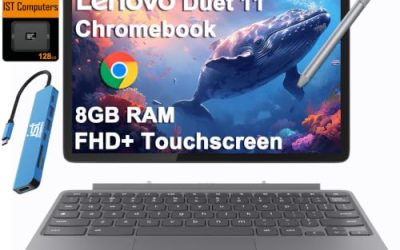
ChromeOS is the operating system on Chromebooks. ChromeOS Flex is a related version that can be installed on many older Windows and Mac laptops. Both are built around the browser, cloud apps, and fast, simple updates. They start quickly and need little maintenance.
ChromeOS suits web-first users: people who mainly use email, documents, video calls, streaming, and browser-based tools. It is also a strong choice for schools, shared family laptops, and older machines that feel slow under Windows. ChromeOS Flex can give an aging laptop several more useful years without a hardware upgrade.
Who should skip it? Anyone who depends on desktop software that has no web or Linux version should look elsewhere. ChromeOS supports Linux apps and Android apps on many devices, but that does not replace every Windows program. People who work offline often or need specialist desktop tools will find Linux or macOS more flexible.
macOS
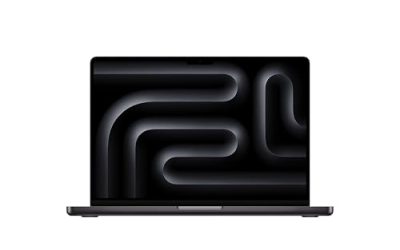
macOS is the operating system for Apple laptops, and it is the natural non-Windows choice if you already own a MacBook. It is polished, stable, and tightly integrated with Apple hardware, which gives it reliable battery life, good trackpad gestures, and consistent performance. It also works well with iPhone, iPad, and Apple services.
macOS suits creative professionals, students, office workers, and anyone who values a refined interface and a strong app ecosystem. It handles design, video, music, writing, and development well.
Who should skip it? People who do not own Apple hardware should not treat macOS as a general switching option, because it is not designed or licensed for most Windows laptops. If you already have a MacBook, though, macOS is usually the best non-Windows operating system for that laptop by a wide margin.
FreeBSD
FreeBSD is a free, open-source operating system known for stability, clean design, and strong networking. It is widely used on servers and in embedded systems, and it can also run on laptops. It gives advanced users a coherent, well-documented base system with a ports collection for installing software.
FreeBSD suits experienced users, system administrators, and anyone who wants to learn how an operating system works in depth. It is stable and predictable, and it appeals to people who prefer a minimal system they can build up exactly as they like.
Who should skip it? Almost everyone switching from Windows for the first time should skip FreeBSD as a daily laptop system. Laptop hardware support is narrower than Linux, desktop setup takes more manual work, and many everyday applications need extra configuration.
What to Check Before You Switch
A successful switch is mostly preparation. Before you install anything, back up your files to an external drive or cloud storage, including documents, photos, browser bookmarks, and any license keys you may need.
Next, test the new system from a live USB drive. Confirm that Wi-Fi, Bluetooth, sound, the webcam, and the trackpad work. Open your most important websites and files. If you use a printer or scanner, check whether it is supported. This test takes an hour and can save you days of frustration.
Decide whether to replace Windows completely or keep both systems. Dual booting lets you return to Windows when you need a specific program, but it adds complexity and takes up storage. Replacing Windows is simpler, but only do it after you are confident the new system meets your needs.
Finally, give yourself a trial week. Use the new system for real work, not just a quick tour. Note anything that slows you down, and search for a fix or an alternative before deciding the system is wrong.
Frequently Asked Questions
What is the best non-Windows operating system for an old laptop?
For most old laptops, Linux Mint or ChromeOS Flex is the best choice. Both are light on resources, start quickly, and handle everyday tasks well. Linux Mint is more flexible if you need desktop software, while ChromeOS Flex is simpler if most of your work happens in the browser.
Can I run Windows programs on Linux?
Some Windows programs run on Linux through compatibility tools such as Wine, and others have native Linux versions or web versions. Not every program works, though, and some run with reduced features. Check each essential program before switching, and consider dual booting if one critical tool has no good Linux option.
Is Linux hard to use for a beginner?
Modern Linux distributions are much easier than they used to be. Linux Mint and Ubuntu can be used entirely through graphical menus for browsing, documents, email, and software installation. You may need to learn a few new terms and settings, but most beginners settle in within a week.
Is ChromeOS Flex the same as ChromeOS?
They are closely related but not identical. ChromeOS runs on Chromebooks and includes full support for Android apps and Google Play on supported models. ChromeOS Flex is designed for older PCs and Macs, and it focuses on the core ChromeOS experience with web apps and Linux apps. It does not include Google Play support.
Can I switch back to Windows if I do not like the new system?
Yes, in most cases. If you kept Windows on a second partition, you can boot back into it. If you replaced Windows, you can reinstall it from a recovery drive or installation media, although you will need to reinstall your programs and restore your files from backup.
Bottom Line
The best non windows operating system for laptops depends on what you need it to do. Ubuntu and Linux Mint are the safest starting points for most people leaving Windows, with a familiar feel, broad software support, and a large community. ChromeOS Flex is the simplest way to revive an older laptop for web-first work. macOS is the clear choice on Apple hardware, and Fedora or Pop!_OS suit developers and creators who want modern tools. FreeBSD remains an excellent system for advanced users, but it is not a beginner switch.
Start with your hardware and your essential software, test your top choice from a live USB drive, and give it a real trial week. The right system is the one that fits your laptop, runs your tools, and feels comfortable after the novelty wears off.
Disclosure: As an Amazon Associate, we may earn from qualifying purchases.
Related guides
More from Amazon
Programs that pair well with the guide above. Offers and eligibility are set by Amazon and may change.
Free shipping on eligible items, Prime Video and more. Eligible new members can start with a free trial.
Start a Prime free trialAd-free music streaming. Eligible new subscribers can start with a free trial.
Try Music Unlimited freeA Prime membership for ages 18-24 with a trial period. Eligibility is set by Amazon.
See Prime for Young AdultsAudiobooks and podcasts to listen to on the go. Eligible new members can start with a free trial.
Try Audible freeAs an Amazon Associate we earn from qualifying purchases.
Write Your Review
No reviews yet. Be the first to share your experience!