
Our Short List of 3

- Best for: Editors and colorists who cut 4K footage daily and want a trustworthy screen built in. Watch out for: Storage and memory are not upgradeable later, so choose the configuration carefully.
- Specs:
- Apple M4 Pro chip with 14-core CPU and 20-core GPU
- 24GB unified memory
- 1TB SSD storage

- Best for: Windows filmmakers who want an OLED screen and strong GPU power in one machine. Watch out for: OLED panels can show burn-in with static interface elements over very long use, so vary your screen content.
- Specs:
- AMD Ryzen AI 9 HX 370 processor
- NVIDIA GeForce RTX 5070 graphics
- 32GB LPDDR5X memory
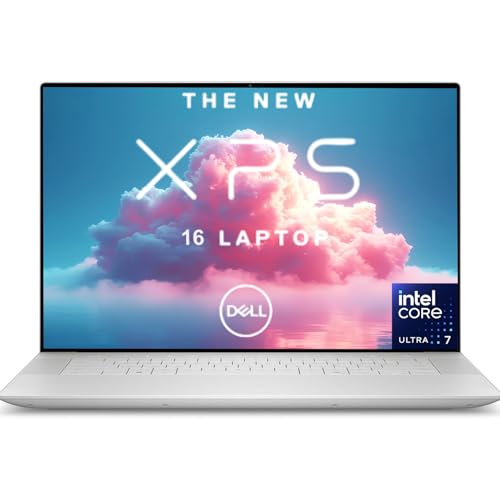
- Best for: Editors who want a big screen and lots of storage in a machine that still travels. Watch out for: 16GB of RAM can feel tight with heavy effects stacks, so keep background apps closed during big renders.
- Specs:
- Intel Core Ultra 7 155H processor
- NVIDIA GeForce RTX 4050 graphics
- 16GB RAM
All 3 Picks at a Glance
| Product | Specs | Action |
|---|---|---|
| Apple MacBook Pro 14 (M4 Pro) |
| Check price on Amazon |
| ASUS ProArt P16 |
| Check price on Amazon |
| Dell XPS 16 9640 |
| Check price on Amazon |
Key takeaways
- Find the best filmmaking laptops for editing, color grading, and on-set work — color-accurate screens, strong GPUs, and plenty of RAM.
What's inside
As an Amazon Associate I earn from qualifying purchases. This post may contain affiliate links at no extra cost to you.
A filmmaking laptop has to do two jobs at once: cut hours of footage without stuttering, and show color you can actually trust when you grade. A machine that is fine for writing emails can choke on a 4K timeline, drop frames during playback, or shift skin tones just enough to ruin a grade. The wrong screen costs you more than the wrong processor, because you only discover the problem after the export.
This guide is for independent filmmakers, YouTubers, and students who edit on the move and need a laptop that handles editing software, color work, and long renders. Every pick below was chosen from its name and specifications on the Amazon product page, with an emphasis on color-accurate displays, capable graphics, and generous memory.
Quick Picks
As an Amazon Associate we earn from qualifying purchases.
| Product | Best for | Key spec from title |
|---|---|---|
| Apple MacBook Pro 14 (M4 Pro) | Heavy 4K timelines and color grading | 14-core CPU, 20-core GPU, 24GB memory |
| ASUS ProArt P16 | Windows creators who want OLED color | Ryzen AI 9 HX 370, RTX 5070, 2.8K OLED touch |
| Dell XPS 16 9640 | Portable editing with a large screen | Intel Core Ultra 7 155H, RTX 4050, 2TB SSD |
| Lenovo ThinkPad P16v Gen 1 | Reliable workstation on a budget | Ryzen 7 PRO 7840HS, 32GB RAM, 1TB SSD |
| Apple MacBook Pro 14 (M4) | Everyday editing and travel shoots | 10-core CPU and GPU, 16GB memory, 512GB SSD |
How to Choose
Screen accuracy comes first
A filmmaking laptop lives or dies by its display. Look for a panel that covers a wide color gamut, such as DCI-P3, and holds brightness steady across the screen, because grading decisions made on a washed-out panel will not survive a cinema screen or a client monitor. OLED and mini-LED panels usually show deeper blacks and more honest contrast than basic IPS screens, which matters when you judge shadows and skin tones. Check the resolution too: a 2.8K or higher panel lets you view 4K footage at a usable scale while keeping your timeline and tools visible. If the listing does not name the gamut coverage, treat that as a warning sign and keep looking.
Graphics power sets your playback ceiling
Your GPU decides whether the timeline plays smoothly or stutters through every cut. Dedicated graphics, such as an RTX 4050 or stronger, handle effects, noise reduction, and GPU-accelerated encoding far better than integrated graphics alone. Apple silicon machines split the work differently, with the media engine doing much of the heavy lifting, so compare real editing performance rather than raw core counts across brands. Think about your codec as well: H.265 and ProRes timelines punish weak GPUs, while proxy workflows can rescue a modest machine. Buy the strongest graphics you can afford, because effects stacks only grow heavier over a project.
Memory and storage decide your workflow
Sixteen gigabytes of RAM is the floor for serious editing, and 32GB is the safer choice if you run an editor, a color tool, and a browser full of reference tabs at the same time. Storage matters just as much: a 512GB drive fills fast once you count raw footage, caches, and exports, so a 1TB or 2TB drive gives you room to work without juggling external drives on set. Fast NVMe storage also speeds up media imports and timeline scrubbing, which adds up across a long edit. Check whether the machine lets you add storage later, since soldered drives lock you into whatever you buy on day one.
Ports, cooling, and battery shape the shoot day
A laptop that edits well in a studio can still fail on location. Look for Thunderbolt or USB4 ports for fast external drives and monitors, an HDMI port for a client display, and an SD card slot so you can ingest footage without a dongle bag. Cooling matters because a thin machine that throttles under a long render will finish slower than a slightly heavier one that holds its clocks. Battery life counts when you review takes on set, so check the listing for real-world battery claims and plan around them. Weight is the last trade-off: a 16-inch workstation edits beautifully but tires your shoulder on a travel day.
The 5 Best Options
Apple MacBook Pro 14 (M4 Pro)
- Best for: Editors and colorists who cut 4K footage daily and want a trustworthy screen built in. Watch out for: Storage and memory are not upgradeable later, so choose the configuration carefully.
- Specs:
- Apple M4 Pro chip with 14-core CPU and 20-core GPU
- 24GB unified memory
- 1TB SSD storage
Editors and colorists who cut 4K footage daily and want a trustworthy screen built in. Watch out for: Storage and memory are not upgradeable later, so choose the configuration carefully.
Storage and memory are not upgradeable later, so choose the configuration carefully.
The MacBook Pro 14 with the M4 Pro chip is the most capable editing laptop in this roundup, built around a 14-core CPU and a 20-core GPU with 24GB of unified memory and a 1TB SSD. Its Liquid Retina XDR display is the reason colorists trust it: deep blacks, strong brightness, and wide P3 coverage make grading decisions reliable without an external monitor. Final Cut Pro and DaVinci Resolve both run smoothly on this hardware, and the media engine accelerates ProRes work in a way that few Windows machines match. It stays quiet under load and holds battery life well for a machine this powerful.
ASUS ProArt P16
- Best for: Windows filmmakers who want an OLED screen and strong GPU power in one machine. Watch out for: OLED panels can show burn-in with static interface elements over very long use, so vary your screen content.
- Specs:
- AMD Ryzen AI 9 HX 370 processor
- NVIDIA GeForce RTX 5070 graphics
- 32GB LPDDR5X memory
Windows filmmakers who want an OLED screen and strong GPU power in one machine. Watch out for: OLED panels can show burn-in with static interface elements over very long use, so vary your screen content.
OLED panels can show burn-in with static interface elements over very long use, so vary your screen content.
The ASUS ProArt P16 is the Windows answer to a color-accurate editing laptop, pairing a Ryzen AI 9 HX 370 processor with an RTX 5070 graphics card, 32GB of LPDDR5X memory, and a 2TB SSD. Its 16-inch 2.8K OLED touchscreen shows rich contrast and accurate color, which is exactly what grading work demands, and the touch panel is handy for scrubbing timelines and tapping tools. The generous memory and storage mean you can keep large projects local, and the RTX graphics handle effects and AI-assisted tools in modern editors. It ships with Windows 11 Pro, which suits creators who also need professional software and domain features.
Dell XPS 16 9640
- Best for: Editors who want a big screen and lots of storage in a machine that still travels. Watch out for: 16GB of RAM can feel tight with heavy effects stacks, so keep background apps closed during big renders.
- Specs:
- Intel Core Ultra 7 155H processor
- NVIDIA GeForce RTX 4050 graphics
- 16GB RAM
Editors who want a big screen and lots of storage in a machine that still travels. Watch out for: 16GB of RAM can feel tight with heavy effects stacks, so keep background apps closed during big renders.
16GB of RAM can feel tight with heavy effects stacks, so keep background apps closed during big renders.
The Dell XPS 16 9640 balances a large editing canvas with a portable frame, running an Intel Core Ultra 7 155H processor and an RTX 4050 graphics card with 16GB of RAM. Its 2TB SSD gives you room for current projects, and the listing also includes 512GB of external storage for archiving footage. The 16-inch display offers plenty of room for a timeline plus preview and scopes, which keeps you from constantly resizing panels. It is a good fit for creators who edit at a desk most days but still need to carry the machine to a shoot or a client review.
Lenovo ThinkPad P16v Gen 1
The Lenovo ThinkPad P16v Gen 1 is a mobile workstation built for long, demanding edit sessions, with a Ryzen 7 PRO 7840HS processor, 32GB of RAM, and a 1TB SSD. The PRO-series chip and workstation heritage show up in stability: this is the kind of machine that keeps rendering through the night without drama. The WUXGA display is practical rather than flashy, so pair it with an external color-accurate monitor for final grading, and use the laptop screen for cutting and assembly. The keyboard is excellent for long scripting and logging sessions, and the build is made to survive years of travel.
- Specs:
- AMD Ryzen 7 PRO 7840HS processor
- 32GB RAM
- 1TB SSD storage
- 16-inch WUXGA display
- Best for: Filmmakers who need a dependable workstation with plenty of memory for long projects.
- Watch out for: The WUXGA panel is not ideal for final color grading, so budget for an external monitor.
ASIN: B0D6GXNNH5
Apple MacBook Pro 14 (M4)
The base MacBook Pro 14 with the M4 chip covers the everyday side of filmmaking: a 10-core CPU and 10-core GPU, 16GB of unified memory, and a 512GB SSD in the same Space Black body as its Pro sibling. It handles 1080p and light 4K editing, proxy workflows, and short-form content without breaking a sweat, and the Liquid Retina XDR display gives you the same trustworthy color as the pricier model. It is the lightest way into the MacBook Pro line, which makes it a sensible pick for students, travel shooters, and creators who edit mostly short pieces. Keep projects on external storage to make the 512GB drive last.
- Specs:
- Apple M4 chip with 10-core CPU and 10-core GPU
- 16GB unified memory
- 512GB SSD storage
- 14.2-inch Liquid Retina XDR display
- Space Black finish
- Best for: Students and travel filmmakers who need a capable, portable editor with a great screen.
- Watch out for: The 512GB drive fills quickly with raw footage, so plan on external storage from the start.
ASIN: B0DLHXVCXJ
Which One Fits Your Situation
You grade color for clients
Choose the MacBook Pro 14 with M4 Pro or the ASUS ProArt P16. Both screens show color you can trust, and both have the graphics muscle to run scopes, nodes, and noise reduction without stuttering. The MacBook suits a Final Cut or Resolve workflow, while the ProArt fits editors who live in Premiere and other Windows tools. Either way, calibrate the panel and check your grade on a second display before delivery.
You edit long documentaries on a budget
Pick the Lenovo ThinkPad P16v Gen 1. Its 32GB of memory keeps long timelines responsive, and the workstation build is made for sustained loads across months of editing. Use proxies for 4K footage, keep your media on fast external drives, and reserve an external monitor for the final color pass. The money you save can go toward storage and a proper grading display.
You shoot and edit while traveling
Take the base MacBook Pro 14 with the M4 chip. It is light enough to carry all day, quiet enough to review takes on set, and its battery lasts through a long shooting schedule. Edit with proxies on the road, keep footage on a fast external SSD, and do the final grade back at your desk. The screen is good enough that you can trust what you see even without a monitor.
You need one Windows machine for everything
Go with the ASUS ProArt P16 if color accuracy matters most, or the Dell XPS 16 if you want maximum storage and a bigger canvas. The ProArt wins on screen quality and graphics power, while the XPS wins on storage space and a simpler setup. Both handle editing, grading, and delivery, so the deciding factor is whether the OLED panel or the extra storage serves your projects better.
Common Mistakes
- Buying a laptop for its processor and ignoring the screen, then discovering the grade looks wrong everywhere else.
- Choosing 8GB of RAM to save money, then watching the editor crawl once effects and reference apps pile up.
- Filling a small SSD with raw footage and having nowhere to put caches, exports, or the next shoot.
- Editing heavy codecs natively instead of using proxies, and blaming the laptop for the stutter.
- Skipping a backup plan and losing a project to a single failed drive.
Frequently Asked Questions
How much RAM do I need for filmmaking?
Sixteen gigabytes is the minimum for smooth editing of 1080p and light 4K projects, and it works well if you close background apps and use proxies. Thirty-two gigabytes is the safer choice for 4K timelines, color grading, and multitasking, because modern editors, scopes, and effects all compete for memory. If you cannot upgrade later, buy more RAM than you think you need today.
Is a dedicated GPU necessary for video editing?
A dedicated GPU helps a lot with effects, noise reduction, stabilization, and encoding, and it makes playback smoother on complex timelines. Apple silicon machines are an exception, since their media engines handle much of that work efficiently. Integrated graphics can still work if you edit with proxies and keep effects light, but you will feel the limit sooner.
Does an OLED screen help with color grading?
Yes, OLED panels show deeper blacks and stronger contrast than most standard screens, which makes it easier to judge shadows and skin tones. That advantage only matters if the panel is color accurate and calibrated, so check the gamut coverage in the listing. Keep in mind that static interface elements can cause burn-in over very long periods.
Should I edit 4K footage natively or use proxies?
Proxies are the practical choice on most laptops, because they let the timeline play smoothly even when the original files are heavy. Native editing works on strong machines with fast storage, but it raises the hardware bar and slows down effects work. Many editors cut with proxies and switch to full-resolution files only for the final grade and export.
Related guides
More from Amazon
Programs that pair well with the guide above. Offers and eligibility are set by Amazon and may change.
Free shipping on eligible items, Prime Video and more. Eligible new members can start with a free trial.
Start a Prime free trialAd-free music streaming. Eligible new subscribers can start with a free trial.
Try Music Unlimited freeA Prime membership for ages 18-24 with a trial period. Eligibility is set by Amazon.
See Prime for Young AdultsAudiobooks and podcasts to listen to on the go. Eligible new members can start with a free trial.
Try Audible freeAs an Amazon Associate we earn from qualifying purchases.
Write Your Review
No reviews yet. Be the first to share your experience!