
Key takeaways
- The best laptops for Unity game development balance a strong CPU, a capable GPU, plenty of RAM and fast storage for large scenes and long builds.
What's inside
As an Amazon Associate I earn from qualifying purchases. This post may contain affiliate links at no extra cost to you.
Unity developers face a real hardware decision: the editor, the game view, and a build can all run at once, and a laptop that stutters in the editor wastes hours across a project. The choice is not about the flashiest graphics card alone; it is about a balanced machine that keeps compile times short, scenes loading fast, and playtests smooth.
This guide is for indie developers shipping a first game, students learning Unity, hobbyists prototyping in 3D, and small teams working from a laptop as their main machine. The laptops below were chosen from names and specifications on their Amazon pages, with an eye on CPU cores for builds, GPU power for the game view, memory for large scenes, and storage speed for project files.
Quick Picks
As an Amazon Associate we earn from qualifying purchases
| Product | Best for | Key spec from title |
|---|---|---|
| Lenovo Legion Pro 5i Gen 9 | Large 3D projects with big scenes | RTX 4070, 64GB DDR5, 8TB SSD |
| ASUS ROG Strix G16 | Balanced editor and playtest work | RTX 4060, i7-13650HX, 1TB SSD |
| MSI Katana 15 | RTX 4070 graphics on a tighter budget | RTX 4070, i7-13620H, 1TB NVMe |
| Acer Nitro 16 | Long sessions with strong cooling | RTX 4060, Ryzen 7 7840HS, 1TB SSD |
How to Choose
Put the CPU first for builds and baking
Unity compiles scripts, bakes lighting, and imports assets on the CPU, so core count and clock speed shape how long you wait between changes. A modern 10-core or 14-core laptop processor keeps the editor responsive while a build runs in the background, which matters when iterating on gameplay all day. Look for a recent HX-series Intel chip or an 8-core Ryzen 7, and check the listing for the exact model number rather than a vague family name. A laptop that only lists a base clock without a boost figure leaves you guessing, so favor listings that state both numbers clearly.
Match the GPU to the game view and target platform
The GPU drives the Scene view, the Game view, and playtests, and it matters most when a project uses real-time lighting, shadows, or high-resolution textures. An RTX 4060 handles most 2D and stylized 3D work comfortably, while an RTX 4070 gives extra headroom for heavier 3D scenes and higher frame rates during playtesting. Check the listed graphics memory, since 8GB of dedicated video memory is the practical floor for modern 3D work. If the listing only says dedicated graphics without naming the chip, treat that as a gap and look elsewhere for a clearer specification.
Buy enough RAM and fast storage for large scenes
Unity projects grow quickly once textures, audio, and imported packages pile up, and 16GB of RAM is the starting point for serious work rather than the ceiling. A machine with 32GB or 64GB keeps large scenes open alongside a browser, a code editor, and a build without swapping to disk. Storage matters just as much: a 1TB PCIe Gen4 SSD loads projects and asset libraries far faster than an older drive, and a second M.2 slot lets you add space later. Check whether the listing states the RAM type and speed, and whether the memory can be upgraded after purchase.
Check thermals, the display, and the ports
Long builds and playtests push a laptop hard for hours, so cooling decides whether performance holds up or throttles halfway through a session. Look for listings that name the cooling system, such as dual fans, extra heat pipes, or liquid metal on the processor, and read the listed weight if the machine will travel between home and class or work. A bright, color-accurate display helps when judging lighting and materials, so note the listed refresh rate and color coverage. Finally, count the ports: an HDMI output, a USB-C port with display support, and Ethernet cover most desk setups without a hub.
The 5 Best Options
Lenovo Legion Pro 5i Gen 9

The Legion Pro 5i Gen 9 is the strongest machine in this group for developers working on large Unity projects. Its 24-core processor chews through script compiles and light bakes, while 64GB of memory keeps big scenes, a code editor, and a running build open at the same time. The 8TB of solid-state storage leaves room for multiple projects, asset libraries, and engine versions without constant cleanup. A fast 240Hz display makes playtesting feel smooth, and the six USB ports cover controllers, headsets, and external drives without a hub.
Specs
- Intel Core i9-14900HX processor, 24 cores, up to 5.8 GHz
- NVIDIA GeForce RTX 4070 graphics, 8GB GDDR6
- 64GB DDR5 RAM
- 8TB PCIe SSD storage
- 16-inch WQXGA display, 2560 x 1600, 240Hz, 500 nits
- Windows 11 Pro
- Wi-Fi 6E, 6 USB ports, HDMI, Ethernet
- Nahimic Audio
Best for: developers with large 3D Unity projects who need maximum memory and storage.
Watch out for: the listing states the seal is opened for an upgrade, so confirm the upgrade details and warranty terms before buying.
ASUS ROG Strix G16

The Strix G16 is a balanced pick for Unity developers who want strong playtest performance without carrying the heaviest machine in the group. Its 14-core processor and RTX 4060 graphics handle stylized 3D scenes and real-time lighting well, while the 1TB Gen4 drive keeps project load times short. Cooling gets real attention here, with liquid metal on the processor and a third intake fan that help the machine hold performance during long sessions. The 165Hz display is sharp enough for judging motion and animation in the game view, and the 90Wh battery gives useful unplugged time for lighter work.
Specs
- 13th Gen Intel Core i7-13650HX processor, 14 cores, up to 5.0 GHz
- NVIDIA GeForce RTX 4060 Laptop GPU at 140W Max TGP, 8GB
- 16GB DDR5-4800MHz memory
- 1TB PCIe Gen4 SSD
- 16-inch FHD 165Hz display with sRGB color coverage and Pantone Validation
- ROG Intelligent Cooling with liquid metal on the CPU and a third intake fan
- 90Wh battery, Wi-Fi 6E, Thunderbolt port
- Windows 11 Home
Best for: developers who want a balanced editor and playtest machine with strong cooling.
Watch out for: 16GB of memory is the starting point for Unity work, so plan a memory upgrade if scenes grow large.
MSI Katana 15
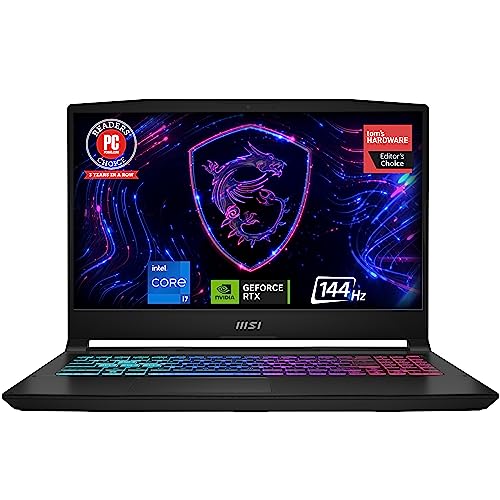
The Katana 15 pairs an RTX 4070 with a straightforward 15.6-inch design, making it a strong value choice for developers who want more graphics headroom than the RTX 4060 machines offer. Its 10-core processor keeps the editor responsive while builds run, and the 1TB NVMe drive holds a working project with room to spare. The Cooler Boost 5 system and Thunderbolt 4 port round out a practical package, and the memory can grow to 64GB when large scenes demand more. It has the smallest screen in this group, which suits a smaller desk, and the 144Hz panel keeps playtests smooth enough for everyday tuning.
Specs
- Intel Core i7-13620H processor, 10 cores, up to 4.9 GHz
- NVIDIA GeForce RTX 4070 graphics, GDDR6
- 16GB DDR5 RAM, expandable to 64GB
- 1TB NVMe SSD
- 15.6-inch FHD 144Hz display
- Thunderbolt 4 and USB Type-C
- Cooler Boost 5 cooling
- Windows 11 Home
Best for: developers who want RTX 4070 graphics at a lower outlay than the flagship picks.
Watch out for: the 53.5Wh battery is modest, so keep the charger nearby during long build sessions.
Acer Nitro 16

The Nitro 16 brings an AMD processor into the group, and its 8-core Ryzen 7 chip pairs well with the RTX 4060 for both editor work and playtests. The 16-inch WUXGA display runs at 165Hz, which keeps motion smooth when testing fast gameplay, and the 1TB Gen4 drive loads large projects quickly. Cooling is a highlight, with dual fans, dual intakes, a quad-exhaust design, and liquid metal thermal grease moving heat away from the processor. Killer Ethernet and Wi-Fi 6E keep online collaboration and asset downloads moving, and the full port selection covers most desk setups.
Specs
- AMD Ryzen 7 7840HS octa-core processor, up to 5.1 GHz
- NVIDIA GeForce RTX 4060 Laptop GPU
- 16GB DDR5 memory
- 1TB PCIe Gen 4 SSD
- 16-inch WUXGA display, 1920 x 1200, 165Hz IPS
- Wi-Fi 6E and Killer Ethernet E2600
- Dual-fan cooling with liquid metal thermal grease
- HDMI 2.1, USB4, MicroSD card reader, 4-zone RGB keyboard
Best for: developers who prefer AMD and want strong cooling for long Unity sessions.
Watch out for: the listing is a bundle that includes a USB webcam, so check exactly what ships in the box.
Which One Fits Your Situation
You are building large 3D worlds
Choose the Legion Pro 5i Gen 9. Its 64GB of memory and 8TB of storage handle the biggest scenes, the most imported assets, and several engine versions side by side, while the 24-core processor keeps light bakes moving. It is the pick when waiting on the editor costs more than the machine itself.
You are learning Unity or shipping a first game
Pick the ASUS ROG Strix G16. It balances a capable processor, an RTX 4060, and fast storage in a machine that handles 2D work and stylized 3D without fuss. The cooling system holds up during long learning sessions, and the 165Hz display makes playtests easy to judge. Start here and upgrade the memory later if projects grow.
You need the most graphics power for the money
Go with the MSI Katana 15. It is the least expensive way in this group to get an RTX 4070, which pays off when playtesting heavier 3D scenes at higher frame rates. The 10-core processor and 1TB drive cover daily editor work, and the memory can grow to 64GB later. Accept the smaller battery and keep the charger close.
You work long sessions and care about cooling
Take the Acer Nitro 16. Its dual-fan, quad-exhaust cooling with liquid metal suits developers who run the editor for hours, and the AMD processor and RTX 4060 handle daily Unity work well. The 165Hz display and fast storage round out a machine built for sustained sessions rather than short bursts.
Common Mistakes
- Buying on graphics alone and pairing a strong GPU with too little RAM, which leaves large scenes swapping to disk.
- Choosing a 512GB drive for a Unity workflow, then running out of room once engine versions, assets, and builds pile up.
- Ignoring thermals and picking a thin machine that throttles during long builds and playtests.
- Forgetting to check whether the memory and storage can be upgraded before the machine arrives.
- Picking a display with poor color accuracy and judging lighting and materials on a screen that hides the difference.
Frequently Asked Questions
How much RAM do I need for Unity development?
16GB is the practical starting point for learning Unity and small projects. Once scenes grow, or a browser, a code editor, and a build run at the same time, 32GB feels far more comfortable. For large 3D worlds with heavy asset libraries, 64GB removes memory pressure almost entirely. Check whether the listing says the memory can be upgraded later.
Is an RTX 4060 enough for Unity?
For most Unity work, yes. An RTX 4060 handles 2D games, stylized 3D, and moderate real-time lighting with room to spare, and its 8GB of video memory suits modern projects. Developers working with dense 3D scenes, heavy shadows, or high-resolution textures will feel the difference an RTX 4070 makes during playtests. Match the card to the heaviest scene you plan to build.
Do I need a high refresh rate display for Unity?
A high refresh rate is helpful but not essential. A 144Hz or 165Hz display makes playtests smoother and motion easier to judge, which matters when tuning movement and animation. For scripting, scene layout, and asset work, the display’s color accuracy and brightness matter more than its refresh rate. A sharp 120Hz or higher panel is a good baseline for development work.
Can I use a gaming laptop as my only Unity machine?
Yes, and many developers do. A gaming laptop combines a strong processor, a capable graphics card, and fast storage in one portable machine, which covers the editor, playtests, and builds. The trade-offs are weight, fan noise during long sessions, and shorter battery life under load. Pair it with an external monitor and keyboard at a desk for the most comfortable setup.
Related guides
More from Amazon
Programs that pair well with the guide above. Offers and eligibility are set by Amazon and may change.
Free shipping on eligible items, Prime Video and more. Eligible new members can start with a free trial.
Start a Prime free trialAd-free music streaming. Eligible new subscribers can start with a free trial.
Try Music Unlimited freeA Prime membership for ages 18-24 with a trial period. Eligibility is set by Amazon.
See Prime for Young AdultsAudiobooks and podcasts to listen to on the go. Eligible new members can start with a free trial.
Try Audible freeAs an Amazon Associate we earn from qualifying purchases.

Write Your Review
No reviews yet. Be the first to share your experience!