
Our Short List of 3

- Processor: MediaTek Kompanio 520 octa-core
- RAM: 4GB LPDDR4X
- Storage: 64GB eMMC
- Display: 14-inch HD (1366 x 768) anti-glare
- Processor: Intel Celeron N4120 quad-core
- RAM: 4GB LPDDR4
- Storage: 64GB eMMC
- Display: 14-inch HD (1366 x 768) micro-edge anti-glare

- Processor: Intel Celeron N4020 dual-core
- RAM: 4GB DDR4
- Storage: 64GB
- Display: 14-inch HD (1366 x 768)
All 5 Picks at a Glance
| Product | Specs | Action |
|---|---|---|
| Lenovo IdeaPad Slim 3 Chromebook |
| Check price on Amazon |
| HP Chromebook 14a |
| Check price on Amazon |
| Lenovo IdeaPad 1 14 |
| Check price on Amazon |
 ASUS Chromebook CX1 |
| Check price on Amazon |
 Lenovo IdeaPad 3 Chromebook 11 |
| Check price on Amazon |
Key takeaways
- Compare the best laptops for programming in the entry tier: Chromebooks and budget Windows models that run web IDEs, VS Code, Linux apps and WSL.
What's inside
As an Amazon Associate I earn from qualifying purchases. This post may contain affiliate links at no extra cost to you.
Learning to program does not require a workstation. Most beginner and intermediate coding work — writing scripts, building small web apps, working through coursework, practising data structures, editing configuration files — happens inside a text editor and a browser, and modern entry-tier laptops handle that comfortably when they are chosen well. This guide covers the entry class of the market: Chromebooks and budget Windows laptops that can run browser-based development environments, lightweight editors and a real Linux command line, so a new programmer can write, run and debug code from day one without overspending on hardware they will not use yet.
One boundary is worth stating up front. This site already has a guide dedicated to Java programming laptops and another aimed at software engineering students, and those cover heavier compiled workloads and degree-level toolchains. This article is deliberately narrower: general-purpose programming in the entry tier, where the winning formula is a decent keyboard, a screen you can read code on for hours, enough memory for an editor plus browser tabs, and an operating system that gives you a genuine terminal. Every pick below is a laptop and nothing else, and every pick supports at least one real coding path — a browser IDE, the Linux environment built into ChromeOS, or Windows with its Linux subsystem.
As an Amazon Associate, we earn from qualifying purchases.
What Programming Looks Like in This Tier
Programming at this level splits into three working styles, and the right laptop depends on which one matches your learning path.
The first style is browser-based development. Tools such as GitHub Codespaces, Replit, Gitpod and CodePen run the heavy machinery on remote servers, so the laptop only needs a capable browser and a stable connection. Any machine in this guide can do this well, because the compiling and testing happen elsewhere.
The second style is local development inside the Linux environment that ChromeOS includes, often called Crostini. Enabling it takes a few clicks in settings, and it provides a Debian-based container with a terminal, package manager and room for editors such as VS Code, plus languages like Python, Node.js and C toolchains installed locally. It turns an inexpensive Chromebook into a surprisingly honest coding machine for learning and small projects.
The third style is Windows-based development. A budget Windows laptop runs editors natively and can use the Windows Subsystem for Linux, which provides a Linux terminal and tools alongside Windows applications. Storage and memory are tighter at this level, so this path suits learners who need Windows software for class while they build coding skills in a Linux shell.
What this tier cannot do comfortably is heavy local work: large compiled projects, Android Studio with an emulator running, Docker stacks with several containers, or local machine-learning training. Those workloads want far more memory and processing power. For learning, coursework, web development and scripting, though, the machines below are genuinely capable.
Lenovo IdeaPad Slim 3 Chromebook
- Processor: MediaTek Kompanio 520 octa-core
- RAM: 4GB LPDDR4X
- Storage: 64GB eMMC
- Display: 14-inch HD (1366 x 768) anti-glare
The IdeaPad Slim 3 Chromebook is the strongest all-round coding pick in this class because its processor is a step above the entry Celeron chips found in most rivals. The MediaTek Kompanio 520 is an octa-core chip that keeps the Chrome browser responsive with documentation, a cloud IDE and a video lesson open at once, and it runs the built-in Linux environment smoothly enough for VS Code and small Python or JavaScript projects.
The long battery life matters for programmers who work in libraries, classrooms and cafés where outlets are contested, and the light chassis makes it easy to carry everywhere — code gets written in spare moments, and a laptop that is always with you wins. The HD screen is the main compromise; code is perfectly legible, though you will scroll more than on a sharper panel. Storage fills quickly once the Linux container, an editor and a few projects are installed, so keep media and downloads in cloud storage and treat the internal drive as a workspace. For a first programming laptop that balances speed, endurance and portability, this is the one to beat.
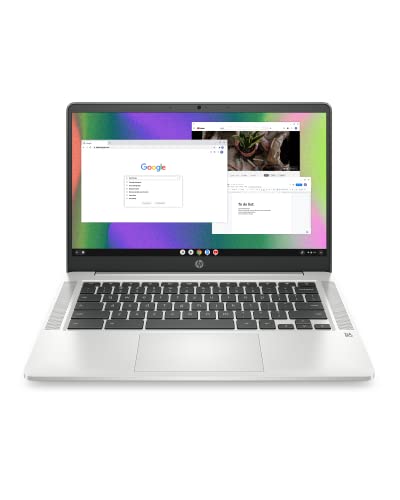
HP Chromebook 14a
- Processor: Intel Celeron N4120 quad-core
- RAM: 4GB LPDDR4
- Storage: 64GB eMMC
- Display: 14-inch HD (1366 x 768) micro-edge anti-glare
The HP Chromebook 14a takes a different route to the same destination: an Intel Celeron N4120 quad-core processor instead of an ARM chip. That matters for coding because the Linux environment on an Intel Chromebook runs the widest range of prebuilt tools and packages without architecture surprises, which removes a whole category of beginner frustration when following tutorials written for standard Linux machines.
Battery endurance is the headline here, stretching across a full day of classes and an evening study session. The 14-inch screen gives code more breathing room than the smaller models in this guide, and the keyboard deck is roomy enough for long typing sessions. Performance is modest — keep the Linux container focused on one editor and a terminal rather than several heavy applications at once — but for learning Python, web development with HTML, CSS and JavaScript, and working through online courses, it covers the syllabus without complaint. It is the sensible pick for a student whose coding happens inside a browser and a Linux terminal all day long.
Lenovo IdeaPad 1 14
- Processor: Intel Celeron N4020 dual-core
- RAM: 4GB DDR4
- Storage: 64GB
- Display: 14-inch HD (1366 x 768)
The IdeaPad 1 14 is the Windows option in this lineup, and it exists for learners whose courses or workplaces expect Windows software. It runs Windows in S Mode out of the box; switching out of S Mode is a one-time, no-cost step in the Microsoft Store, and it is the step that unlocks full programming setups — standalone editors, Python and Node.js installers, Git for Windows, and the Windows Subsystem for Linux for a proper Linux terminal beside your Windows desktop.
The dual-core processor is the slowest in this guide, so set expectations accordingly: it edits and runs learning-scale code happily, but big installs and updates take patience, and multitasking should stay disciplined. In return you get the broadest software compatibility of any pick here, including desktop applications that ChromeOS cannot run and coursework tools that assume Windows. The 64GB of storage demands housekeeping — install the tools you actually use, keep projects lean, and lean on cloud storage for everything else. Choose this one when Windows itself is a requirement and programming is the skill you are building alongside it.
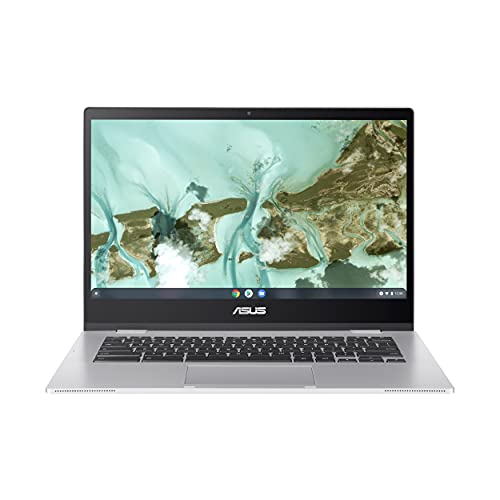
ASUS Chromebook CX1
- Processor: Intel Celeron N3350 dual-core
- RAM: 4GB
- Storage: 64GB eMMC
- Display: 14-inch Full HD (1920 x 1080) IPS NanoEdge anti-glare
The ASUS Chromebook CX1 is the pick for programmers who read code all day and feel screen quality in their eyes by evening. Its 14-inch Full HD IPS panel is noticeably sharper than the HD screens elsewhere in this class, so more lines of code fit on screen at a comfortable size, side-by-side files are practical, and text stays crisp during long debugging sessions. For a machine bought primarily as a reading and writing tool for code, that panel alone justifies its position at the top of this tier.
The Celeron N3350 is an older, slower chip than the processors in the Lenovo and HP picks above, so this machine trades raw speed for its display and build. Browser IDEs and cloud development environments hide that weakness almost completely, since the computing happens remotely, and the local Linux environment still handles editors and interpreters for learning projects. The military-grade durability rating and spill-resistant keyboard suit a laptop that will be carried in a backpack daily and used wherever a seat is free. If your coding is mostly cloud-based and your sessions are long, the screen and the toughness make this the most comfortable machine in the class.
Lenovo IdeaPad 3 Chromebook 11
- Processor: Intel Celeron N4020 dual-core
- RAM: 4GB LPDDR4
- Storage: 64GB eMMC
- Display: 11.6-inch HD (1366 x 768)
The IdeaPad 3 Chromebook 11 is the smallest and lightest machine in this guide, built for programmers who want a coding companion they can take absolutely everywhere. Its 11.6-inch footprint slips into bags that a 14-inch laptop cannot, and at roughly two and a half pounds it disappears on your shoulder — the kind of machine that actually gets carried to the library, the bus and the park bench where practice happens.
The Intel processor gives it the same friendly Linux environment as the HP above, so tutorials, packages and tools behave as expected, and 64GB of storage is generous for this size class. The compromises are the small screen and compact keyboard: long sessions are better with breaks, and touch typists with large hands may find the keys snug. As a dedicated learning machine for Python practice, web development exercises and coursework — especially for younger students or anyone buying a second, ultra-portable computer for coding — it does the job with the least bulk and fuss in the lineup.
How to Choose
Start with the operating system, because it decides your coding path. ChromeOS with its Linux environment is the simplest route for most learners: setup takes minutes, updates are automatic, battery life is long, and the terminal is real. Windows is the right choice only when you specifically need Windows applications or your course requires them; in this tier it runs with less headroom, so it rewards patience.
Next, look at the processor. Quad-core and octa-core chips keep a browser full of documentation tabs and a cloud IDE feeling responsive, while older dual-core chips are best paired with cloud tools where the heavy work happens remotely. All of the picks here can edit and run learning-scale code; none of them will compile large projects quickly, and that is an acceptable trade at this level.
Memory is fixed at 4GB across this class, so manage it rather than fight it: one editor, one terminal, and a reasonable number of browser tabs. Storage is the other constraint — 64GB fills fast once a Linux environment is installed, so keep projects in version control with an online backup, and store media elsewhere. A microSD card or cloud drive is a cheap pressure valve on machines that support expansion.
Screen choice shapes daily comfort more than any other specification. A Full HD panel shows more code with less scrolling and is worth prioritising if your sessions are long and mostly cloud-based. HD panels are fine for learning and keep battery drain low. Finally, weigh battery life and weight honestly: a programming laptop only helps you if it is charged and present, so the machine that fits your bag and your day is the machine you will actually learn on.
Frequently Asked Questions
Can a laptop in this entry tier really handle programming?
Yes, for the work most learners actually do. Writing and running Python, JavaScript, HTML and CSS, working through tutorials, and building small projects all run comfortably in a browser IDE or a lightweight local editor. The limits appear with heavy compiled projects, virtual machines, Android emulation and large local datasets, which are advanced workloads that call for a more powerful machine later.
Is a Chromebook or a budget Windows laptop better for coding?
For most beginners, a Chromebook with its Linux environment enabled is the smoother experience in this tier: it starts fast, lasts longer on battery, and provides a genuine Linux terminal for editors and command-line tools. A budget Windows laptop is better when coursework or software requires Windows itself, or when you want the Windows Subsystem for Linux alongside Windows applications, accepting slower performance in exchange for compatibility.
How much RAM and storage does beginner programming need?
The 4GB of memory fitted across this class is workable for an editor, a terminal and a browser with a handful of tabs, provided you keep background applications closed. For storage, 64GB is the practical floor once a Linux environment, an editor and language tools are installed; keep projects backed up online and avoid storing large media files locally so the workspace never chokes.
Which tools work best for coding on entry-level hardware?
Browser-based environments such as GitHub Codespaces, Replit and Gitpod are ideal because remote servers do the compiling while the laptop only runs the browser. Locally, VS Code runs well in the ChromeOS Linux environment and on Windows, and lightweight editors plus Python, Node.js and Git cover the vast majority of learning material without straining the hardware.
Final Verdict
Every laptop in this guide can take a beginner from their first script to real projects, and the best choice is the one that matches how you will code. The Lenovo IdeaPad Slim 3 Chromebook is the strongest all-rounder, pairing the quickest processor in the class with outstanding battery life. The HP Chromebook 14a is the endurance pick for all-day study, the Lenovo IdeaPad 1 14 serves learners who must have Windows, the ASUS Chromebook CX1 rewards long reading sessions with its sharper screen and tougher build, and the little IdeaPad 3 Chromebook 11 is the carry-everywhere practice machine. Pick the workflow first — cloud IDE, Linux container or Windows — and the right machine from this list follows naturally.
Product and ASIN Reference
| Product | ASIN |
|---|---|
| Lenovo IdeaPad Slim 3 Chromebook (82XJ0026US) | B0D5HZVQDL |
| HP Chromebook 14a (14a-na0226nr) | B09SVSBVP1 |
| Lenovo IdeaPad 1 14 (81VU0079US) | B08YKHYCPW |
| ASUS Chromebook CX1 (CX1400CNA-AS44FV) | B098KSXTFH |
| Lenovo IdeaPad 3 Chromebook 11 (82BA0003US) | B087YW8FQB |
Related guides
More from Amazon
Programs that pair well with the guide above. Offers and eligibility are set by Amazon and may change.
Free shipping on eligible items, Prime Video and more. Eligible new members can start with a free trial.
Start a Prime free trialAd-free music streaming. Eligible new subscribers can start with a free trial.
Try Music Unlimited freeA Prime membership for ages 18-24 with a trial period. Eligibility is set by Amazon.
See Prime for Young AdultsAudiobooks and podcasts to listen to on the go. Eligible new members can start with a free trial.
Try Audible freeAs an Amazon Associate we earn from qualifying purchases.
Write Your Review
No reviews yet. Be the first to share your experience!