
Our Short List of 3

- Best for: macOS users who want two external displays with the laptop screen still on.
- 13.6-inch Liquid Retina display, 2560-by-1664 native resolution
- Apple M4 chip
- 16GB unified memory
- 256GB SSD storage

- Best for: anyone who wants a large built-in screen alongside two external monitors.
- 17-inch WQXGA IPS display, 2560 x 1600, 99% DCI-P3
- 13th Gen Intel Core i7 Evo platform
- 32GB LPDDR5 RAM
- 2TB NVMe Gen4 SSD
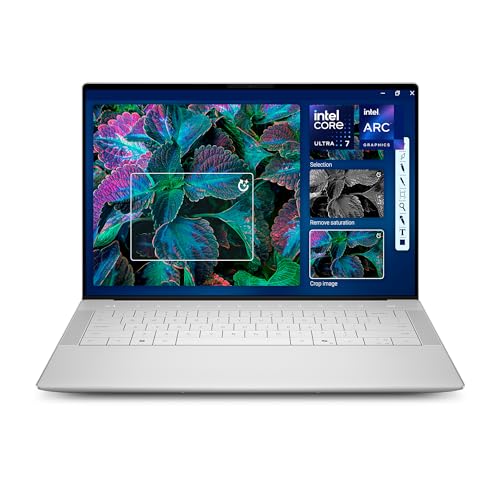
- Best for: Windows professionals who want two or three external displays from Thunderbolt alone.
- 14.5-inch FHD+ display, 1920 x 1200, 120Hz
- Intel Core Ultra 7 255H processor, 16 cores, up to 5.1GHz Turbo
- Intel Arc Graphics
- 16GB RAM
All 3 Picks at a Glance
| Product | Specs | Action |
|---|---|---|
| Apple MacBook Air 13-inch with M4 chip |
| Check price on Amazon |
| LG gram 17 |
| Check price on Amazon |
| Dell XPS 14 Premium |
| Check price on Amazon |
Key takeaways
- Run two external monitors from one laptop without a dock. Compare three laptops with Thunderbolt and HDMI outputs and stated dual-display support.
What's inside
As an Amazon Associate I earn from qualifying purchases. This post may contain affiliate links at no extra cost to you.
Choosing a laptop for dual external monitors is a decision about ports and display limits, not about how fast the processor benchmarks. A machine can feel quick on its own screen and still refuse to light a second external display, because the chip or the port wiring only allows one. The real question is whether the laptop gives you two separate video outputs and a graphics chip rated to drive both at once, so your desk setup works the day it arrives instead of turning into a hunt for adapters and docks.
This guide is for office workers building a two-screen desk, developers who want code on one monitor and a browser on the other, and students or creators who dock at a desk after class. Every laptop below is chosen from its Amazon listing for the video outputs it actually lists — Thunderbolt, USB-C, or HDMI — and for a stated dual-display capability, so you can match the machine to the monitors already on your desk.
Quick Picks
As an Amazon Associate we earn from qualifying purchases.
| Product | Best for | Key spec from title |
|---|---|---|
| Apple MacBook Air 13-inch with M4 chip | A light laptop that runs two external displays with the lid open | 13.6-inch Liquid Retina display, 16GB unified memory, 256GB SSD |
| LG gram 17 | A big built-in screen plus three video outputs for a desk setup | 17-inch WQXGA display, 32GB RAM, 2TB SSD |
| Dell XPS 14 Premium | A Windows work laptop with three Thunderbolt 4 ports | 14.5-inch FHD+ 120Hz display, Intel Ultra 7 255H, 16GB RAM, 1TB SSD |
How to Choose
Count the video outputs, not the USB-C ports
Two monitors need two video paths out of the laptop, and not every USB-C port carries video. A port labelled Thunderbolt or DisplayPort Alt Mode can drive a display; a data-only USB-C port cannot, no matter what cable you plug into it. Look for the combination on the listing: an HDMI port plus a Thunderbolt port is the simplest dual setup, while three Thunderbolt ports give you room for two monitors and a charger at the same time. Before ordering, list the inputs on your two monitors and match each one to a port on the laptop, so you know whether you need a plain cable or an adapter for each screen.
Check the stated display limit before you buy
Some laptops cap out at one external display even when they have several ports, and the limit lives in the chip rather than the connector. Apple’s M1 and M2 MacBook Air models, for example, support only one external display, while the M4 Air supports two with the lid open. On Windows machines, the listing or the manufacturer’s spec sheet usually states how many external displays the model supports and at what resolution. Treat a listing that says nothing about external displays as unproven: the ports may exist, but the graphics chip may still mirror one screen instead of extending to a second.
Match resolution and refresh rate to your monitors
Two 1080p monitors are easy work for almost any current laptop, but two 4K displays at 60Hz demand far more bandwidth and a port that can deliver it. Thunderbolt 4 handles that load comfortably, while an older HDMI port may top out at 4K and 30Hz, which makes mouse movement and scrolling feel sluggish on a large screen. Check what each port on the listing supports and compare it with your monitors’ native resolution and refresh rate. If your screens are 4K, favour a laptop whose listing states 4K at 60Hz per display rather than one that only promises 4K on a single output.
RAM and storage decide how smooth two screens feel
Running two external displays usually means running more at once: a spreadsheet on one screen, a video call on the other, and a browser with a dozen tabs behind them. Sixteen gigabytes of memory is the practical floor for that kind of multitasking, and 32GB gives you headroom when the work grows heavier. Storage matters too, because a machine that is constantly paging to a cramped drive will stutter no matter how good its ports are. A 512GB or 1TB solid-state drive leaves room for large files and the apps that drive your monitors, so the second screen stays useful instead of becoming a place where windows go to wait.
The 3 Best Options
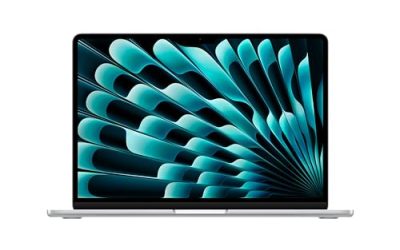
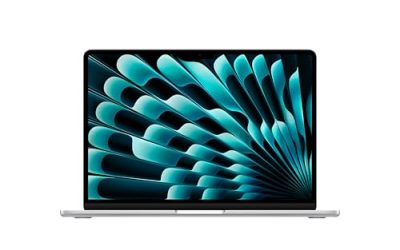
Apple MacBook Air 13-inch with M4 chip
- Best for: macOS users who want two external displays with the laptop screen still on.
- 13.6-inch Liquid Retina display, 2560-by-1664 native resolution
- Apple M4 chip
- 16GB unified memory
- 256GB SSD storage
macOS users who want two external displays with the laptop screen still on.
both monitors connect through the two Thunderbolt 4 ports, so HDMI-only monitors need USB-C to HDMI cables or adapters.
The MacBook Air with the M4 chip is the simplest route to two external monitors on a Mac, because Apple states directly on the listing that it supports up to two external displays with the lid open. That matters: earlier Air models needed the lid closed for a second screen, which wasted the built-in display. With two Thunderbolt 4 ports, each monitor takes one port, and the laptop stays light enough to carry between home and office. It suits office workers and students who live in macOS and want a quiet, fanless machine that docks to a desk without a hub.
LG gram 17
- Best for: anyone who wants a large built-in screen alongside two external monitors.
- 17-inch WQXGA IPS display, 2560 x 1600, 99% DCI-P3
- 13th Gen Intel Core i7 Evo platform
- 32GB LPDDR5 RAM
- 2TB NVMe Gen4 SSD
anyone who wants a large built-in screen alongside two external monitors.
the listing does not state a maximum number of simultaneous external displays, so confirm the two-monitor setup with your exact monitors before building a desk around it.
The LG gram 17 pairs a large 17-inch screen with three video outputs, which makes it a strong choice when the laptop itself is part of the workspace rather than just the engine behind two monitors. One monitor connects to the full-size HDMI port and the second to a Thunderbolt port, leaving another Thunderbolt port free for charging or storage. The big WQXGA display gives you a third usable screen for email or notes, and the light frame keeps a 17-inch machine easier to move than its size suggests. It fits analysts and writers who want a wide desk of screens without giving up portability.
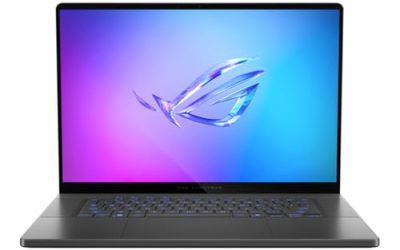
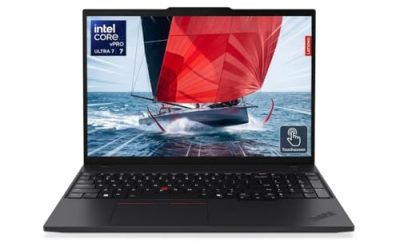
Dell XPS 14 Premium
- Best for: Windows professionals who want two or three external displays from Thunderbolt alone.
- 14.5-inch FHD+ display, 1920 x 1200, 120Hz
- Intel Core Ultra 7 255H processor, 16 cores, up to 5.1GHz Turbo
- Intel Arc Graphics
- 16GB RAM
Windows professionals who want two or three external displays from Thunderbolt alone.
the listing discloses that the unit was resealed to upgrade the SSD and carries a one-year seller warranty, so confirm the configuration and warranty terms before ordering.
The Dell XPS 14 Premium is the most direct Windows pick for a dual-monitor desk, because its listing states plainly that it supports up to three external displays via Thunderbolt 4 at up to 4K and 60Hz. Three Thunderbolt 4 ports mean two monitors can connect with one port still free for power, and the 120Hz built-in display keeps scrolling smooth when you glance back at the laptop screen. The Ultra 7 processor and 16GB of memory handle office work, video calls, and heavy browser sessions at the same time. It is the pick for Windows professionals who want a compact laptop that anchors a serious desk setup.
Which One Fits Your Situation
A quiet office desk with two matching monitors
Pick the MacBook Air with the M4 chip if your desk runs macOS and your monitors connect over USB-C or DisplayPort. Two Thunderbolt 4 ports drive both screens with the lid open, so you keep three usable displays, and the fanless design stays silent during calls. Just budget for USB-C to HDMI cables if your monitors only have HDMI inputs.
A developer or analyst running code and documents side by side
Pick the LG gram 17 when the work itself spans screens. The 17-inch built-in display holds a reference document while the two external monitors carry code and a browser, and 32GB of memory keeps all of it responsive. The HDMI port plus Thunderbolt covers most monitor combinations without a dock.
A portable setup that still docks to two screens
Pick the MacBook Air again if the laptop travels every day. It is the lightest machine here, and its two Thunderbolt 4 ports are all the desk connection you need: one cable per monitor, no dock required. The Dell XPS 14 is the Windows equivalent, with a third Thunderbolt port that leaves room for a charger alongside both monitors.
A creator or multitasker who wants the biggest built-in screen
Pick the LG gram 17 for the largest laptop display in this guide. A 17-inch WQXGA screen with wide colour coverage works as a genuine third workspace rather than a cramped afterthought, which helps when colour or layout matters and the external monitors are already full. The extra memory also keeps large creative files open across all three screens without stutter.
Common Mistakes
- Buying a laptop with one HDMI port and assuming a second monitor will work through a data-only USB-C port that carries no video signal.
- Choosing an older MacBook Air and discovering its chip supports only one external display, no matter how many adapters you buy.
- Pairing two 4K monitors with an HDMI port that tops out at 30Hz, then wondering why scrolling feels laggy.
- Forgetting that a Thunderbolt-only laptop needs USB-C to HDMI or DisplayPort cables for monitors without USB-C inputs.
- Skipping the memory check: 8GB of RAM stutters quickly once two external displays fill up with apps, tabs, and calls.
Frequently Asked Questions
Can any laptop with an HDMI port run two external monitors?
No. One HDMI port drives one monitor, so a second screen needs a second video output such as a Thunderbolt or USB-C port with DisplayPort support. Some laptops also cap the total at one external display in the graphics chip, so check the stated display limit on the listing before you buy.
Do I need a docking station for two monitors?
Not with the laptops in this guide. Each one has at least two video outputs, so two monitors connect directly with the right cables. A dock still helps if you also want wired Ethernet, extra USB ports, and single-cable charging, but it is a convenience rather than a requirement for the second screen.
Will two monitors slow my laptop down?
Two displays add work for the graphics chip, but a current processor with 16GB or more of memory handles office apps, browsers, and video calls across two screens without trouble. Heavy 3D work or two 4K displays at high refresh rates demand more, so match the laptop’s stated display support to your monitors.
Can a MacBook Air really run two external monitors?
Yes, with the M4 chip or newer. Apple states the M4 MacBook Air supports up to two external displays with the lid open, each at up to 6K and 60Hz. Older M1 and M2 Air models support only one, and the M3 Air needs its lid closed for a second display, so the chip generation is the detail to check.
Related guides
More from Amazon
Programs that pair well with the guide above. Offers and eligibility are set by Amazon and may change.
Free shipping on eligible items, Prime Video and more. Eligible new members can start with a free trial.
Start a Prime free trialAd-free music streaming. Eligible new subscribers can start with a free trial.
Try Music Unlimited freeA Prime membership for ages 18-24 with a trial period. Eligibility is set by Amazon.
See Prime for Young AdultsAudiobooks and podcasts to listen to on the go. Eligible new members can start with a free trial.
Try Audible freeAs an Amazon Associate we earn from qualifying purchases.

Write Your Review
No reviews yet. Be the first to share your experience!