
Key takeaways
- Five laptops built for single-cable docking, compared on Thunderbolt ports, charging wattage and direct HDMI, with the dock checks to run before you buy.
What's inside
As an Amazon Associate I earn from qualifying purchases. This post may contain affiliate links at no extra cost to you.
A docking setup fails or succeeds on one port. If the laptop’s USB-C port carries video, data and charging together, you plug in a single cable and your monitors, keyboard and drives wake up at once. If it only charges, or only carries data, no dock at any price fixes that. The real decision is therefore not which dock to buy later, but whether the laptop’s ports are specified for the job now: a named Thunderbolt or USB4 port with DisplayPort Alt Mode and Power Delivery, plus enough charging headroom for the machine under load.
This roundup is for hybrid workers building a permanent desk, home-office users who undock daily, and anyone replacing a desktop with a laptop-plus-dock setup. Every pick below was chosen from its Amazon product page name and stated port specification: each one lists Thunderbolt 4 with Power Delivery and DisplayPort Alt Mode, ships with a USB-C charger, and states its remaining ports in full.
Quick Picks
As an Amazon Associate we earn from qualifying purchases
| Product | Best for | Key spec from title |
|---|---|---|
| Lenovo ThinkPad T14 Gen 5 | A wired desk that never moves | 2x Thunderbolt 4, HDMI and RJ-45 Ethernet |
| Lenovo ThinkPad X1 Carbon Gen 13 | Executives docking at two desks | 2x Thunderbolt 4 / USB4 40Gbps with USB PD 3.0 |
| HP EliteBook 860 G11 | A 16-inch screen with one cable | 2x Thunderbolt 4 (USB PD, DisplayPort 1.4) |
| Dell Pro 14 Premium | Maximum charging headroom on the dock | 2x Thunderbolt 4 with Power Delivery up to 100 W |
| Dell Latitude 9450 2-in-1 | A pure Thunderbolt desk, nothing else | 3x Thunderbolt 4 with Power Delivery |
How to Choose
Confirm the port carries video, data and power together
A USB-C socket is only a shape. For single-cable docking it must be a Thunderbolt 4 or USB4 port, or a USB-C port the listing explicitly describes as supporting DisplayPort Alt Mode and Power Delivery. Every laptop in this roundup names Thunderbolt 4 in its specification, which guarantees all three functions on one cable. If a listing just says USB-C with no Alt Mode or PD mention, assume it charges only or carries data only, and walk away: the dock cannot add a capability the port itself lacks.
Match the dock’s wattage to the laptop’s adapter
These machines ship with 65 W USB-C adapters, so a dock delivering at least 65 W keeps the battery full under load. The Dell Pro 14 Premium’s port documentation goes further, stating Power Delivery up to 100 W, which suits higher-wattage docks. A dock that supplies less than the laptop’s adapter rating may hold the charge during documents but lose ground during video calls or heavy multitasking, and some laptops throttle performance on weak power. Check the number printed on your current adapter first, then buy a dock that meets or beats it.
Count the ports the dock does not have to replace
A good dock adds ports, but the laptop’s own selection decides what still works undocked. The ThinkPad T14 Gen 5 keeps HDMI and an RJ-45 Ethernet socket on the chassis, so one monitor and a wired network connection need no dock at all. The Latitude 9450 takes the opposite approach: three Thunderbolt 4 ports and an audio jack, nothing else, so its dock must supply every USB-A device, network cable and projector you use. Decide which style fits your routine before choosing, because it changes what the dock must include.
Check the stated external-display support
Listings state monitor support in plain terms when you look for it. Lenovo’s specification for the T14 Gen 5 covers up to three external monitors through HDMI and Thunderbolt, with HDMI up to 4K at 60Hz. The X1 Carbon Gen 13’s specification covers up to two external monitors on its V-series processor configuration, again with HDMI up to 4K at 60Hz. If you plan a triple-monitor desk, that stated ceiling matters more than the dock’s marketing, because the laptop’s graphics output is the limit the dock cannot exceed.
The 5 Best Options
Lenovo ThinkPad T14 Gen 5

The T14 Gen 5 is the safest docking pick here because it refuses to depend on the dock for basics. Two Thunderbolt 4 ports handle the single-cable connection, yet the chassis still carries HDMI and a proper RJ-45 Ethernet port, so a wired network and one external screen keep working even if the dock stays in a drawer. This 64GB, 2TB configuration is aimed at heavy multitaskers who want one machine to run the desk for years, and its socketed memory design keeps an upgrade path open that thinner rivals close off.
Specs
- Processor: Intel Core Ultra 7 155H
- Memory: 64GB DDR5
- Storage: 2TB SSD
- Ports: 2x Thunderbolt 4 with Power Delivery and DisplayPort, 1x HDMI, 1x RJ-45 Ethernet, 2x USB-A
- Monitor support stated: up to 3 external monitors via HDMI and Thunderbolt, HDMI up to 4K at 60Hz
- Power adapter: 65 W USB-C
- Operating system: Windows 11 Pro
Best for: a fixed desk with wired Ethernet and up to three external screens.
Watch out for: your dock should deliver at least the 65 W this laptop’s own adapter provides; lower-wattage docks can lose charge under sustained load.
ASIN: B0DH2CHFMR
Lenovo ThinkPad X1 Carbon Gen 13

The X1 Carbon Gen 13 suits people who dock in more than one place: an office desk during the week, a home desk at night. Both Thunderbolt 4 ports support charging, its 65 W GaN adapter is small enough to leave in the bag, and the full-size HDMI 2.1 port means a borrowed meeting-room screen works without the dock at all. This configuration pairs the Core Ultra 7 265U with 32GB of memory and a 1TB SSD, and the touch display folds the machine neatly into presentation-heavy roles between docked sessions.
Specs
- Processor: Intel Core Ultra 7 265U
- Memory: 32GB
- Storage: 1TB SSD
- Display: 14-inch WUXGA touchscreen
- Ports: 2x USB-C (Thunderbolt 4 / USB4 40Gbps) with USB PD 3.0 and DisplayPort 2.1, 1x HDMI 2.1 up to 4K at 60Hz, 2x USB-A 5Gbps
- Monitor support stated: up to 2 external monitors via HDMI and Thunderbolt
- Power adapter: 65 W GaN USB-C
- Operating system: Windows 11 Pro
Best for: docking at two different desks without carrying the dock between them.
Watch out for: both Thunderbolt ports sit on the same side on most configurations, so check your dock’s cable length and desk layout before ordering.
ASIN: B0FS9WHNQJ
HP EliteBook 860 G11
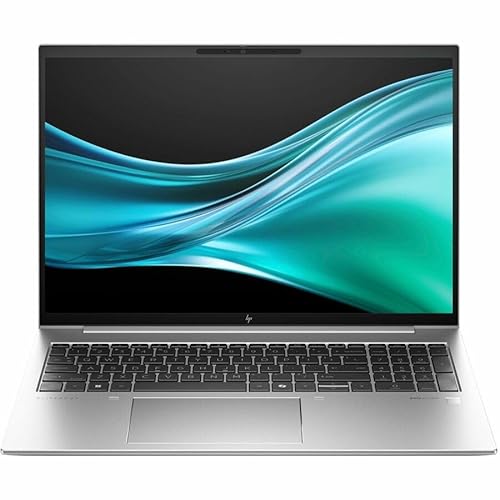
The EliteBook 860 G11 is the large-screen option: a 16-inch WUXGA display for the road, with two Thunderbolt 4 ports that take over completely at the desk. HP states those ports with USB Power Delivery and DisplayPort 1.4 in the listing, and the HDMI 2.1 output covers a direct second screen when no dock is available. This configuration runs a Core Ultra 5 135U with vPro, 16GB of memory and a 512GB SSD, and the 5MP IR camera keeps video calls sharp in docked meetings where you sit further from the screen.
Specs
- Processor: Intel Core Ultra 5 135U with vPro (model A6TD9UT#ABA)
- Memory: 16GB
- Storage: 512GB SSD
- Display: 16-inch WUXGA (1920 x 1200)
- Ports: 2x Thunderbolt 4 with USB Power Delivery and DisplayPort 1.4, 2x USB Type-A 5Gbps, 1x HDMI 2.1, headphone/microphone combo jack
- Camera: 5MP IR camera
- Power adapter: 65 W USB Type-C
- Operating system: Windows 11 Pro
Best for: a 16-inch laptop that becomes a dual-screen desk through one cable.
Watch out for: EliteBook listings vary by seller configuration, and some state HDMI 2.0 instead of 2.1; confirm the exact port list on the configuration you order.
ASIN: B0D8LLW5K4
Dell Pro 14 Premium

Dell’s Pro 14 Premium is built around its two Thunderbolt 4 ports, one on each side, so the dock cable can arrive from whichever direction your desk demands. Dell’s port documentation states DisplayPort Alt Mode, USB4 and Power Delivery up to 100 W through those ports, the highest charging ceiling in this roundup, which makes it the natural partner for a high-wattage Thunderbolt dock. This configuration carries a Core Ultra 7 268V with vPro, 32GB of memory and a 512GB SSD, plus an 8MP HDR IR camera for the calls you will take while docked.
Specs
- Processor: Intel Core Ultra 7 268V with vPro
- Memory: 32GB
- Storage: 512GB SSD
- Ports: 2x Thunderbolt 4 (40 Gbps) with DisplayPort Alt Mode, USB4 and Power Delivery up to 100 W, 1x USB 3.2 Gen 1 with PowerShare, 1x HDMI 2.1, headset port
- Camera: 8MP HDR + IR camera with presence detection
- Power adapter: 65 W USB-C
- Operating system: Windows 11 Pro
Best for: a high-wattage dock driving multiple 4K monitors from either side of the laptop.
Watch out for: to use the full 100 W headroom your dock itself must supply it; a standard 65 W dock works, but charges no faster than the bundled adapter.
ASIN: B0DYK9GF3J
Dell Latitude 9450 2-in-1

The Latitude 9450 commits completely to the docked lifestyle. It offers three Thunderbolt 4 ports and almost nothing else: no USB-A, no HDMI, no card slot. At a desk that is a strength, because one cable to a Thunderbolt dock runs everything and the remaining ports stay free for a second dock or direct storage. Away from the desk it becomes a slim 14-inch convertible with a 2560 x 1600 touchscreen, a Core Ultra 7 165U, 32GB of memory and a 512GB SSD, aimed at executives whose peripherals live permanently on the desk.
Specs
- Processor: Intel Core Ultra 7 165U
- Memory: 32GB LPDDR5x
- Storage: 512GB SSD
- Display: 14-inch 2560 x 1600 IPS touchscreen, 2-in-1 convertible
- Ports: 3x Thunderbolt 4 (USB-C) with Power Delivery and DisplayPort output, 1x universal audio jack
- Power adapter: 65 W USB-C, plugs into any Thunderbolt 4 port
- Operating system: Windows 11 Pro
Best for: an all-Thunderbolt desk where every legacy device connects through the dock.
Watch out for: there is no USB-A or HDMI on the machine at all, so budget for the dock from day one; without it, even a wired mouse needs an adapter.
ASIN: B0DHZRYS5J
Which One Fits Your Situation
You want the desk to work even without the dock
Choose the ThinkPad T14 Gen 5. Its onboard HDMI and RJ-45 Ethernet mean a monitor and a wired network connect directly to the laptop, so a forgotten or failed dock never stops the working day. The two Thunderbolt 4 ports still give you the full single-cable setup when the dock is in place, and the large memory and storage in this configuration suit a machine that anchors the desk for years.
You split the week between office and home desks
Choose the ThinkPad X1 Carbon Gen 13. It is light enough to carry daily, charges from its Thunderbolt 4 ports at either desk, and its HDMI 2.1 output handles a single home monitor without buying a second dock. Buy one good Thunderbolt dock for the office and a simpler USB-C dock or hub for home; the laptop’s stated two-external-monitor support covers both arrangements comfortably.
Your desk runs several 4K monitors and a powered dock
Choose the Dell Pro 14 Premium. Its Thunderbolt 4 ports accept Power Delivery up to 100 W, the highest ceiling here, so a high-output dock can charge it at full speed while driving the displays. The HDMI 2.1 port adds one more direct screen, and the 8MP camera keeps you presentable in the video meetings that fill a docked workday.
Every peripheral you own is wired and old
Choose the HP EliteBook 860 G11 or the ThinkPad T14 Gen 5 rather than the Latitude 9450. Both keep USB-A ports on the chassis for legacy drives, dongles and printers, and both add HDMI for a direct screen. The Latitude’s three Thunderbolt ports are excellent, but with zero legacy ports it forces every older device through the dock or an adapter, which adds cost and clutter to a simple setup.
Common Mistakes
- Buying a USB-C dock for a laptop whose port lacks DisplayPort Alt Mode, then discovering the monitors never light up; the laptop’s port specification, not the dock, decides video support.
- Ignoring wattage: a dock that delivers less power than the laptop’s bundled adapter can drain the battery during heavy work even while plugged in.
- Assuming every Thunderbolt port charges; on most models here both do, but check the listing, because some designs reserve one port for data and video only.
- Forgetting Ethernet: several thin laptops here have no network port, so a wired connection must come from the dock; confirm the dock includes it if your office requires one.
- Counting monitors from the dock’s box instead of the laptop’s stated display support, which is the real ceiling for a multi-screen desk.
Frequently Asked Questions
Will any USB-C dock work with these laptops?
No. The dock and the laptop port must agree on video and power. Every laptop in this roundup lists Thunderbolt 4 with DisplayPort Alt Mode and Power Delivery, so a Thunderbolt 4 or USB4 dock is the safe match. A plain USB-C hub without Alt Mode support may still pass data and charging, but it cannot send a video signal the port never agreed to carry.
How much power should my dock deliver?
Match or exceed the adapter bundled with the laptop. All five machines here ship with 65 W USB-C adapters, so a dock rated at 65 W or higher keeps the battery full under load. The Dell Pro 14 Premium accepts up to 100 W through its Thunderbolt 4 ports, so it can use a higher-output dock, but it works normally with a 65 W one.
Can one cable really run two or three monitors?
Yes, within the laptop’s stated limits. A Thunderbolt dock splits the single connection into multiple display outputs, and the laptops here state support for two or three external monitors depending on the model. The dock must also support that many displays at your target resolution, so check both specifications: the laptop sets the ceiling, and the dock has to reach it.
Do I still need the laptop’s own charger at my desk?
Usually not. A powered Thunderbolt dock charges the laptop through the same cable that carries video and data, which is the point of the single-cable setup. Keep the bundled adapter in your travel bag instead. Just confirm the dock’s power delivery rating meets the laptop’s requirement, and remember that unpowered hubs cannot charge the machine at all.
Related guides
- Best Laptops to Play Roblox: From Budget Integrated Graphics to Dedicated GPUs
- Best Laptops for Zoom Teaching: Clear Video, Reliable Audio and All-Day Class Power
- Best Laptops for Video Editing and Music Production: Power, Screen and Storage
- Best Laptops for Network Engineers: Ethernet, RAM for Labs and Ports That Matter
More from Amazon
Programs that pair well with the guide above. Offers and eligibility are set by Amazon and may change.
Free shipping on eligible items, Prime Video and more. Eligible new members can start with a free trial.
Start a Prime free trialAd-free music streaming. Eligible new subscribers can start with a free trial.
Try Music Unlimited freeA Prime membership for ages 18-24 with a trial period. Eligibility is set by Amazon.
See Prime for Young AdultsAudiobooks and podcasts to listen to on the go. Eligible new members can start with a free trial.
Try Audible freeAs an Amazon Associate we earn from qualifying purchases.



Write Your Review
No reviews yet. Be the first to share your experience!