
Our Short List of 3

- Best for: A first laptop that works as both a keyboard machine and a tablet.
- 11.6-inch HD touchscreen display
- 360-degree flip hinge
- Intel Celeron N4020 processor
- ChromeOS operating system

- Best for: Schoolwork on a classroom-tough convertible.
- 11.6-inch HD IPS touchscreen display
- Intel Celeron N4020 processor
- 4GB RAM
- 32GB eMMC storage
- Best for: Younger children and shared family laptops that take knocks.
- 11.6-inch touchscreen display
- Rugged design
- Spill-resistant keyboard
- 8GB RAM
All 3 Picks at a Glance
| Product | Specs | Action |
|---|---|---|
| Acer Chromebook Spin 311 |
| Check price on Amazon |
| HP Chromebook x360 11 G4 EE |
| Check price on Amazon |
| HP Chromebook 11 Fortis |
| Check price on Amazon |
Key takeaways
- A touchscreen laptop helps kids learn by tapping, dragging, and drawing. These three durable, kid-friendly models suit homework, classes, and play.
What's inside
As an Amazon Associate I earn from qualifying purchases. This post may contain affiliate links at no extra cost to you.
Buying a laptop for a child is a different decision from buying one for yourself. The machine will be dropped, carried in a crowded bag, left open on the floor, and used for homework, video lessons, games, and drawing, often in the same afternoon. A touchscreen helps because young children find tapping and dragging more natural than a trackpad, and a small, light machine is easier for small hands to carry.
This guide is for parents and guardians choosing a first laptop for a school-age child, and for teachers equipping a classroom. The picks below are touchscreen laptops built with children in mind, identified by their names and specifications on their Amazon product pages, with parental controls covered through the real features of the platforms they run. A good first laptop should survive the school year, not just the first week, and that shapes every pick that follows.
Quick Picks
As an Amazon Associate we earn from qualifying purchases
| Product | Best for | Key spec from title |
|---|---|---|
| Acer Chromebook Spin 311 | A first laptop that flips into tablet mode | 11.6-inch HD touchscreen with 360-degree hinge |
| HP Chromebook x360 11 G4 EE | Schoolwork on a rugged education laptop | 11.6-inch HD IPS touchscreen, education edition |
| HP Chromebook 11 Fortis | A tough laptop for younger children | 11.6-inch touchscreen, rugged and spill-resistant |
How to Choose
Pick a Small Screen and a Light Body
A child does not need a 15-inch display. An 11.6-inch screen keeps the laptop light enough to carry between rooms and small enough to fit on a crowded desk or a lap. It also keeps the keyboard within reach of small hands. Larger screens add weight that a child feels after ten minutes, and a heavy laptop is more likely to be dropped on the way to the next room. A small laptop also fits more easily in a school bag alongside books, a lunchbox, and a water bottle, which matters on a real school morning. When you hold the laptop in one hand, it should feel light enough for a child to carry without struggling.
Choose a Touchscreen That Folds or Flips
A touchscreen on a standard clamshell is useful, but a 360-degree hinge turns the laptop into a tablet for drawing, reading, and games. Look for the words 360-degree hinge or 2-in-1 in the specification. That flexibility matters because children switch between typing homework and tapping through a lesson, and a machine that folds flat handles both without a separate tablet. It also means one device covers reading, drawing, and video lessons, instead of a laptop plus a tablet that both need charging and both get lost around the house.
Look for Rugged Design Before Extra Speed
Children test durability in ways adults never do. A rugged chassis, a spill-resistant keyboard, and reinforced corners matter more than a faster processor for a school laptop. Education-edition machines are built for classrooms, where laptops are shared, knocked off desks, and carried without cases. A faster chip will not help if the screen cracks in the first month. When you compare two machines, ask which one survives a fall from a desk, because that is the test a child’s laptop will face sooner than any benchmark. Spill resistance matters just as much, since drinks and laptops share the same bag on most school days.
Set Up Parental Controls Through the Platform
Parental controls come from the operating system, not from the laptop maker. On a Chromebook, the Family Link app lets a parent set screen-time limits, approve apps, and filter browsing. On Windows, Microsoft Family Safety offers similar controls. Set these up before handing the laptop over, and keep the parent account separate from the child’s account so the limits stay in place. Talk through the rules with the child as well, because a limit they understand is easier to keep than one that appears without explanation.
The 3 Best Options
Acer Chromebook Spin 311
- Best for: A first laptop that works as both a keyboard machine and a tablet.
- 11.6-inch HD touchscreen display
- 360-degree flip hinge
- Intel Celeron N4020 processor
- ChromeOS operating system
A first laptop that works as both a keyboard machine and a tablet.
ChromeOS runs web apps and Android apps rather than Windows software, so check that the school’s programs work on a Chromebook first.
The Acer Chromebook Spin 311 is a natural first laptop for a child because its 11.6-inch HD touchscreen flips all the way around into tablet mode. A child can type homework with the keyboard, then fold the screen back to draw, read, or play a touch game. The Intel Celeron N4020 processor is modest, yet it runs ChromeOS smoothly for classroom apps, video lessons, and browsing, and the small size makes it easy to carry from room to room. Because ChromeOS boots quickly and updates itself, there is little for a child to break by accident, which keeps the laptop working through the school year.
Watch out for: ChromeOS runs web apps and Android apps rather than Windows software, so check that the school’s programs work on a Chromebook first.
HP Chromebook x360 11 G4 EE
- Best for: Schoolwork on a classroom-tough convertible.
- 11.6-inch HD IPS touchscreen display
- Intel Celeron N4020 processor
- 4GB RAM
- 32GB eMMC storage
Schoolwork on a classroom-tough convertible.
The 32GB of storage fills up fast with downloaded files, so plan on cloud storage and regular cleanup.
The HP Chromebook x360 11 G4 EE is built for schools, and that shows in its design. It is an education-edition machine with an 11.6-inch HD IPS touchscreen, so colours stay true when a child tilts the screen, and its 360-degree hinge folds flat for tablet use. The Intel Celeron N4020 processor and 4GB of memory handle classroom work, while the 32GB of eMMC storage is enough for cloud-based schoolwork. Parents manage it through Family Link on ChromeOS. The IPS panel is a real advantage here, because children rarely look at a screen straight on, and a screen that washes out at an angle makes reading harder.
Watch out for: The 32GB of storage fills up fast with downloaded files, so plan on cloud storage and regular cleanup.
HP Chromebook 11 Fortis
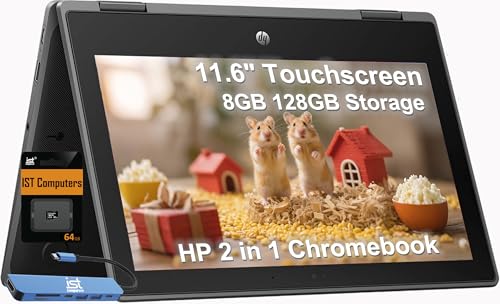
- Best for: Younger children and shared family laptops that take knocks.
- 11.6-inch touchscreen display
- Rugged design
- Spill-resistant keyboard
- 8GB RAM
Younger children and shared family laptops that take knocks.
The rugged design adds bulk, so it feels chunkier than the slim Spin 311 even though the screen is the same size.
The HP Chromebook 11 Fortis is the toughest pick here, and the right one for younger children or for a laptop that will be shared between siblings. Its rugged build and spill-resistant keyboard are designed to survive drops and drinks, which are the two most common ways a child’s laptop gets damaged. The 11.6-inch touchscreen keeps navigation simple, and 8GB of memory with 128GB of storage gives it more room than the other two picks for apps and files. It is the machine to buy when you expect accidents, because its design assumes they will happen and plans for them.
Watch out for: The rugged design adds bulk, so it feels chunkier than the slim Spin 311 even though the screen is the same size.
Which One Fits Your Situation
Your Child Needs a First Laptop for Homework
Pick the Acer Chromebook Spin 311. Its flip hinge covers typing and tablet use in one machine, and the small screen keeps it portable enough for a child to carry. ChromeOS stays simple, which suits a first computer, and the quick startup means homework starts without a long wait for the machine to wake up.
The School Uses Chromebooks in Class
Pick the HP Chromebook x360 11 G4 EE. Its education-edition build and IPS touchscreen match classroom use, and the 360-degree hinge lets a child switch between typing and tapping during lessons. The IPS panel also keeps colours true when the screen is tilted, which helps when a child shares the screen with a classmate.
The Laptop Will Be Shared by Siblings
Pick the HP Chromebook 11 Fortis. The rugged body and spill-resistant keyboard handle the extra wear of shared use, and the 8GB of memory with 128GB of storage gives siblings room for their own apps and files. Set up a separate account for each child, so homework and apps stay organised and one sibling cannot accidentally delete the other’s work.
You Want the Most Storage and Memory
Pick the HP Chromebook 11 Fortis. Its 8GB of memory and 128GB of storage outpace the other two picks, which matters when downloads, offline videos, and apps pile up over a school year. The extra storage also means fewer prompts to free up space, which is one less thing for a child to deal with during homework time.
Common Mistakes
- Buying a full-size laptop that is too heavy for a child to carry comfortably.
- Choosing a non-touchscreen model when the child learns best by tapping and dragging.
- Skipping the parental controls setup and handing over an unrestricted account.
- Assuming a Chromebook runs Windows programs, then finding the school software does not work.
- Picking a fragile ultra-thin machine that cannot survive a drop off a desk.
Frequently Asked Questions
What age is a touchscreen laptop suitable for?
School-age children, roughly six and up, get the most from a touchscreen laptop. Younger children may do better with a tablet, while older children can use a full laptop. The right age depends on the child’s reading level, the school’s requirements, and how much supervision the laptop will have.
Is a Chromebook good enough for schoolwork?
For most schoolwork it is. Chromebooks run the browser, Google Docs, classroom apps, and video lessons well, and most schools that assign laptops use ChromeOS. Check with the school first, because a few specialist programs only run on Windows or macOS.
How do I set parental controls on a Chromebook?
Use the Family Link app from Google. It lets you set daily screen-time limits, approve or block apps, and filter web browsing, all from your own phone. Create a supervised account for the child and keep your parent account separate so the settings cannot be changed from the laptop.
Should I buy a case as well?
Yes. Even a rugged laptop benefits from a sleeve or a padded case, especially when it travels in a school bag with books and a water bottle. A case is cheap protection against the scratches and corner knocks that happen every day. Choose a sleeve that fits the 11.6-inch size snugly, so the laptop does not slide around inside it.
Related guides
More from Amazon
Programs that pair well with the guide above. Offers and eligibility are set by Amazon and may change.
Free shipping on eligible items, Prime Video and more. Eligible new members can start with a free trial.
Start a Prime free trialAd-free music streaming. Eligible new subscribers can start with a free trial.
Try Music Unlimited freeA Prime membership for ages 18-24 with a trial period. Eligibility is set by Amazon.
See Prime for Young AdultsAudiobooks and podcasts to listen to on the go. Eligible new members can start with a free trial.
Try Audible freeAs an Amazon Associate we earn from qualifying purchases.
Write Your Review
No reviews yet. Be the first to share your experience!