
Key takeaways
- Looking for the best DisplayPort hub for HP laptops? Compare USB-C hubs with 4K DisplayPort output, charging power, and the ports your HP setup needs.
What's inside
As an Amazon Associate I earn from qualifying purchases. This post may contain affiliate links at no extra cost to you.
The best DisplayPort hub for HP laptops is a USB-C hub that adds a real DisplayPort output to a laptop that may only have one or two USB-C ports. Many HP laptops, from the EliteBook and ProBook lines to the Pavilion, Envy, Spectre, and ZBook families, ship with USB-C ports that support DisplayPort Alt Mode, so a single cable can carry video, data, and charging. A DisplayPort hub turns that one port into a full workstation connection: a monitor over DisplayPort, a keyboard, a mouse, a wired network cable, and charging for the laptop.


If you want a quick answer, start with the Anker 565 USB-C Hub (11-in-1): a 4K DisplayPort output, a 4K HDMI output, fast 10Gbps data ports, Gigabit Ethernet, and up to 85W of pass-through charging. For a high-refresh-rate monitor, the UGREEN Revodok Pro 11-in-1 is the stronger choice, with a DisplayPort 1.4 output rated for 4K at 120Hz. For three or four external displays, the Cable Matters Quad Display MST Adapter adds two DisplayPort 2.1 outputs and two HDMI 2.1 outputs. For travel, the Selore 7-in-1 covers HDMI, DisplayPort, and VGA in a small package.
This guide explains how to choose a DisplayPort hub for an HP laptop and which models fit different monitors, desks, and travel habits. Every product below is a USB-C hub with a DisplayPort output.
Quick Picks
Our Short List of 3
All 4 Picks at a Glance
| Product | Specs | Action |
|---|---|---|
| Anker 565 USB-C Hub (11-in-1) (B09Q5V9G5P) | Check price on Amazon | |
| UGREEN Revodok Pro 11-in-1 USB-C Hub (B0DRNZFYC9) | Check price on Amazon | |
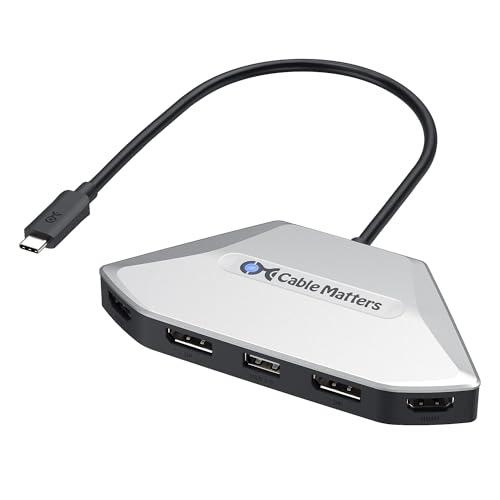 Cable Matters 4K Quad Display USB-C MST Adapter (B0D1SJ9CQ7) | Check price on Amazon | |
 Selore 7-in-1 USB-C Docking Station (B08SC432PX) | Check price on Amazon |
How to Choose
Check That Your HP Laptop Supports DisplayPort Alt Mode
A DisplayPort hub only works when the laptop’s USB-C port carries a video signal. On HP laptops, this is called DisplayPort Alt Mode, and it is not present on every USB-C port. Most EliteBook, ProBook, ZBook, Spectre, and Envy models include at least one USB-C port with DisplayPort Alt Mode, and higher-end models may also include Thunderbolt 4, which carries the same video signal. Some Pavilion models and entry-level HP laptops have a USB-C port that handles data and charging only, with no video output at all. Before buying, check the specifications page for your exact HP model and confirm that at least one USB-C port lists DisplayPort Alt Mode or Thunderbolt support. If no USB-C port supports video, a DisplayPort hub cannot add a monitor.
DisplayPort Version and Resolution
The DisplayPort version on the hub and on the laptop together set the highest resolution and refresh rate the setup can reach. A DisplayPort 1.4 output can drive a 4K monitor at 120Hz with Display Stream Compression, while a DisplayPort 1.2 output tops out at 4K at 60Hz. DisplayPort 2.1 raises the ceiling further, supporting a single 8K display at 60Hz. In practice, most HP laptop owners use a 4K monitor at 60Hz or a 1440p monitor at a higher refresh rate, and any hub in this guide handles those combinations. The version matters most for a high-refresh-rate 4K monitor or several monitors at once. Match the hub to the monitor you already own rather than paying for bandwidth you will never use.
One Monitor or Several
Decide how many external displays the hub must drive before comparing models. A single-monitor setup needs only one DisplayPort or HDMI output, and almost any hub in this guide covers it. A two-monitor setup needs two video outputs, and HP laptops run Windows, which supports Multi-Stream Transport, so two external monitors can show different content through one hub. A three- or four-monitor setup needs a hub with three or four video outputs and a laptop GPU that supports that many displays, which is not true of every HP model. Check the graphics specifications for your HP laptop to confirm how many external displays it supports before choosing.
Power Delivery and Charging
Most DisplayPort hubs for HP laptops pass charging power through to the laptop, but the wattage varies and the charger is often sold separately. A hub with a 100W power delivery input typically passes up to 85W to the laptop, keeping about 15W for its own ports. That is enough for most EliteBook, ProBook, Pavilion, and Envy models during normal office work. Larger HP workstations, such as some ZBook models, can draw more power under heavy load, so compare the hub’s pass-through figure with the wattage of the charger that came with the laptop.
USB Data Speed and Port Mix
A hub is more than a video adapter, so look at the USB ports it adds. Data ports rated at 10Gbps move large files to an external SSD far faster than the 480Mbps ports found on budget hubs, and the difference is easy to feel when copying photos, video, or project folders. Count the ports you actually use: a keyboard, a mouse, a webcam, and an external drive can fill four USB ports quickly. Card readers matter for photographers and video editors who move files from SD or microSD cards, and a Gigabit Ethernet port gives a stable wired connection for video calls and large downloads.
Size, Cable, and Desk Fit
Hubs range from pocket-sized travel adapters to desk-bound units with a separate power supply. A compact hub with an attached USB-C cable is the better choice for a laptop bag, a hot desk, or a meeting room, since it needs no extra power brick and sets up in seconds. A larger hub with more ports suits a fixed desk, where it can sit out of the way and keep every peripheral connected. Check the length of the attached cable: a short cable keeps the hub close to the laptop, while a longer cable lets it sit under a monitor or behind a desk. An aluminum housing handles daily travel and warm desk conditions better than a plastic shell.
Windows Multi-Display Behavior
HP laptops run Windows, which is good news for multi-monitor hubs, because Windows supports Multi-Stream Transport and can extend different content across several external displays from one USB-C connection. Within Windows, the number of displays still depends on the laptop’s graphics hardware and the DisplayPort version of its USB-C port: DisplayPort 1.4 supports higher resolutions in dual-display mode than DisplayPort 1.2.
The Best DisplayPort Hub for HP Laptops Reviewed
Anker 565 USB-C Hub (11-in-1) (B09Q5V9G5P)
The Anker 565 is the most balanced DisplayPort hub for HP laptops in this guide. It turns one USB-C port into eleven connections: a 4K HDMI port, a 4K DisplayPort, a 10Gbps USB-C data port, a 10Gbps USB-A data port, two USB-A 2.0 ports for a mouse and keyboard, a Gigabit Ethernet port, SD and microSD card slots rated at 104MB/s, a 3.5mm AUX audio port, and a 100W USB-C power delivery input that passes up to 85W to the laptop. The attached USB-C host cable keeps setup to a single plug, and the 4.8-ounce aluminum housing travels well in a laptop bag.
With two displays connected, the hub delivers up to 2K at 60Hz on each screen with a DisplayPort 1.4 laptop, or 1080p at 60Hz with a DisplayPort 1.2 laptop, and a single display can run at 4K. Windows extends different content across both external screens. The 10Gbps data ports are fast enough for an external SSD, and the card readers cover photo and video offloads without a separate reader.
This hub suits HP laptop owners who want one hub for the desk and the road: it has the ports for a full workstation, it is small enough to carry, and it needs no driver. Who should skip it: anyone who needs two 4K monitors at 60Hz at the same time should look at the UGREEN or Cable Matters options below, since the Anker 565 drops to 2K per screen in dual-display mode. The power adapter is sold separately, so factor in a 100W USB-C charger if one is not already on the desk.
UGREEN Revodok Pro 11-in-1 USB-C Hub (B0DRNZFYC9)
The UGREEN Revodok Pro 11-in-1 is the pick for HP laptop owners who run a high-refresh-rate monitor. Its DisplayPort 1.4 output is rated for 4K at 120Hz, and its HDMI 2.0 output runs at 4K at 60Hz, so the hub can drive a fast 4K display for design work, video editing, or high-refresh gaming alongside a second monitor. On Windows, Multi-Stream Transport supports three independent displays: the laptop screen plus the HDMI and DisplayPort outputs. It also includes two 10Gbps USB-C data ports, two USB-A 2.0 ports, SD and TF card slots rated at 104MB/s, a Gigabit Ethernet port, and a 3.5mm audio jack, plus a 100W USB-C power delivery input that passes up to 85W to the laptop.
The DisplayPort output uses Display Stream Compression to reach 4K at 120Hz, which requires a laptop USB-C port with DisplayPort 1.4 and DSC support, so check the HP model’s specifications before counting on the top refresh rate. The two 10Gbps USB-C ports are data-only, so they cannot drive a monitor or charge the laptop. The aluminum body is compact at 175 grams, and the hub is driver-free on Windows.
This hub suits HP laptop owners with a 4K high-refresh-rate monitor or a triple-display desk, especially ZBook and Spectre users whose laptops support DisplayPort 1.4 with DSC. Who should skip it: anyone whose HP laptop only supports DisplayPort 1.2 will not reach 4K at 120Hz and would get the same practical result from a simpler hub. The charger is sold separately, so a 100W USB-C adapter is needed for pass-through charging.
Cable Matters 4K Quad Display USB-C MST Adapter (B0D1SJ9CQ7)
The Cable Matters Quad Display MST Adapter is the display-first option in this guide. It provides two DisplayPort 2.1 outputs and two HDMI 2.1 outputs from a single USB-C connection, with a single display reaching up to 8K at 60Hz and four displays running at 4K at 60Hz each. It also supports up to 140W of charging, the highest figure in this guide, which covers even power-hungry HP workstations. It is compatible with Thunderbolt 4 and Thunderbolt 5 ports, so it works with HP laptops that include those ports as well as standard USB-C ports with DisplayPort Alt Mode.
This adapter is a display-only hub: it has no USB-A or USB-C data ports, no card reader, and no Ethernet port, so a second hub or the laptop’s own ports must handle keyboards, drives, and wired networking. It is Windows-only, which fits HP laptops. The adapter is bus-powered through the USB-C connection, so it needs no separate power brick beyond the charger that feeds the laptop.
This adapter suits HP laptop owners who need three or four external monitors on one desk, such as traders, analysts, and video editors, and ZBook owners who want the highest available charging wattage. Who should skip it: anyone who needs USB ports, a card reader, or Ethernet from the same hub should choose the Anker or UGREEN options instead.
Selore 7-in-1 USB-C Docking Station (B08SC432PX)
The Selore 7-in-1 is the compact travel pick in this guide. It combines an HDMI output, a DisplayPort output, and a VGA output with three USB 2.0 ports, so it covers the display connections found in offices, classrooms, and meeting rooms, including older projectors that still use VGA. With a DisplayPort 1.4 laptop, the HDMI and DisplayPort outputs can each run at 4K at 60Hz, and Multi-Stream Transport on Windows supports a triple-display setup. The hub is small and light, needs no driver, and connects through a single USB-C cable, so it is easy to carry between an HP laptop and a shared meeting-room display.
The trade-off is speed: the three USB ports run at USB 2.0 rates, which is fine for a keyboard, a mouse, and a flash drive, but slow for an external SSD or large file transfers. There is no Ethernet port and no card reader, so wired networking and photo offloads need the laptop’s own ports or a second adapter.
This hub suits HP laptop owners who travel between offices and meeting rooms and need DisplayPort, HDMI, and VGA in one small adapter. Who should skip it: anyone who moves large files through the hub should choose a 10Gbps option such as the Anker 565 or the UGREEN Revodok Pro, and anyone who needs wired Ethernet should pick a hub that includes it.
What to Check Before You Buy
Start with the laptop, not the hub. Open the specifications page for the exact HP model and confirm that at least one USB-C port supports DisplayPort Alt Mode or Thunderbolt, and note whether that port is DisplayPort 1.2 or 1.4. That single detail decides which resolutions and how many monitors the hub can drive. Then check the graphics specifications for the maximum number of external displays the laptop supports, since a hub cannot add displays beyond what the GPU allows.
Next, count the ports the desk actually needs: the monitors, keyboard, mouse, webcam, external drive, and network cable, then compare that list with the hub’s port layout. A hub that is short by one USB port will force a second adapter. Check the charging figure too: compare the hub’s pass-through wattage with the wattage of the charger that came with the HP laptop, and confirm whether a charger is included in the box.
Finally, check the cables. A DisplayPort monitor needs a DisplayPort cable, and a high-refresh-rate 4K setup needs a DisplayPort 1.4 cable rated for that bandwidth. A short or low-quality cable can limit the resolution even when the hub and the laptop both support more.
FAQ
Does a DisplayPort hub work with any HP laptop?
No. The HP laptop needs a USB-C port that supports DisplayPort Alt Mode or Thunderbolt. Most EliteBook, ProBook, ZBook, Spectre, and Envy models include such a port, but some Pavilion and entry-level models have a USB-C port for data and charging only. Check the specifications page for the exact HP model before buying.
What is the difference between a DisplayPort hub and a docking station?
A DisplayPort hub is a compact, usually bus-powered adapter that adds a DisplayPort output and a handful of USB ports through one USB-C cable, with charging passed through from a separate adapter. A docking station is typically larger, has its own power supply, and adds more ports. The hubs in this guide sit between the two: portable like a hub and capable enough for a full desk setup.
Can a DisplayPort hub drive two monitors from an HP laptop?
Yes, when the hub has two video outputs and the HP laptop runs Windows, which supports Multi-Stream Transport. Both external monitors can show different content. The maximum resolution of each monitor depends on the DisplayPort version of the laptop’s USB-C port: DisplayPort 1.4 supports higher resolutions in dual-display mode than DisplayPort 1.2.
Do I need a separate charger for a DisplayPort hub?
Most hubs in this guide pass charging through to the laptop, but the charger is usually sold separately. A 100W USB-C charger connected to the hub’s power delivery input is the usual setup, and the hub typically passes up to 85W to the laptop. Check the box contents before ordering so the charger is not missed.
Will a DisplayPort hub work with a 4K monitor at 120Hz?
It can, but only when every part of the chain supports it: a DisplayPort 1.4 hub output, a laptop USB-C port with DisplayPort 1.4 and Display Stream Compression, a 120Hz monitor, and a DisplayPort 1.4 cable. The UGREEN Revodok Pro 11-in-1 in this guide is rated for 4K at 120Hz over DisplayPort when those conditions are met.
Bottom Line
The best DisplayPort hub for HP laptops depends on the monitor setup, not on the laptop alone. The Anker 565 USB-C Hub (11-in-1) is the safest all-round choice, with a 4K DisplayPort output, a 4K HDMI output, fast data ports, Ethernet, and 85W pass-through charging in a travel-friendly package. The UGREEN Revodok Pro 11-in-1 is the better pick for a high-refresh-rate 4K monitor, with a DisplayPort 1.4 output rated for 4K at 120Hz and triple-display support on Windows. The Cable Matters Quad Display MST Adapter is the pick for a three- or four-monitor desk, with two DisplayPort 2.1 outputs and the highest charging figure in this guide. The Selore 7-in-1 is the compact travel option, covering HDMI, DisplayPort, and VGA in a single small adapter. Before ordering any of them, confirm that the HP laptop’s USB-C port supports DisplayPort Alt Mode and check the charging wattage, since those two details decide whether the hub works at all and whether it keeps the laptop charged.
Disclosure: As an Amazon Associate, we may earn from qualifying purchases.
Related guides
More from Amazon
Programs that pair well with the guide above. Offers and eligibility are set by Amazon and may change.
Free shipping on eligible items, Prime Video and more. Eligible new members can start with a free trial.
Start a Prime free trialAd-free music streaming. Eligible new subscribers can start with a free trial.
Try Music Unlimited freeA Prime membership for ages 18-24 with a trial period. Eligibility is set by Amazon.
See Prime for Young AdultsAudiobooks and podcasts to listen to on the go. Eligible new members can start with a free trial.
Try Audible freeAs an Amazon Associate we earn from qualifying purchases.
Write Your Review
No reviews yet. Be the first to share your experience!