
Key takeaways
- Compare the best WFH laptops for video calls and all-day work, with clear webcams, comfortable displays, useful ports and configurations for home offices.
As an Amazon Associate I earn from qualifying purchases. This post may contain affiliate links at no extra cost to you.
As an Amazon Associate we earn from qualifying purchases.
Working from home changes what a laptop has to do well. The machine sits at the centre of your day for video calls, documents, spreadsheets, browser tabs, chat tools and the occasional large file, and it often has to do all of that in a room that was never designed as an office. A good work from home laptop therefore needs a clear webcam, microphones that keep your voice intelligible, a keyboard you can type on for hours, enough ports for a monitor, a headset and external storage, and battery life that survives a morning away from the desk without drama.
This guide groups four laptops that cover the main work from home patterns. There is a compact Apple machine for people who live in video calls and travel between rooms, a large screen Snapdragon model for long battery days, a high resolution OLED model for dense documents and multitasking, and a large Lenovo with a taller display for spreadsheets. Every model here is a laptop, and every pick was chosen for home working features named in its listing, such as webcam resolution, display size, processor, memory, storage and port selection, rather than for gaming graphics or novelty features.
Read the quick picks first if you already know your pattern, then use the detailed sections to check the exact configuration. Laptop listings often contain several configurations under one page, so confirm the processor, memory, storage and display on the configuration you select before you order, because two machines with the same family name can behave very differently across a full working week.
Disclosure: This article contains affiliate links. If you buy through a link on this page, the site may earn a commission at no extra cost to you.
Quick picks
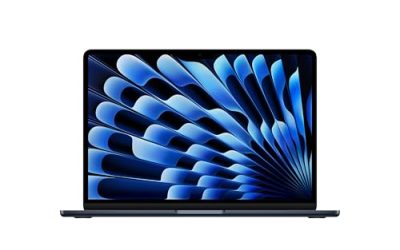
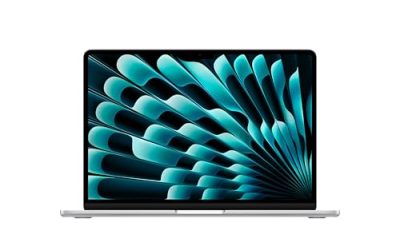
- Best for call heavy days: Apple MacBook Air 13-inch with M3 chip, for its 1080p camera, silent design and MagSafe charging.
- Best large screen for long battery days: ASUS Vivobook 16 with Snapdragon X, with a 16 inch 1920 x 1200 display and 16GB of memory.
- Best for demanding multitasking: ASUS Zenbook 14 OLED, with a Core i9 processor, 1TB SSD and a 2880 x 1800 touch display.
- Best big screen for bright rooms: Lenovo IdeaPad Slim 5i 16, with an anti glare 1920 x 1200 touch panel and a Core i7-1355U.
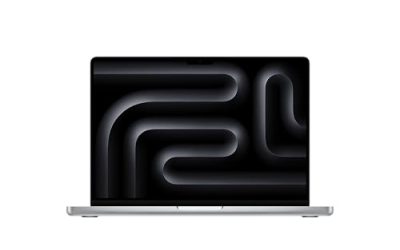
Apple MacBook Air 13-inch with M3 chip

The MacBook Air with the M3 chip is the easiest recommendation for call heavy home working. Its 1080p FaceTime HD camera is a step above the basic webcams still found on many laptops, which matters when your face is on screen for several hours a day, and the fanless design stays silent during calls. The 13.6 inch Liquid Retina display is sharp for documents, Touch ID speeds up sign ins between meetings, and MagSafe charging leaves both Thunderbolt ports free for a monitor and accessories, which is a small detail that improves a permanent desk setup every single day.
Key specs
- Display: 13.6 inch Liquid Retina, 2560 x 1664
- Processor: Apple M3
- Memory: 8GB unified memory in the listed base configuration
- Storage: 256GB SSD in the listed base configuration
- Camera: 1080p FaceTime HD camera
- Ports: MagSafe charging, two Thunderbolt and USB 4 ports, headphone jack
- Operating system: macOS
Pros
- Clear 1080p webcam for daily video calls
- Silent fanless design and Touch ID sign in
- MagSafe charging keeps both data ports free
Cons
- Base memory and storage are modest for large local archives
- No USB Type A port, so older peripherals need an adapter
ASUS Vivobook 16 with Snapdragon X (X1607QA-DS54)

This Vivobook 16 pairs a Snapdragon X processor with a large 16 inch display, a combination aimed at people whose working day is mostly browser tools, documents, email and calls. The 1920 x 1200 screen gives you more vertical room than a standard Full HD panel, so long documents and chat windows need less scrolling. With 16GB of memory and a 512GB SSD in the listed configuration, it has the headroom a home worker actually feels when twenty tabs, a video call and a presentation are open at the same time.
Key specs
- Display: 16 inch WUXGA, 1920 x 1200, 60Hz
- Processor: Qualcomm Snapdragon X
- Graphics: Qualcomm Adreno integrated graphics
- Memory: 16GB
- Storage: 512GB SSD
- Operating system: Windows 11 Home
- Colour: Quiet Blue
Pros
- Large taller screen suits documents and side by side windows
- 16GB memory handles busy browser based workloads
- Efficient platform suited to long days away from the charger
Cons
- Check specialist Windows software compatibility on the Snapdragon platform before ordering
- Large 16 inch chassis is less handy on a small desk
ASUS Zenbook 14 OLED (i9-13900H configuration)

The Zenbook 14 OLED listing used here is a high specification configuration built around an Intel Core i9-13900H, 16GB of memory and a 1TB SSD, with a 14 inch 2880 x 1800 OLED touch display. For home workers who keep dense spreadsheets, design files or code on screen all day, that resolution keeps small text crisp at comfortable scaling. Thunderbolt connectivity, a fingerprint reader and Windows 11 Pro in the listing make it the most desk ready Windows pick in this guide for a permanent setup with an external monitor.
Key specs
- Display: 14 inch OLED touch, 2880 x 1800
- Processor: Intel Core i9-13900H
- Memory: 16GB
- Storage: 1TB SSD
- Operating system: Windows 11 Pro
- Security: Fingerprint reader in the listing
- Connectivity: Thunderbolt ports in the listing
Pros
- Very sharp OLED display for dense text and detailed work
- Strong processor, memory and storage for demanding multitasking
- Windows 11 Pro and fingerprint sign in suit a permanent home office
Cons
- High specification configuration is more power than a documents only workload needs
- OLED care habits matter if you leave static windows open all day
Lenovo IdeaPad Slim 5i 16 with Core i7-1355U

The IdeaPad Slim 5i 16 gives home workers a big, taller screen without moving to a workstation class machine. Its 16 inch WUXGA display runs at 1920 x 1200 with an anti glare finish described in the listing, which helps in bright rooms where a glossy panel reflects windows and lamps during calls. The Intel Core i7-1355U is aimed at everyday productivity rather than heavy rendering, and the touch display option in the listing is useful for annotating documents and quick navigation during presentations.
Key specs
- Display: 16 inch WUXGA IPS touch, 1920 x 1200, anti glare
- Processor: Intel Core i7-1355U, 13th generation
- Graphics: Integrated graphics
- Operating system: Windows
Pros
- Large anti glare screen is comfortable in bright home offices
- Taller 1920 x 1200 panel shows more rows in spreadsheets
- Core i7 U series processor suits documents, calls and browser work
Cons
- Confirm the exact memory and storage of the configuration you select on the listing
- Integrated graphics are for productivity, not demanding creative rendering
How to choose a work from home laptop
Start with the webcam and audio, because they are the parts your colleagues experience. A 1080p camera holds up better in mixed indoor light than an older 720p unit, and a physical privacy shutter or a camera off key is worth having if you share the room. Next, look at the keyboard and display together: you will type and read on this machine for most of the day, so a backlit keyboard, a large trackpad and a display with enough vertical space for documents matter more than a thin chassis.
Memory and storage decide how the laptop ages. For browser heavy work, 16GB of memory is the comfortable target, while 8GB machines still work if your day is mainly documents and calls. A 512GB SSD is a sensible middle ground for home workers who keep project files locally, and 1TB suits photo, video or code archives. Check ports against your actual desk: an HDMI port or a Thunderbolt or USB C port with display support for your monitor, a port for your headset or dock, and a spare port while charging. Finally, think about noise and heat. Fanless or efficiency focused designs stay quiet on calls, while higher wattage processors are better reserved for people who genuinely run heavy local workloads.
A few setup habits make any of these laptops work better at home. Raise the screen so the webcam sits near eye level, because a camera that looks up at you all day is tiring for everyone on the call. Add a separate keyboard and mouse if your desk allows it, keep the charger in a fixed place so battery anxiety never enters your routine, and use wired networking or a well placed router if your calls compete with other people streaming in the house. None of these habits depend on which model you buy, and together they do as much for call quality as the laptop itself.
Also plan for backups and sign in security from the first week. Turn on the fingerprint reader or face sign in where the listing includes it, enable the operating system drive encryption, and keep work files in a synced folder or on a scheduled backup drive. A home laptop holds tax documents, family photos and work projects on the same disk more often than an office machine ever did, so the safest setup is the one you arrange before anything goes wrong, not after.
Frequently asked questions
How much memory does a work from home laptop need?
For documents, email and video calls, 8GB can be enough, but 16GB is the safer choice if you keep many browser tabs, chat tools and office applications open together. Memory is often soldered on thin laptops, so choose for the workload you expect in two years, not only the workload you have today.
Is a bigger screen better for working from home?
A 15 or 16 inch screen makes side by side windows and spreadsheets easier, and taller resolutions such as 1920 x 1200 show more rows than 1920 x 1080. The trade off is desk space and portability, so pair a large laptop with a tidy desk, or choose a 13 or 14 inch model and add an external monitor later.
Do I need Windows 11 Pro for home working?
Most home workers are well served by Windows 11 Home or macOS. Pro adds management and security features that matter mainly when an employer administers the device or you need its specific remote and encryption tools. Check your employer requirements before paying attention to the edition.
Should a work from home laptop have a touchscreen?
A touchscreen is optional. It helps for annotating documents, signing forms and quick scrolling, but it does not replace a good keyboard and trackpad for long writing sessions. Choose it if you already use touch on other devices, and skip it if you prefer a lighter, simpler panel.
Conclusion
For most home workers, the MacBook Air with M3 is the simplest fit when calls dominate the day, while the Vivobook 16 with Snapdragon X suits people who want a large screen and an efficient Windows machine. Choose the Zenbook 14 OLED if your work is dense, visual and demanding, and the IdeaPad Slim 5i 16 if a big anti glare display in a bright room is your priority. Whichever you pick, confirm the exact configuration, webcam and ports on the Amazon listing before ordering, set up sign in security and backups in the first week, and build the small desk habits, screen height, fixed charger and a quiet corner for calls, that turn a good laptop into a good home office.
Related guides
- Best Laptops to Play Roblox: From Budget Integrated Graphics to Dedicated GPUs
- Best Laptops for Zoom Teaching: Clear Video, Reliable Audio and All-Day Class Power
- Best Laptops for Video Editing and Music Production: Power, Screen and Storage
- Best Laptops for Network Engineers: Ethernet, RAM for Labs and Ports That Matter
More from Amazon
Programs that pair well with the guide above. Offers and eligibility are set by Amazon and may change.
Free shipping on eligible items, Prime Video and more. Eligible new members can start with a free trial.
Start a Prime free trialAd-free music streaming. Eligible new subscribers can start with a free trial.
Try Music Unlimited freeA Prime membership for ages 18-24 with a trial period. Eligibility is set by Amazon.
See Prime for Young AdultsAudiobooks and podcasts to listen to on the go. Eligible new members can start with a free trial.
Try Audible freeAs an Amazon Associate we earn from qualifying purchases.
Write Your Review
No reviews yet. Be the first to share your experience!