
Key takeaways
- The 5 best laptops for terminal and command-line work, with strong keyboards, Unix-friendly systems, and screens that stay sharp for hours.
What's inside
As an Amazon Associate I earn from qualifying purchases. This post may contain affiliate links at no extra cost to you.
Terminal work looks simple from the outside: a black window, a prompt, and text. In practice it is hours of typing commands, reading logs, editing configuration files, and switching between shells, editors, and browser tabs. A laptop that is fine for email can still be a poor terminal machine if its keyboard is cramped, its screen strains your eyes at small font sizes, or its operating system fights the tools you use every day.


This guide is for developers, system administrators, and Linux users who live in the terminal. Every pick below was chosen from its name and specifications on its Amazon listing, with a comfortable keyboard, a sharp display, and an operating system that runs terminal tools without extra setup.
Quick Picks
As an Amazon Associate we earn from qualifying purchases
| Product | Best for | Key spec from title |
|---|---|---|
| Apple MacBook Air 13-inch (M4) | Silent terminal work anywhere | Apple M4 chip, 13.6-inch Liquid Retina display |
| Apple MacBook Pro 14-inch (M4) | Heavy terminal sessions all day | Apple M4 chip, 14.2-inch Liquid Retina XDR display |
| Lenovo ThinkPad X1 Carbon Gen 12 | The classic Linux terminal keyboard | Intel Core Ultra processor, 14-inch display |
| Dell XPS 13 9340 | A compact Windows terminal machine | Intel Core Ultra 7, 13.4-inch display |
| ASUS Zenbook 14 OLED (UM3406HA) | A bright OLED screen for long sessions | Ryzen 7 8840HS, 14-inch OLED touchscreen |
How to Choose
Put the Keyboard First
Terminal work is typing, so the keyboard matters more than any other single part. Look for well-spaced keys with clear travel, a full row of function keys, and a layout that keeps Control, Escape, and the arrow keys where your fingers expect them. The ThinkPad in this guide has the strongest reputation for keyboard feel among the picks, while the MacBooks and the Zenbook use flatter keyboards that suit lighter typists. If you use Vim or Emacs heavily, a good Escape key position and a comfortable Control key will save your hands over a long session.
Pick an Operating System That Runs Your Tools
The terminal experience depends on the system underneath it. macOS gives you a Unix-based shell with a polished desktop and wide tool support, Linux gives you the native home of most command-line tools, and Windows 11 with Windows Subsystem for Linux gives you a Linux shell inside Windows. The MacBooks here run macOS, the ThinkPad and the Dell run Windows 11 and also run Linux well, and the Zenbook runs Windows 11 with WSL as the path to a Linux terminal. Choose the system your daily tools already assume.
Check the Screen for Small Text
You will read small monospace text for hours, so screen sharpness and brightness matter more than size alone. A high-resolution panel keeps terminal fonts crisp, and a bright screen helps in offices with strong light. The MacBook Pro uses a Liquid Retina XDR display, the Zenbook uses an OLED touchscreen, and the MacBook Air uses a Liquid Retina display, all of which render small text cleanly. A matte or anti-glare finish helps too, though none of these listings promise one, so check the listing before you buy.
Do Not Skimp on Memory and Storage
Terminal work itself uses little memory, but the tools around it do not: containers, virtual machines, language servers, and browser tabs with documentation add up quickly. Treat 16GB of memory as the floor for serious terminal work, and prefer 512GB of storage so local repositories, container images, and virtual machines have room to grow. All five picks here meet that memory floor, and most offer 512GB or more, which keeps the machine useful as your projects grow over the years.
The 5 Best Options
Apple MacBook Air 13-inch (M4)
The MacBook Air 13-inch with the M4 chip is the quietest terminal machine here, since it has no fan, and its Unix-based macOS gives you a real shell, Homebrew, and the standard developer tools without extra setup. Its 13.6-inch Liquid Retina display stays sharp at small font sizes, and its 16GB of unified memory handles containers and language servers alongside a browser full of documentation. The fanless design means it never gets loud during a long session, though sustained heavy builds will slow down as the chip warms up.
Specs
- Apple M4 chip
- 13.6-inch Liquid Retina display
- 16GB unified memory
- 256GB SSD storage
- macOS
- Wi-Fi 6E
- Touch ID
- Fanless design
Best for: Quiet, portable terminal work with a Unix shell out of the box.
Watch out for: The fanless design throttles under long heavy builds, and 256GB of storage fills up fast with containers and virtual machines.
ASIN: B0F67QHDFT
Apple MacBook Pro 14-inch (M4)
The MacBook Pro 14-inch with the M4 chip is the pick for terminal users who run heavy sessions all day, with a fan that keeps performance steady during long builds and a Liquid Retina XDR display that renders small text with excellent contrast. Its 16GB of memory and 512GB SSD give containers, virtual machines, and local repositories room to breathe, and macOS supplies the same Unix shell and developer tools as the Air. The larger battery and brighter display also help when you work away from a desk for hours.
Specs
- Apple M4 chip
- 14.2-inch Liquid Retina XDR display
- 16GB unified memory
- 512GB SSD storage
- macOS
- Wi-Fi 6E
- Touch ID
- Active cooling with fan
Best for: Long, heavy terminal sessions that need steady performance.
Watch out for: It is heavier and thicker than the Air, and the XDR display is wasted if you mostly work in a plain terminal window.
ASIN: B0DLHWM5FB
Lenovo ThinkPad X1 Carbon Gen 12
The ThinkPad X1 Carbon Gen 12 is the classic terminal laptop, with the best keyboard in this guide, a TrackPoint for moving the cursor without leaving the home row, and a long history of running Linux cleanly. Its Intel Core Ultra processor and 14-inch display handle terminal multiplexers, editors, and browsers without strain, and its light carbon-fiber body makes it easy to carry between desks and data centers. It ships with Windows 11, and its hardware is well supported by major Linux distributions if you prefer to run Linux directly.
Specs
- Intel Core Ultra processor
- 14-inch display
- 16GB memory
- 512GB SSD storage
- Windows 11
- TrackPoint pointing stick
- Carbon-fiber chassis
- Wi-Fi 6E
Best for: Developers who type all day and want the best keyboard here.
Watch out for: The listing is sold through third-party sellers in some configurations, so confirm the exact processor and memory on the listing before buying.
ASIN: B0D8CRBYT8
Dell XPS 13 9340
The Dell XPS 13 9340 packs terminal work into the smallest frame here, with an Intel Core Ultra 7 processor, a 13.4-inch display, and 16GB of memory in a compact aluminum body. It runs Windows 11, and Windows Subsystem for Linux gives you a Linux shell alongside your Windows tools, which suits developers who need both worlds. Its edge-to-edge display keeps text sharp, and its light weight makes it easy to carry to meetings, cafes, and client sites.
Specs
- Intel Core Ultra 7 processor
- 13.4-inch display
- 16GB memory
- 512GB SSD storage
- Windows 11
- Wi-Fi 7
- Aluminum chassis
- USB-C with Thunderbolt
Best for: A compact Windows machine with a Linux shell through WSL.
Watch out for: The compact keyboard and small arrow keys take getting used to, and the listing is sold by a third-party seller, so confirm the configuration and warranty on the listing.
ASIN: B0DJQRZ527
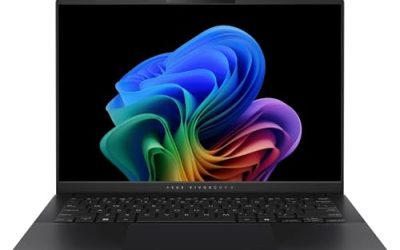
ASUS Zenbook 14 OLED (UM3406HA)
The ASUS Zenbook 14 OLED pairs a Ryzen 7 8840HS processor with a 14-inch WUXGA OLED touchscreen, which makes terminal text look unusually crisp and gives you touch input for scrolling through long logs. Its 16GB of LPDDR5X memory and 512GB Gen 4 SSD handle containers and editors well, and Windows 11 with WSL provides the Linux terminal alongside Windows tools. The OLED panel also helps in dim rooms, since black terminal backgrounds stay truly black instead of glowing gray.
Specs
- AMD Ryzen 7 8840HS processor
- 14-inch WUXGA OLED touchscreen display, 1920 x 1200
- 16GB LPDDR5X memory
- 512GB Gen 4 SSD storage
- Windows 11 Home
- Wi-Fi 6E
- Thunderbolt 4
- Copilot AI
Best for: Long terminal sessions where a bright OLED screen reduces eye strain.
Watch out for: OLED panels can show burn-in with static terminal windows left open for very long periods, so use a screen saver or hide the taskbar.
ASIN: B0DFWZ77LB
Which One Fits Your Situation
You Want a Unix Shell With No Setup
Pick the MacBook Air 13-inch (M4) if you want a Unix terminal that works the moment you open it, with no fan noise and a light body for carrying everywhere. Pick the MacBook Pro 14-inch (M4) instead if your sessions run long builds or many containers, since its fan keeps performance steady where the Air slows down.
You Type All Day and Run Linux
Pick the ThinkPad X1 Carbon Gen 12 if the keyboard is your top priority and you want a machine with a long record of running Linux cleanly. Its TrackPoint and key feel suit developers who live in Vim or Emacs, and its light carbon-fiber body travels well between desks, server rooms, and client sites.
You Need Windows and Linux Together
Pick the Dell XPS 13 9340 if you want the smallest machine here and need Windows programs alongside a Linux shell through WSL. Pick the ASUS Zenbook 14 OLED instead if you want the sharpest screen for reading small text, since its OLED panel renders terminal fonts with the best contrast in this guide.
Common Mistakes
- Buying the cheapest laptop with 8GB of memory and discovering that containers, language servers, and browser tabs slow it to a crawl.
- Picking a laptop for its processor and ignoring the keyboard, then spending every day fighting cramped keys and a bad arrow-key layout.
- Choosing Windows without checking whether your tools run natively or need Windows Subsystem for Linux first.
- Buying a 256GB drive and filling it with container images, virtual machines, and local repositories within months.
- Ignoring screen quality and ending up with a dim panel that makes small terminal text hard to read for hours.
Frequently Asked Questions
What makes a laptop good for terminal work?
A good keyboard, a sharp screen for small text, at least 16GB of memory, and an operating system that runs your tools natively. The processor matters less than these, since terminal work itself is light, but the tools around it, like containers and language servers, need memory and storage.
Is macOS or Linux better for terminal work?
Both work well, and the choice depends on your tools. macOS gives you a Unix shell with a polished desktop, while Linux gives you the native home of most command-line tools and package managers. Windows 11 with WSL is a practical third option when you also need Windows programs.
How much memory do I need for terminal work?
Treat 16GB as the floor for serious work, since containers, virtual machines, and language servers add up quickly even when the terminal itself uses little. If you run several containers at once or keep many browser tabs open with documentation, 32GB gives you more headroom.
Does a fanless laptop work for terminal sessions?
Yes, for most terminal work a fanless laptop like the MacBook Air is quiet and fast enough, since typing commands and editing files barely warm the chip. Long heavy builds are the exception, since the chip slows down as it heats up, so pick a fanned machine like the MacBook Pro if you compile large projects often.
Should I run Linux directly or use WSL on Windows?
Run Linux directly if your tools assume Linux and you want the simplest setup, which is why the ThinkPad suits that path. Use WSL on Windows if you also need Windows-only programs, since it gives you a real Linux shell alongside Windows without dual-booting.
Related guides
More from Amazon
Programs that pair well with the guide above. Offers and eligibility are set by Amazon and may change.
Free shipping on eligible items, Prime Video and more. Eligible new members can start with a free trial.
Start a Prime free trialAd-free music streaming. Eligible new subscribers can start with a free trial.
Try Music Unlimited freeA Prime membership for ages 18-24 with a trial period. Eligibility is set by Amazon.
See Prime for Young AdultsAudiobooks and podcasts to listen to on the go. Eligible new members can start with a free trial.
Try Audible freeAs an Amazon Associate we earn from qualifying purchases.
Write Your Review
No reviews yet. Be the first to share your experience!