
Our Short List of 3

- Best for: Students who want a large, color-trustworthy screen in a light machine that edits quietly anywhere.
- 15.3-inch Liquid Retina display
- Apple M4 chip with 10-core CPU
- 16GB unified memory, 512GB SSD storage
- 12MP Center Stage camera with Desk View

- Best for: Students who prioritize OLED color and contrast for judging edits on screen.
- 15.6-inch 3K (2880 x 1620) OLED display, 120Hz
- Snapdragon X Elite processor
- 16GB RAM, 1TB SSD storage
- Backlit keyboard, Windows 11 Home

- Best for: Students who edit on the move and want OLED color in the lightest package here.
- 14-inch OLED display, 2880 x 1800, 90Hz
- Intel Core Ultra 5 125H processor
- 16GB LPDDR5X RAM, 512GB SSD storage
- Backlit keyboard, Windows 11 Home
All 3 Picks at a Glance
| Product | Specs | Action |
|---|---|---|
| Apple MacBook Air 15 M4 |
| Check price on Amazon |
| ASUS Vivobook S 15 OLED |
| Check price on Amazon |
| Acer Swift Go 14 OLED |
| Check price on Amazon |
Key takeaways
- Find the best laptops for photography students with color-accurate displays, fast storage, and enough power for Lightroom, Photoshop, and large photo libraries.
What's inside
As an Amazon Associate I earn from qualifying purchases. This post may contain affiliate links at no extra cost to you.
Photography students ask more of a laptop than most other students do. You import hundreds of RAW files after a shoot, edit them in Lightroom or Photoshop, and then export a portfolio that has to look right on every screen it lands on. A washed-out display or a slow drive turns that workflow into a chore, and the wrong machine can cost you hours every week.
The laptops below were chosen for the parts of the job that matter in a classroom and in the field: a display you can trust for color, a processor and memory combination that keeps editing responsive, and storage roomy enough for a growing library. Every model is a real laptop sold on Amazon US, with specifications taken from its Amazon listing. Match the machine to how you shoot, and the editing will keep up with you.
Quick Picks
As an Amazon Associate we earn from qualifying purchases.
| Product | Best for | Key spec from title |
|---|---|---|
| Apple MacBook Air 15 M4 | Color-accurate editing | 15.3″ Liquid Retina, 16GB/512GB |
| ASUS Vivobook S 15 OLED | OLED color and contrast | 15.6″ 3K 120Hz OLED display |
| Acer Swift Go 14 OLED | Portable OLED editing | 14″ OLED 2880×1800 display |
| Lenovo Yoga 7i 2-in-1 16″ | Editing and presenting | 16″ WUXGA touchscreen, Ultra 7 |
| Dell Inspiron 16 Plus 7640 | Large-screen editing | 16″ 2.5K display, 16GB/1TB |
How to Choose
Display color accuracy
Your display is your darkroom, so color accuracy matters more than any other single specification. An OLED panel or a high-quality IPS panel with wide color coverage shows subtle skin tones and shadow detail that a basic panel flattens out. Look for listings that mention the panel type, resolution, and color gamut, and be wary of laptops that describe the screen only as Full HD with no further detail. If you edit for print, a display with strong sRGB coverage is the minimum, while wider gamuts give you more room to judge saturated colors.
Processing power for editing
Photo editing is a burst workload: importing, generating previews, and exporting all hit the processor and memory at once. A modern multi-core chip with 16GB of memory keeps Lightroom responsive while you cull a shoot, and it prevents the spinning wheel that appears when you apply heavy adjustments to a large RAW file. Eight gigabytes can handle light edits, but it slows down noticeably with layered Photoshop files or catalogs of thousands of images. Choose the strongest processor and memory combination you can, because editing is the task you will feel every day.
Storage for a growing library
A photography library grows fast, and a small drive forces you into constant cleanup or a tangle of external disks. A 512GB SSD is the practical starting point for a student, while 1TB gives you room for a semester of shoots plus your editing software and a backup catalog. Solid-state storage also matters for speed: an NVMe SSD loads previews and exports far faster than an older spinning drive. Check the listing for the drive size and type, and remember that a fast internal drive saves time every single time you open a catalog.
Portability for shoots and classes
You carry this laptop to lectures, to the studio, and out on location, so weight and battery life shape your day more than raw benchmarks do. A machine under four pounds with a full day of battery lets you edit on a train or review shots in the field without hunting for an outlet. Larger 16-inch models give you more screen for editing but add weight to your bag, so think about how far you walk between classes. A thin, light laptop with a bright screen is often the better student choice, even if a heavier machine wins on paper.
The 5 Best Options
Apple MacBook Air 15 M4
- Best for: Students who want a large, color-trustworthy screen in a light machine that edits quietly anywhere.
- 15.3-inch Liquid Retina display
- Apple M4 chip with 10-core CPU
- 16GB unified memory, 512GB SSD storage
- 12MP Center Stage camera with Desk View
Students who want a large, color-trustworthy screen in a light machine that edits quietly anywhere.
The 512GB drive fills up quickly with RAW libraries, so plan for external storage.
The MacBook Air 15 pairs a large 15.3-inch Liquid Retina display with the efficient M4 chip, and that combination suits a photography student well. The screen renders color cleanly for editing, and the 15-inch size gives you room to keep your tools and your image visible at the same time. With 16GB of unified memory and a 512GB SSD, it handles Lightroom catalogs smoothly, and the fanless design means silent editing in a quiet library. The Midnight finish and thin chassis make it easy to carry between lectures and shoots.
Watch out for: The 512GB drive fills up quickly with RAW libraries, so plan for external storage.
ASUS Vivobook S 15 OLED
- Best for: Students who prioritize OLED color and contrast for judging edits on screen.
- 15.6-inch 3K (2880 x 1620) OLED display, 120Hz
- Snapdragon X Elite processor
- 16GB RAM, 1TB SSD storage
- Backlit keyboard, Windows 11 Home
Students who prioritize OLED color and contrast for judging edits on screen.
Some older plug-ins and editing tools may not yet be optimized for the ARM-based processor.
The Vivobook S 15 OLED earns its place through its display alone: a 15.6-inch 3K OLED panel running at 120Hz shows deep blacks and vivid color that make shadow detail easy to judge. That kind of contrast helps when you edit portraits and landscapes where the darkest tones carry the mood. The Snapdragon X Elite processor and 16GB of memory keep editing apps responsive, while the 1TB SSD gives you room for a large library. It is a strong choice if you judge your work by how it looks on screen.
Watch out for: Some older plug-ins and editing tools may not yet be optimized for the ARM-based processor.
Acer Swift Go 14 OLED
- Best for: Students who edit on the move and want OLED color in the lightest package here.
- 14-inch OLED display, 2880 x 1800, 90Hz
- Intel Core Ultra 5 125H processor
- 16GB LPDDR5X RAM, 512GB SSD storage
- Backlit keyboard, Windows 11 Home
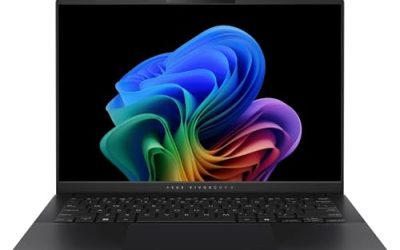
Students who edit on the move and want OLED color in the lightest package here.
The 14-inch screen can feel cramped when you keep tool panels open beside a large image.
The Swift Go 14 OLED packs a color-rich OLED panel into a compact 14-inch body, which makes it the most portable editing machine in this group. The 2880 x 1800 display at 90Hz shows fine detail and saturated color clearly, so you can cull and retouch on a train or in a cafe without a second monitor. Sixteen gigabytes of LPDDR5X memory and a 512GB SSD keep Lightroom moving through a shoot, and the slim chassis keeps your bag light. It is the right pick when portability matters as much as picture quality.
Watch out for: The 14-inch screen can feel cramped when you keep tool panels open beside a large image.
Lenovo Yoga 7i 2-in-1 16″
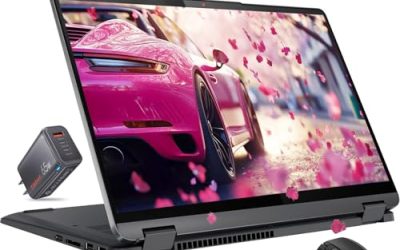
The Yoga 7i gives you a 16-inch WUXGA touchscreen that folds flat, which is useful when you present a portfolio or review prints with a tutor. You can flip it into tent mode and show your work to a small group, or use the touchscreen to zoom and pan through images with your fingers. The Intel Core Ultra 7 processor, 16GB of memory, and 1TB SSD handle large catalogs and layered edits without hesitation, and the Copilot+ features add AI-assisted tools to the workflow. It is the most flexible machine in this lineup.
Specs
- 16-inch WUXGA (1920 x 1200) touchscreen display
- Intel Core Ultra 7 155U processor, 12 cores
- 16GB RAM, 1TB SSD storage
- Backlit keyboard, FHD IR webcam with privacy shutter, Copilot+
- Windows 11 Home, 2-in-1 convertible
Best for: Students who present work in person and want a big touchscreen that doubles as a portfolio display.
Watch out for: The larger 16-inch body is heavier to carry across campus every day.
Dell Inspiron 16 Plus 7640
The Inspiron 16 Plus 7640 is the workhorse of this group, with a 16-inch 2.5K display and a full 1TB of storage for a growing photo library. The higher-resolution panel shows more detail than a standard Full HD screen, which helps when you check focus and sharpness at full zoom. An Intel Core i7-13620H processor and 16GB of memory keep exports moving, and the roomy keyboard and large trackpad suit long editing sessions. It is a straightforward, powerful choice for students who edit at a desk and want space for everything.
Specs
- 16-inch 2.5K display
- Intel Core i7-13620H processor
- 16GB RAM, 1TB SSD storage
- Backlit keyboard, fingerprint reader
- Windows 11 Home, 4.76 pounds
Best for: Students who want a large, sharp display and a full terabyte of storage for a big library.
Watch out for: At 4.76 pounds it is the heaviest laptop here, so it suits a desk more than a daily commute.
Which One Fits Your Situation
You edit on the go
Choose the Acer Swift Go 14 OLED. Its 14-inch OLED display shows color and detail clearly in a package that weighs about 1.3 kg, so you can cull a shoot on a train or in a cafe. The 16GB of memory and 512GB SSD keep Lightroom responsive without a desk or a second monitor.
You edit for print
Choose the ASUS Vivobook S 15 OLED. The 3K OLED panel at 120Hz reveals shadow detail and saturated color that a basic display hides, which matters when your grade depends on how a print looks. The 1TB SSD leaves room for high-resolution files and exported portfolios, and the Snapdragon processor keeps editing apps responsive all day.
You present your portfolio often
Choose the Lenovo Yoga 7i 2-in-1 16″. Tent mode turns it into a display for tutors and classmates, and the touchscreen lets you zoom into details with a finger during a critique. The large touchscreen and 1TB of storage make it a strong showcase machine as well as an editor.
You keep a large library
Choose the Dell Inspiron 16 Plus 7640. The 1TB SSD and 16-inch 2.5K display give you storage and screen space in one machine, and the i7 processor keeps exports moving through a big catalog. It is the most practical pick for students who shoot every week, and the roomy keyboard makes long editing sessions more comfortable.
Common Mistakes
- Choosing a laptop for its processor and ignoring the display, which is where every editing decision happens.
- Buying a 256GB drive and then juggling external disks because the library outgrew it in a month.
- Assuming all Full HD screens show color the same way, when panel quality varies widely.
- Skipping the memory upgrade and watching Lightroom slow down with every added layer.
- Editing on a dim screen in a bright room and wondering why prints come out darker than expected.
Frequently Asked Questions
How much RAM does a photography student need?
Sixteen gigabytes is the right baseline for Lightroom and Photoshop, because both apps hold large images and previews in memory while you work. Eight gigabytes can handle basic edits, but it slows down with layered files or large catalogs. If you stitch panoramas or work with very large RAW files, more memory keeps the workflow smooth.
Is an OLED display better for photo editing?
An OLED display shows deeper blacks and stronger contrast than a typical LCD, which helps you judge shadow detail and color saturation. It is a real advantage for editing, especially for portraits and landscapes. Just remember that OLED panels can look more vivid than a print, so check your export settings and soft-proof before you send work to a printer.
Do I need 1TB of storage as a photography student?
A terabyte is a sensible target if you shoot RAW regularly, because a single shoot can produce tens of gigabytes. A 512GB drive works if you archive finished projects to an external drive after each assignment. Either way, an SSD is essential: it loads previews and exports far faster than a spinning hard drive.
Can a thin laptop handle Lightroom and Photoshop?
Yes, a modern thin laptop with a current multi-core processor and 16GB of memory handles both apps well for student work. The machines in this guide pair efficient processors with fast SSDs, which is what editing actually needs. Heavy batch exports will take longer than on a desktop workstation, but for coursework the difference is small.
Related guides
More from Amazon
Programs that pair well with the guide above. Offers and eligibility are set by Amazon and may change.
Free shipping on eligible items, Prime Video and more. Eligible new members can start with a free trial.
Start a Prime free trialAd-free music streaming. Eligible new subscribers can start with a free trial.
Try Music Unlimited freeA Prime membership for ages 18-24 with a trial period. Eligibility is set by Amazon.
See Prime for Young AdultsAudiobooks and podcasts to listen to on the go. Eligible new members can start with a free trial.
Try Audible freeAs an Amazon Associate we earn from qualifying purchases.
Write Your Review
No reviews yet. Be the first to share your experience!