
Key takeaways
- The 5 best laptops for dual booting Linux compared on driver support, storage space, firmware and build quality for a smooth two-OS setup.
What's inside
As an Amazon Associate I earn from qualifying purchases. This post may contain affiliate links at no extra cost to you.
Dual booting Linux next to Windows sounds simple until the wrong laptop fights you at every step. Wi-Fi that needs a proprietary driver, a fingerprint reader with no Linux support, secure boot that blocks the installer, and a single small drive that leaves no room for a second system are all common traps. The right machine makes the whole setup a calm afternoon project instead of a weekend of forum threads.


This guide is for developers, students and curious users who want Windows and Linux side by side on one machine. Every pick below was chosen from the name and specifications on its Amazon product page, with an eye on Intel or AMD hardware with solid Linux drivers, enough storage to split between two systems, and firmware that lets you install without a fight.
Quick Picks
As an Amazon Associate we earn from qualifying purchases
| Product | Best for | Key spec from title |
|---|---|---|
| Lenovo ThinkPad T14 Gen 5 | Best overall dual-boot machine | Intel Core Ultra, 16GB DDR5 RAM |
| Dell XPS 13 9340 | Compact dual-boot ultrabook | Intel Core Ultra 7 155H, 1TB SSD |
| HP EliteBook 840 G11 | Business laptop with Linux-friendly hardware | Intel Core Ultra, Thunderbolt 4 |
| ASUS Zenbook 14 OLED (Q415) | Best screen for long Linux sessions | Intel Core Ultra 5 125H, OLED display |
| Lenovo ThinkPad X1 Carbon Gen 12 | Premium thin-and-light dual booter | Intel Core Ultra 7, 32GB RAM |
How to Choose
Pick Intel or AMD Hardware for Driver Support
Driver support is the first filter for a dual-boot laptop, and it is where Intel and AMD hardware earns its place. Intel Wi-Fi, Intel graphics and AMD integrated graphics all have mature drivers built into the Linux kernel, so wireless, display and sound usually work straight after installation. ARM-based laptops are a different story: many Linux distributions still lack full support, and key software may not run at all. Before you buy, check that the processor is x86 and that the Wi-Fi card is an Intel model. A quick search for the exact model plus your chosen distribution will tell you what works.
Give Each System Room to Breathe
A dual-boot setup splits one drive between two operating systems, and a cramped drive makes both systems miserable. A 512GB drive is the practical minimum, giving Windows and Linux enough space for their systems, applications and files, while 1TB is far more comfortable for developers with large projects and containers. Two solid-state drive slots are even better, since each system can live on its own drive and never compete for space. Check the storage size and the number of drive slots on the product page before you buy.
Check Firmware, Secure Boot and the BIOS
Firmware decides whether installation is smooth or painful. A laptop that lets you disable secure boot, switch off RAID mode in favour of AHCI, and change the boot order without a password is easy to set up. Business laptops from Lenovo, Dell and HP are usually the most cooperative here, with clear BIOS menus and official Linux support pages. Some consumer laptops hide these options or lock them behind updates, which turns a simple install into a research project. Read the manual or a setup guide for the exact model before you commit.
Business Laptops Age Better as Dual Bootes
Business laptops are built to be serviced, upgraded and supported for years, and that matters when you run two operating systems. They usually offer replaceable memory and storage, spare parts that stay available, and official driver pages for Linux distributions such as Ubuntu and Fedora. Consumer ultrabooks can be just as fast, but sealed designs and short support windows make them harder to maintain over time. If you plan to keep the machine for years, a business laptop with a reputation for Linux support is the safer long-term choice.
The 5 Best Options
Lenovo ThinkPad T14 Gen 5
The ThinkPad T14 Gen 5 is the classic dual-boot laptop, and for good reason. Lenovo officially offers Linux on this line, with Fedora and Ubuntu listed as operating system options, which means the Wi-Fi, graphics and power management are supported out of the box. Its Intel Core Ultra processor and 16GB of DDR5 memory handle development, containers and virtual machines comfortably, while the 512GB drive splits neatly between Windows and Linux. The keyboard is superb for long terminal sessions, and the fingerprint reader and Thunderbolt ports round out a machine built to be worked on.
Specs
- Intel Core Ultra processor (Series 1)
- 14-inch WUXGA IPS touchscreen, 1920 x 1200
- 16GB DDR5 RAM
- 512GB NVMe SSD storage
- 2x Thunderbolt 4 ports, 2x USB-A ports
- Wi-Fi 6E, Bluetooth 5.3
- Fingerprint reader, backlit keyboard
- Windows 11 Pro
Best for: Anyone who wants the smoothest dual-boot setup with official Linux support.
Watch out for: The 512GB drive is workable but tight for two systems with large projects; consider the 1TB configuration if your budget allows.
Dell XPS 13 9340
The XPS 13 is the compact choice for dual booting, packing a full Core Ultra 7 processor and a 1TB drive into a slim 13.4-inch body. That terabyte of storage is the real advantage here: you can give Windows and Linux generous partitions without constantly watching free space. The bright 500-nit display is easy to read outdoors and in bright offices, and the Intel Wi-Fi and graphics stack is well supported under Linux. It is a refined machine for developers who carry their laptop everywhere and want both operating systems in a small package.
Specs
- Intel Core Ultra 7 155H processor
- 13.4-inch FHD+ display, 500 nits
- 16GB LPDDR5x RAM
- 1TB SSD storage
- Intel Wi-Fi 6E
- Windows 11 Pro
Best for: Developers who want a compact laptop with roomy storage for two systems.
Watch out for: The fingerprint reader has limited support under Linux, so plan on a password or PIN; the USB-C-only ports mean you will need an adapter for older peripherals.
HP EliteBook 840 G11
The EliteBook 840 G11 is a business laptop through and through, with the sturdy build, clear BIOS options and long support window that make dual booting straightforward. Its Intel Core Ultra processor and Thunderbolt 4 ports handle development and docking with ease, and the 14-inch display is bright enough for long work sessions. HP’s business line has a long record of running Linux well, and the MIL-STD tested chassis survives daily travel. For a work laptop that runs Windows for the office and Linux for development, this is a dependable pick.
Specs
- Intel Core Ultra processor
- 14-inch WUXGA display
- 16GB RAM
- 512GB SSD storage
- Thunderbolt 4 ports
- MIL-STD 810H tested chassis
- Windows 11 Pro
Best for: Professionals who need a durable work laptop that runs both systems reliably.
Watch out for: The base 512GB drive leaves modest room for two systems, so keep an eye on partition sizes; the exact configuration varies, so confirm the processor and memory on the listing.
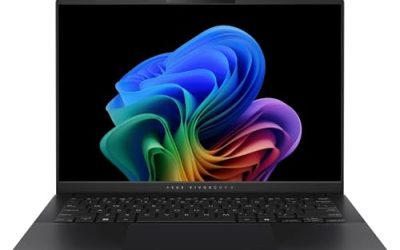
ASUS Zenbook 14 OLED (Q415)
The Zenbook 14 OLED is the most pleasant screen in this guide for long Linux sessions, with a Lumina OLED panel that renders text and code with crisp contrast and deep blacks. Its Core Ultra 5 processor and 8GB of memory are enough for everyday development, browsing and light virtual machines, and the 512GB drive splits between Windows and Linux for a clean dual-boot setup. The laptop is light, quiet and well built, with a backlit keyboard and fingerprint reader for everyday use. Intel Wi-Fi and graphics keep the Linux side working without extra drivers.
Specs
- Intel Core Ultra 5 125H processor
- 14-inch WUXGA Lumina OLED display
- 8GB RAM
- 512GB SSD storage
- Backlit keyboard
- Fingerprint reader
- Windows 11 Home
Best for: Users who want a beautiful OLED screen for long coding and reading sessions.
Watch out for: Only 8GB of memory, which limits heavy virtual machines and containers; Windows 11 Home lacks some business features, though it dual boots just the same.
Lenovo ThinkPad X1 Carbon Gen 12
The X1 Carbon Gen 12 is the premium thin-and-light dual-boot machine, and it earns its place with 32GB of fast memory and a 1TB drive that give both operating systems generous room. The carbon-fibre chassis is light enough to carry all day and tough enough for daily travel, while the 14-inch touchscreen with full sRGB coverage is easy on the eyes during long sessions. Lenovo’s Linux support on the ThinkPad line is the best in the business, so Wi-Fi, graphics and power management work without hunting for drivers. This is the pick for developers who want a flagship machine that runs both systems without compromise.
Specs
- Intel Core Ultra 7 processor
- 14-inch WUXGA touchscreen, 100% sRGB
- 32GB DDR5 RAM
- 1TB SSD storage
- FHD+ infrared camera
- Fingerprint reader
- Windows 11 Pro
Best for: Developers who want a flagship thin-and-light with roomy storage for both systems.
Watch out for: Integrated graphics only, so GPU-heavy work belongs on another machine; the premium build carries a higher cost than the other picks here.
Which One Fits Your Situation
You Want the Easiest Dual-Boot Setup Possible
Pick the ThinkPad T14 Gen 5. Lenovo offers Linux on this line officially, so the drivers, firmware and BIOS all cooperate, and the 512GB drive splits cleanly between Windows and Linux. It is the least likely machine here to send you searching forums at midnight.
You Carry Your Laptop Everywhere
Pick the Dell XPS 13 9340. It is the smallest machine in this guide, and its 1TB drive is the most generous, so both operating systems get plenty of space in a package that disappears into a bag. The bright display and Intel hardware round out a polished portable setup.
You Need a Work Laptop That Runs Both Systems
Pick the HP EliteBook 840 G11. The business build, Thunderbolt 4 ports and clear BIOS make it easy to manage in a work environment, and the durable chassis survives daily commuting. It is the sensible choice when the laptop is a work tool first and a Linux machine second.
You Code for Hours and Want the Best Screen
Pick the ASUS Zenbook 14 OLED. The Lumina OLED panel renders text with outstanding clarity, which matters when you spend all day in an editor and a terminal. The 8GB of memory keeps it to lighter workloads, but for everyday development the screen alone is worth it.
Common Mistakes
- Buying an ARM-based laptop and discovering that your Linux distribution and key tools have no native support for it.
- Choosing a 256GB drive and leaving both operating systems starved for space after the first round of updates.
- Forgetting to disable RAID mode in the BIOS, which makes the Linux installer unable to see the drive at all.
- Picking a laptop with a proprietary Wi-Fi card that needs a driver you cannot install without an internet connection.
- Installing Linux first and letting Windows overwrite the bootloader, instead of installing Windows first and adding Linux second.
Frequently Asked Questions
Which Linux distribution is best for dual booting?
Ubuntu and Fedora are the safest starting points, because they have the widest hardware support and the most setup guides for popular laptops. Ubuntu is the easiest for beginners, while Fedora ships newer kernels that support recent hardware sooner. Linux Mint is a friendly alternative if you want a familiar desktop. Whichever you choose, install Windows first, then Linux, so the Linux bootloader detects both systems automatically.
How much storage do I need for a dual boot?
A 512GB drive is the practical minimum, giving each system enough room for its operating system, applications and files. A 1TB drive is far more comfortable, especially for developers with large projects, containers and virtual machines. If the laptop has two drive slots, put each system on its own drive so neither one ever competes for space. Check the drive size and slot count on the product page before buying.
Does dual booting void my warranty?
No, installing a second operating system does not void the hardware warranty on a laptop from Lenovo, Dell, HP or ASUS. The warranty covers the hardware, not the software you install on it. That said, the manufacturer will not provide support for Linux itself, so you are responsible for fixing software issues on the Linux side. Keep a Windows recovery drive handy in case you need to restore the factory setup.
Can I dual boot on a laptop with secure boot enabled?
Yes, in most cases. Ubuntu, Fedora and other major distributions ship with signed bootloaders that work with secure boot enabled, so you can often install without changing anything. If your distribution is not signed, you can disable secure boot in the BIOS, which is a standard option on business laptops. Either way, back up your data before you touch the boot settings, and keep a recovery drive ready.
Related guides
More from Amazon
Programs that pair well with the guide above. Offers and eligibility are set by Amazon and may change.
Free shipping on eligible items, Prime Video and more. Eligible new members can start with a free trial.
Start a Prime free trialAd-free music streaming. Eligible new subscribers can start with a free trial.
Try Music Unlimited freeA Prime membership for ages 18-24 with a trial period. Eligibility is set by Amazon.
See Prime for Young AdultsAudiobooks and podcasts to listen to on the go. Eligible new members can start with a free trial.
Try Audible freeAs an Amazon Associate we earn from qualifying purchases.
Write Your Review
No reviews yet. Be the first to share your experience!