
Our Short List of 3

- Best for: Photographers in a Mac workflow who want a bright, high-contrast display for judging prints.
- 14.2-inch Liquid Retina XDR display, 1600 nits peak brightness, 1000 nits sustained brightness, 1,000,000:1 contrast
- Apple M4 chip, 10-core CPU, 10-core GPU
- 16GB unified memory
- 512GB SSD storage

- Best for: Windows photographers who want an OLED touchscreen editor with generous onboard storage.
- 16-inch OLED touchscreen, 2.8K (2880 x 1800), 120Hz, 16:10
- AMD Ryzen AI 9 HX 370 processor, up to 5.1 GHz, 12 cores, 24 threads
- NVIDIA GeForce RTX 5070 graphics, 8GB GDDR7
- 32GB LPDDR5X RAM onboard

- Best for: Print photographers who want the widest stated gamut coverage for matching screen to paper.
- 16-inch 3.2K (3200 x 2000) Tandem OLED touchscreen, 120Hz, 1000 nits, HDR 1000 True Black, 100% Adobe RGB, 100% DCI-P3, 100% sRGB
- Intel Core Ultra 9 285H processor, 16 cores, up to 5.4 GHz
- NVIDIA GeForce RTX 5070 Laptop GPU, 8GB GDDR7
- 64GB LPDDR5X-8400 RAM, soldered
All 3 Picks at a Glance
| Product | Specs | Action |
|---|---|---|
| Apple MacBook Pro 14 (M4) |
| Check price on Amazon |
| ASUS ProArt P16 (Ryzen AI 9 HX 370, RTX 5070) |
| Check price on Amazon |
| Lenovo Yoga Pro 9i 16 (Core Ultra 9 285H, RTX 5070) |
| Check price on Amazon |
Key takeaways
- Three laptops with color-accurate displays for matching photos to prints, compared by panel, gamut, calibration support, and ports for photo work.
What's inside
As an Amazon Associate I earn from qualifying purchases. This post may contain affiliate links at no extra cost to you.
Choosing a laptop for color matching is a decision about whether the screen agrees with the print, not about how bright or sharp the display looks. A photo can look perfect on a laptop and come back from the printer with shifted greens, muddy skin tones, or lost shadow detail, and the gap is the panel: it either cannot show the colors, or it shows them inaccurately. The real question is which mix of gamut coverage, brightness, and calibration support lets you trust the screen before committing ink and paper.
This guide is for photographers who print their work, retouchers who match screen to output for clients, and hobbyists tired of reprinting the same image. Every laptop below was picked from what its Amazon listing states about its display: gamut coverage where given, brightness, panel type, and the processor, memory, and ports behind the screen. Check the display figure on the exact listing you buy from, because the same model name is often sold with several different panels.
Quick Picks
As an Amazon Associate we earn from qualifying purchases.
| Product | Best for | Key spec from title |
|---|---|---|
| Apple MacBook Pro 14 (M4) | A Mac-based print workflow with a reference-grade display | 14.2-inch Liquid Retina XDR display, M4 chip, 16GB unified memory, 512GB SSD |
| ASUS ProArt P16 | Windows OLED editing with a touchscreen for direct masking | 16-inch OLED 2.8K touchscreen, Ryzen AI 9 HX 370, 32GB RAM, 2TB SSD |
| Lenovo Yoga Pro 9i 16 | The widest stated gamut coverage for print matching | 16-inch 3.2K Tandem OLED touchscreen, Core Ultra 9 285H, 64GB RAM, 1TB SSD |
How to Choose
Start with the gamut figures, not the word vivid
A laptop can be sold as a creator machine and still ship with a panel that only covers sRGB, so the only figure that matters is the one on the exact listing you buy from. Look for a stated percentage for Adobe RGB, the wide gamut covering the greens and cyans print work depends on, and compare it with the DCI-P3 figure, which is a video gamut rather than a print one. A listing that names 100% Adobe RGB describes a panel that can show the colors your printer reproduces, while one that only says vivid or accurate color says nothing measurable. Match the model number and configuration to the display described before you order.
Brightness, contrast, and panel type decide what you can actually see
A gamut figure tells you which colors the panel can reach, but not how clearly you can judge them. A bright panel stays readable beside a window or under studio lights, while a dim screen forces you to work in the dark to see shadow detail, and high contrast keeps dark tones from collapsing into grey. OLED panels show true blacks and fine shadow detail that a basic backlit panel smears, which matters when you lift exposure in dark corners or judge skin tones. An IPS panel keeps colors steady when you tilt the screen toward a client, and a high resolution shows more of an image at once, so you zoom and scroll less while retouching.
Plan for calibration, because every panel drifts
A stated gamut percentage is a starting point, and factory validation is what makes it trustworthy on the day the laptop arrives. Listings that name a Delta E value below 2 or a named validation programme are describing a panel that was measured against a known color standard before it shipped, which is a stronger claim than a gamut percentage on its own. Even so, every display drifts as it ages, and the backlight and panel change slowly over months of use. Budget for a hardware calibrator and a regular recalibration routine, and work in consistent lighting, because a laptop that was accurate when new will not stay that way without one.
Match the processor, memory, and ports to the photo workflow
Color work is rarely light work: the files that need an accurate screen are usually large raw photos and layered Photoshop documents. Sixteen gigabytes of memory covers basic editing, while 32GB or more suits photographers who keep Lightroom, Photoshop, and a browser full of reference images open together, and a discrete graphics card helps with AI denoise, masking, and smooth zooming at full resolution. A 1TB drive fills quickly once raw files and cached previews pile up, so 2TB gives real breathing room. Look for an SD card reader to move files straight off the camera, and USB-C or Thunderbolt ports that drive an external monitor and fast storage at the desk.
The 3 Best Options
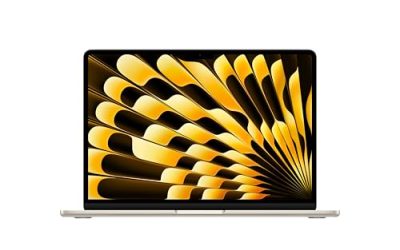
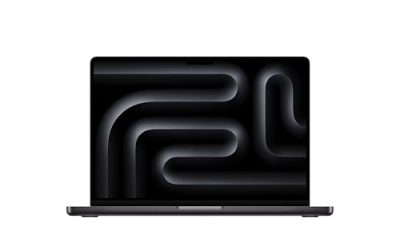
Apple MacBook Pro 14 (M4)
- Best for: Photographers in a Mac workflow who want a bright, high-contrast display for judging prints.
- 14.2-inch Liquid Retina XDR display, 1600 nits peak brightness, 1000 nits sustained brightness, 1,000,000:1 contrast
- Apple M4 chip, 10-core CPU, 10-core GPU
- 16GB unified memory
- 512GB SSD storage
Photographers in a Mac workflow who want a bright, high-contrast display for judging prints.
The listing states brightness and contrast but no gamut percentage, so pair it with a hardware calibrator and check the panel against your print workflow before relying on it. Memory and storage are fixed at purchase on this model, so confirm the 16GB and 512GB configuration before ordering.
The MacBook Pro 14 is the pick for photographers who already work in a Mac-based studio and want a display they can judge prints against. Its 14.2-inch Liquid Retina XDR display is rated at 1600 nits peak brightness and 1000 nits sustained brightness with a 1,000,000:1 contrast ratio, so it stays readable in bright rooms while holding deep blacks in shadow detail. The M4 chip with a 10-core CPU and 10-core GPU handles Lightroom and Photoshop comfortably, and the SDXC card slot, three Thunderbolt 4 ports, and HDMI port connect cameras, drives, and an external monitor without a bag of adapters.
Watch out for: The listing states brightness and contrast but no gamut percentage, so pair it with a hardware calibrator and check the panel against your print workflow before relying on it. Memory and storage are fixed at purchase on this model, so confirm the 16GB and 512GB configuration before ordering.
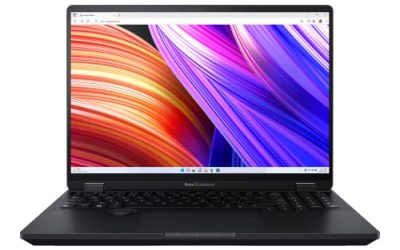
ASUS ProArt P16 (Ryzen AI 9 HX 370, RTX 5070)
- Best for: Windows photographers who want an OLED touchscreen editor with generous onboard storage.
- 16-inch OLED touchscreen, 2.8K (2880 x 1800), 120Hz, 16:10
- AMD Ryzen AI 9 HX 370 processor, up to 5.1 GHz, 12 cores, 24 threads
- NVIDIA GeForce RTX 5070 graphics, 8GB GDDR7
- 32GB LPDDR5X RAM onboard
Windows photographers who want an OLED touchscreen editor with generous onboard storage.
The listing is sold as a bundle that includes a Dockztorm wireless mouse, and its storage is described as customizable across configurations, so confirm the exact 2TB configuration before ordering. The 32GB of memory is onboard, so it cannot be upgraded later, and the listing states no gamut percentage, so check the panel and calibrate it on arrival.
The ProArt P16 is the creator-first Windows pick in this guide, built around a 16-inch OLED touchscreen that makes masking and local adjustments feel direct. Its 2.8K OLED panel runs at 120Hz, so scrolling stays smooth while deep blacks keep shadow detail visible when you lift exposure. The Ryzen AI 9 HX 370 processor and RTX 5070 graphics handle large raw files and AI editing tools without the stutter cheaper machines show as catalogues grow, and the 2TB drive means a working catalogue can live on the laptop instead of an external drive. An SD card reader and a full port set round out a machine aimed at photographers.
Watch out for: The listing is sold as a bundle that includes a Dockztorm wireless mouse, and its storage is described as customizable across configurations, so confirm the exact 2TB configuration before ordering. The 32GB of memory is onboard, so it cannot be upgraded later, and the listing states no gamut percentage, so check the panel and calibrate it on arrival.
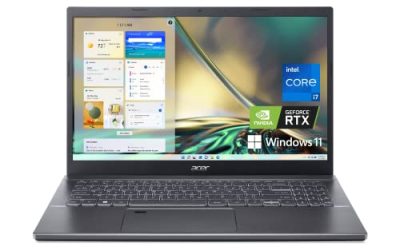
Lenovo Yoga Pro 9i 16 (Core Ultra 9 285H, RTX 5070)
- Best for: Print photographers who want the widest stated gamut coverage for matching screen to paper.
- 16-inch 3.2K (3200 x 2000) Tandem OLED touchscreen, 120Hz, 1000 nits, HDR 1000 True Black, 100% Adobe RGB, 100% DCI-P3, 100% sRGB
- Intel Core Ultra 9 285H processor, 16 cores, up to 5.4 GHz
- NVIDIA GeForce RTX 5070 Laptop GPU, 8GB GDDR7
- 64GB LPDDR5X-8400 RAM, soldered
Print photographers who want the widest stated gamut coverage for matching screen to paper.
The 64GB of memory is soldered and cannot be upgraded, and the 1TB drive uses the smaller M.2 2242 form factor, which limits future storage upgrade choices compared with a standard 2280 slot. Lenovo sells many near-identical Yoga Pro 9i variants, so confirm the exact configuration with 100% Adobe RGB coverage before ordering.
The Yoga Pro 9i 16 is the strongest print-matching pick in this guide, because its listing states the gamut figures: 100% Adobe RGB, 100% DCI-P3, and 100% sRGB on its 16-inch 3.2K Tandem OLED touchscreen. That means the panel can show the greens and cyans that matter for print as well as the video gamut, and the 1000-nit brightness with HDR 1000 True Black keeps the image readable in bright rooms. Its 64GB of memory is the largest here, so Lightroom stays responsive when previews, layers, and AI tools pile up, while the RTX 5070 covers denoise and masking, and the SD card reader takes files straight off the camera.
Watch out for: The 64GB of memory is soldered and cannot be upgraded, and the 1TB drive uses the smaller M.2 2242 form factor, which limits future storage upgrade choices compared with a standard 2280 slot. Lenovo sells many near-identical Yoga Pro 9i variants, so confirm the exact configuration with 100% Adobe RGB coverage before ordering.
Which One Fits Your Situation
You print your photos and need the screen to match the paper
Pick the Lenovo Yoga Pro 9i 16, because its listing states 100% Adobe RGB coverage alongside 100% DCI-P3 and 100% sRGB, the most complete gamut claim in this guide. The 1000-nit Tandem OLED stays readable while you compare prints beside the screen, and the 64GB of memory holds large raw files and layered edits without slowing down. Calibrate it on arrival and every few weeks after, since even a wide-gamut panel drifts.
You work in a Mac-based studio and want a reference display
Pick the Apple MacBook Pro 14, because its Liquid Retina XDR display pairs 1600 nits of peak brightness with a 1,000,000:1 contrast ratio, a bright, high-contrast surface for judging prints. The SDXC slot and three Thunderbolt 4 ports connect cameras, drives, and an external monitor without adapters, and macOS color management fits naturally into a studio that already prints from Macs. Confirm the configuration, since memory and storage are fixed at purchase.
You edit on Windows and want a touchscreen OLED
Pick the ASUS ProArt P16, because its 16-inch OLED touchscreen makes brushing masks and local adjustments direct, while the 2TB drive keeps a working catalogue on the machine. The Ryzen AI 9 HX 370 and RTX 5070 cover large raw files and AI tools, and the SD card reader moves files from camera to laptop without a dongle. Memory is onboard, so the 32GB you order is the 32GB you keep.
You travel to shoots and need color you can trust on location
Pick the Apple MacBook Pro 14, because its bright XDR display holds up outdoors and in bright rooms where a dimmer panel would force you to guess at shadow detail. The SDXC slot takes files straight off the camera, and the 14.2-inch body travels more easily than either 16-inch pick in this guide. Calibrate it before the shoot and work in consistent light, since no panel stays accurate without a routine.
Common Mistakes
- Buying a laptop labelled for creators without checking the gamut figure on the exact listing, since the same model is often sold with sRGB, DCI-P3, and Adobe RGB panels.
- Treating 100% DCI-P3 as the same thing as 100% Adobe RGB, when DCI-P3 is a video gamut and Adobe RGB is the wider print gamut for greens and cyans.
- Assuming a factory calibration lasts forever, when every display drifts and needs regular recalibration with a hardware calibrator.
- Judging color at full brightness in a bright room, or under mixed lighting, instead of calibrating and working in consistent light.
- Choosing the cheapest configuration of a model and discovering its panel is the lower-gamut one, while the wide-gamut panel only ships on higher configurations.
Frequently Asked Questions
What does color matching mean for photography?
Color matching means the colors you see on screen are the colors that come out of the printer, so an edit made on the laptop survives the move to paper. It depends on the display showing the full gamut of the file, the panel being calibrated to a known standard, and consistent viewing light. Without all three, you are guessing at the colors that matter most.
Is Adobe RGB or DCI-P3 better for matching prints?
Adobe RGB is the better target for print work, because it covers more greens and cyans than DCI-P3, and those are the tones where prints most often drift from the screen. DCI-P3 is the standard for video and cinema, so a video editor should prioritise it instead. A panel covering both, like the Yoga Pro 9i here, serves photographers who also deliver video.
Do I still need a calibrator if the laptop claims accurate color?
Yes. A gamut figure describes which colors the panel can display, and factory validation describes how it measured on the day it shipped, but neither stops the panel drifting with age and use. A hardware calibrator measures the screen as it is today and builds a profile that corrects it, and repeating that regularly is the only way to keep the screen honest.
Can I match colors using only the laptop screen?
You can, if the panel covers the gamut your work needs and you calibrate it regularly in consistent light. A laptop screen is enough for many print photographers, and the picks here are chosen for exactly that. An external monitor helps when you want a larger canvas or a second reference, but it adds another display to calibrate, so it is a convenience, not a requirement.
Related guides
More from Amazon
Programs that pair well with the guide above. Offers and eligibility are set by Amazon and may change.
Free shipping on eligible items, Prime Video and more. Eligible new members can start with a free trial.
Start a Prime free trialAd-free music streaming. Eligible new subscribers can start with a free trial.
Try Music Unlimited freeA Prime membership for ages 18-24 with a trial period. Eligibility is set by Amazon.
See Prime for Young AdultsAudiobooks and podcasts to listen to on the go. Eligible new members can start with a free trial.
Try Audible freeAs an Amazon Associate we earn from qualifying purchases.
Write Your Review
No reviews yet. Be the first to share your experience!