
Key takeaways
- Compare five drawing pads for laptops, from the compact Wacom Intuos to the XP-Pen Artist 12 display, with pen pressure and active area compared.
What's inside
As an Amazon Associate I earn from qualifying purchases. This post may contain affiliate links at no extra cost to you.
A drawing pad turns a laptop into a sketchbook, but the right one depends on how you draw. A small pad with no screen is light, cheap, and easy to carry, yet it asks you to look at the laptop while your hand moves on the pad. A pen display shows your lines directly under the stylus, which feels natural, but it costs more and needs a desk. Pressure levels, active area, and software support decide whether the pad keeps up with your hand or fights it.
This guide is for beginners, students, and hobbyists who want to draw, annotate, or retouch photos on a laptop. Every pick below was chosen from the active area, pressure levels, pen type, and compatibility details listed on its Amazon product page, with the trade-off between screenless pads and pen displays explained for each.
Quick Picks
As an Amazon Associate we earn from qualifying purchases
| Product | Best for | Key spec from title |
|---|---|---|
| Wacom Intuos Small CTL4100 | First-time digital artists | 4096 pressure levels, wired |
| Wacom One DTC133 | Drawing directly on screen | 13.3-inch Full HD pen display |
| XP-Pen Deco 01 V2 | A large drawing area for less | 10 x 6.25-inch active area |
| Huion Inspiroy H640P | A compact pad for travel | 6 x 4-inch active area |
| XP-Pen Artist 12 3rd Gen | A modern pen display upgrade | 11.9-inch display, 16K pressure |
How to Choose
Screenless pad or pen display
The first decision is whether you want to see your work under the pen. A screenless pad like the Wacom Intuos or the Huion H640P is cheaper, lighter, and easier to carry, but it takes a few days to learn the hand-eye split between the pad and the laptop screen. A pen display like the Wacom One or the XP-Pen Artist 12 shows your strokes where the pen touches, which feels like paper and shortens the learning curve. If you draw for hours, the display is worth it; if you sketch occasionally or travel often, the screenless pad wins.
Active area should match your arm, not your ambition
A larger active area lets you draw with your whole arm, which suits loose sketching and broad strokes, while a small area suits wrist-driven detail work and fits on a crowded desk. The XP-Pen Deco 01 V2 offers ten inches by six and a quarter, which is generous for a screenless pad, while the Huion H640P is six by four and fits in a laptop sleeve. Measure your desk before you buy, because a pad that crowds your keyboard will spend more time in a drawer than on your desk.
Pressure levels and tilt shape the line
Pressure levels decide how much control you have over line weight: 4,096 levels is enough for most beginners and hobbyists, while 8,192 and the newer 16,384 levels give finer control for professional shading. Tilt support matters if you shade with the side of the pen, a technique the Deco 01 V2 supports at up to 60 degrees. Check whether the pen needs a battery or a charge cable, because battery-free pens like the ones on every pad here are always ready to use.
Software and operating system support come first
A drawing pad is only useful if it works with your laptop and your apps. Wacom, XP-Pen, and Huion all ship drivers for Windows and macOS, and most of these pads also work with Android and ChromeOS for mobile sketching. Confirm that the pad supports the software you actually use, whether that is Photoshop, Clip Studio Paint, Krita, or a free app like MediBang. A pad that ships with bundled software or a trial is a bonus, but the driver support is what keeps it working after an operating system update.
The 5 Best Options
Wacom Intuos Small CTL4100
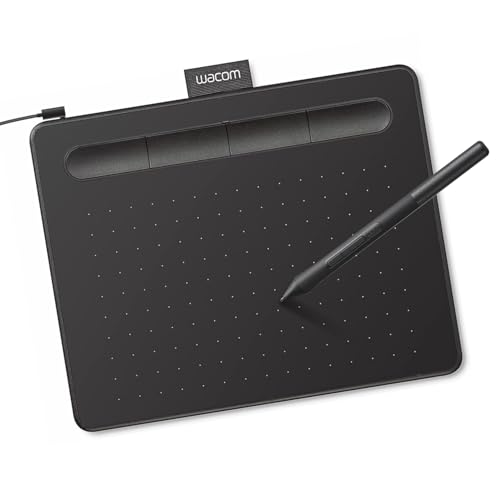
The Wacom Intuos Small is the classic first drawing pad, and its strength is simplicity. The wired CTL4100 connects to Windows, macOS, Android, and ChromeOS, offers 4,096 levels of pressure, and includes four customizable ExpressKeys plus a battery-free pen with two side switches. The active area is compact, which suits a small desk or a laptop bag, and Wacom’s driver support is the most reliable in the category. It is the pad to buy when you want to learn digital drawing without learning a new device at the same time.
Specs
- 7.9 x 6.3-inch active area
- 4096 levels of pen pressure
- Battery-free pen with 2 side switches
- 4 customizable ExpressKeys
- Wired USB connection
- Works with Windows, macOS, Android, ChromeOS
Best for: Beginners and students buying their first drawing pad.
Watch out for: This is the wired CTL4100, not the Bluetooth version, so confirm you are ordering the wired model if you want a cable connection.
Wacom One DTC133

The Wacom One DTC133 is a 13.3-inch pen display, which means you draw directly on the screen and watch your lines appear under the stylus. The Full HD display covers 72 percent of the NTSC color range, the battery-free pen offers 4,096 pressure levels, and the setup works with Windows and Mac through a single USB-C connection on supported machines. It is the most natural-feeling option here for anyone who finds screenless pads awkward, and it doubles as a second monitor for reference images. The 2019 model remains a solid value for beginners.
Specs
- 13.3-inch Full HD pen display
- 72% NTSC color coverage
- 4096 levels of pen pressure
- Battery-free pen
- USB-C connection
- Works with Windows and Mac
Best for: Artists who want to draw directly on the screen at a beginner-friendly cost.
Watch out for: New offers for this 2019 model appear thin, so check the listing’s availability and consider the newer Wacom One models if stock is limited.
XP-Pen Deco 01 V2

The XP-Pen Deco 01 V2 offers the largest drawing area of any screenless pad here, ten inches by six and a quarter, with 8,192 pressure levels and tilt support up to 60 degrees. Eight customizable hot keys sit along the side, and the battery-free pen works with Windows, Mac, and Android, so you can sketch on a phone or tablet as well as a laptop. The large area suits loose, arm-driven drawing, and the price undercuts the Wacom Intuos while offering more room and more pressure levels. It is the value pick for anyone with desk space to spare.
Specs
- 10 x 6.25-inch active area
- 8192 levels of pen pressure
- Tilt support up to 60 degrees
- 8 customizable hot keys
- Battery-free pen
- Works with Windows, Mac, Android
Best for: Hobbyists who want a large drawing area and fine pressure control.
Watch out for: One retailer lists this model as discontinued, so confirm the listing’s stock and seller before ordering.
Huion Inspiroy H640P

The Huion Inspiroy H640P is the travel pad in this group, with a six-by-four-inch active area that slips into a laptop sleeve beside the machine it serves. It still offers 8,192 pressure levels, six customizable hot keys, and a battery-free pen, and it works with Windows, Mac, and Android. The small area suits wrist-driven detail work, signatures, and photo retouching, and the pad’s low weight makes it the easiest to carry to class or a cafe. Avoid the bundle variant with a different ASIN, which adds accessories you may not need.
Specs
- 6 x 4-inch active area
- 8192 levels of pen pressure
- 6 customizable hot keys
- Battery-free pen
- Works with Windows, Mac, Android
Best for: Travelers, students, and photo editors who need a compact pad.
Watch out for: The small active area feels cramped for broad, arm-driven sketching, and the bundle variant carries a different ASIN, so order the standalone pad.
XP-Pen Artist 12 3rd Gen

The XP-Pen Artist 12 3rd Gen is the most modern pen display here, with an 11.9-inch Full HD screen and a new X3 Pro stylus offering 16,384 pressure levels, the finest control in this group. The display shows your work directly under the pen, the stylus needs no battery or charging, and the compact size fits a desk that cannot hold a larger display. It suits artists who have outgrown a screenless pad and want the precision of a pen display without the bulk of a 13-inch or larger model. The third-generation design also improves the pen’s initial activation force, so light strokes register more reliably.
Specs
- 11.9-inch Full HD display
- 16384 levels of pen pressure
- X3 Pro battery-free stylus
- Works with Windows and Mac
- Compact pen display design
Best for: Artists upgrading from a screenless pad to a pen display.
Watch out for: A pen display needs desk space and a cable connection to the laptop, so it is less portable than the screenless pads in this guide.
Which One Fits Your Situation
You are learning digital art for the first time
Choose the Wacom Intuos Small CTL4100. It is simple, reliable, and cheap enough to outgrow, and Wacom’s drivers work with nearly every art app. The battery-free pen is always ready, the four ExpressKeys teach you shortcuts without cluttering the pad, and the compact size fits a crowded student desk beside a laptop.
You find screenless pads awkward
Choose the Wacom One DTC133 or the XP-Pen Artist 12 3rd Gen. Both show your lines under the pen, which feels like paper. The Wacom One is the cheaper entry point with a reliable pen and a bright screen, while the Artist 12 offers far finer pressure control and a more responsive stylus for detailed work.
You sketch on the go
Choose the Huion Inspiroy H640P. It fits in a laptop sleeve, weighs almost nothing, and still offers 8,192 pressure levels. Pair it with a laptop and a free app like Krita for sketching anywhere, since the battery-free pen needs no charging and the pad slips into a bag beside the machine it serves.
You want the biggest drawing area for the money
Choose the XP-Pen Deco 01 V2. The ten-by-six-and-a-quarter-inch area suits loose, arm-driven drawing, and the 8,192 pressure levels and tilt support cover most hobbyist techniques. The eight hot keys keep common tools within reach, and the wide area lets you draw with your whole arm instead of just your wrist.
Common Mistakes
- Buying a large pad for a small desk, then leaving it in a drawer because it crowds the keyboard.
- Choosing a screenless pad when you know you struggle with hand-eye separation, instead of paying a little more for a display.
- Ignoring driver support and discovering the pad does not work with your operating system or your art app.
- Ordering a bundle variant by mistake and paying for accessories you do not need.
- Expecting a drawing pad to fix shaky lines on day one, when the real fix is a week of practice with any of these pads.
Frequently Asked Questions
Do I need a screen on my drawing pad?
Not necessarily. A screenless pad is cheaper, lighter, and easier to carry, and most artists adapt to the hand-eye split within a few days. A pen display feels more natural from the start and helps with precise work, but it costs more and needs desk space.
How many pressure levels do I need?
Four thousand levels is enough for beginners and most hobbyists, since the difference between 4,096 and 8,192 is subtle for everyday sketching. Higher levels matter for professional shading and calligraphy, where fine control over line weight makes a visible difference.
Will a drawing pad work with my laptop?
Almost certainly, if your laptop runs Windows or macOS. Wacom, XP-Pen, and Huion ship drivers for both, and most of these pads also work with Android and ChromeOS. Check the listing for your operating system before ordering, and download the latest driver from the maker’s site.
Can I use a drawing pad for photo editing?
Yes, and many photographers do. A pen gives finer control than a mouse for masking, dodging, and retouching, and a small pad like the Huion H640P is a popular choice for Lightroom and Photoshop work. Start with pressure-sensitive brush sizes, then map the pad’s hot keys to undo and brush changes for a faster workflow.
Related guides
More from Amazon
Programs that pair well with the guide above. Offers and eligibility are set by Amazon and may change.
Free shipping on eligible items, Prime Video and more. Eligible new members can start with a free trial.
Start a Prime free trialAd-free music streaming. Eligible new subscribers can start with a free trial.
Try Music Unlimited freeA Prime membership for ages 18-24 with a trial period. Eligibility is set by Amazon.
See Prime for Young AdultsAudiobooks and podcasts to listen to on the go. Eligible new members can start with a free trial.
Try Audible freeAs an Amazon Associate we earn from qualifying purchases.

Write Your Review
No reviews yet. Be the first to share your experience!