
Key takeaways
- Find the best laptops to reduce eye strain: low blue light OLED, flicker-free and anti-glare screens compared for long, comfortable work days at home.
What's inside
As an Amazon Associate I earn from qualifying purchases. This post may contain affiliate links at no extra cost to you.
Introduction
The best laptops to reduce eye strain treat the display as the main feature, not an afterthought. If you spend long hours reading, writing, editing, or working in spreadsheets, the screen in front of you shapes how tired your eyes feel by the end of the day. A glossy panel in a sunlit room, a display that flickers at low brightness, or a screen with a large amount of blue light can all make a long session feel harder than it needs to be. The right laptop does not remove the need for breaks, good lighting, and a sensible viewing distance, but it can make each hour at the keyboard more comfortable.


The quick answer is to look for a low blue light display, flicker-free dimming where that feature is listed, and a matte or anti-glare finish when you often work near windows or overhead lights. OLED models from ASUS and Acer are strong choices for lower blue light output and high contrast at lower brightness, while anti-glare models from Lenovo and HP suit bright offices. This is a general roundup for anyone who works long hours on a laptop, not a student-only guide.
Quick Picks
| Product | Best For | Key Spec |
|---|---|---|
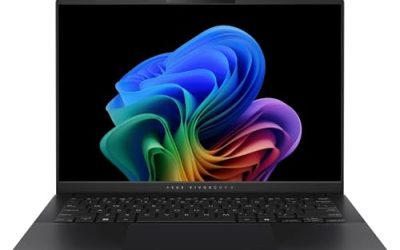
| ASUS Zenbook 14 OLED (B0D7M5K242) | Low blue light OLED work and long battery life | 14-inch WUXGA OLED, Intel Core Ultra 5 125H, 8GB RAM, 512GB SSD |
| Acer Swift Go 14 OLED (B0CNF7KCWS) | Sharp OLED text and colour in a portable size | 14-inch OLED 2880 x 1800, 90Hz, Intel Core Ultra 5 125H, 16GB RAM, 512GB SSD |
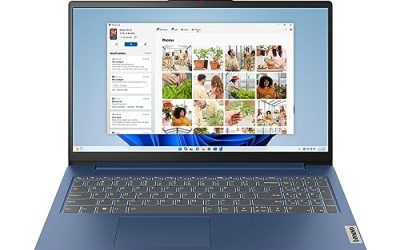
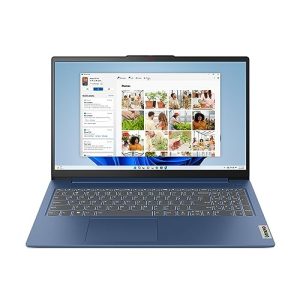
| Lenovo IdeaPad Slim 3 (B0C3MNPB8P) | Anti-glare everyday work in bright rooms | 15.6-inch FHD anti-glare, AMD Ryzen 3 7320U, 8GB RAM, 256GB SSD |
| HP 15.6 inch FHD IPS Touch Laptop (B0G43JGF7B) | Anti-glare touch work with a larger screen | 15.6-inch FHD IPS touch, Intel Core i5-1334U, 8GB RAM, 512GB SSD |
How to Choose
Low Blue Light Displays
Low blue light is one of the most useful features to look for, because it addresses the light coming from the panel itself. ASUS OLED displays are described by the maker as emitting less harmful blue light than a typical LCD, with TÜV Rheinland certification for low blue light on many models. Acer Swift Go OLED models list low blue light technology in their display specifications. That does not mean the screen is free of blue light, or that you can work without breaks, but a panel designed to limit blue light output is a sensible starting point. Look for wording such as low blue light, Eyesafe, or TÜV Rheinland low blue light.
Flicker-Free Dimming and Brightness Control
Flicker is harder to see than glare, yet it can matter during long sessions, especially when you lower the brightness in a dim room. Some displays use rapid pulsing to control brightness, which can create flicker that is not obvious at a glance. OLED displays and flicker-free certified panels are often chosen for this reason, because they can hold a steady image at lower brightness levels. ASUS describes its OLED displays as flicker-free certified on several models. A screen that stays clear at a lower brightness setting lets you match the display to the room, and OLED contrast keeps text readable even when the brightness is turned down.
Matte and Anti-Glare Finishes
If you work near a window or under bright office lights, an anti-glare finish can make a larger difference than any other single feature. A glossy screen reflects the room back at you, and your eyes work harder to separate the text from the reflection. A matte or anti-glare screen spreads that reflected light, so the text stays easier to read. The Lenovo IdeaPad Slim 3 and the HP 15 in this guide both use anti-glare displays, and that is their main strength. The OLED models here use glossy finishes, so they will show more reflections in a bright room than a matte panel. If your workspace has strong light from behind or beside you, choose anti-glare first.
Screen Size, Resolution, and Text Clarity
Screen size and resolution shape how hard your eyes work when you read. A 14-inch display is easier to carry, while a 15.6-inch display gives you larger text and more room for two windows side by side. A larger screen can help if you often compare documents, while a smaller screen helps if you move between rooms. A Full HD display at 1920 x 1080 is a solid baseline for everyday work. A WUXGA display at 1920 x 1200 adds vertical space, and a 2.8K OLED display at 2880 x 1800 makes text look sharper still. Set the text scaling in Windows to a level that feels comfortable, and avoid shrinking the text to fit more on screen at the cost of readability.
Refresh Rate and Viewing Position
Refresh rate affects how smooth scrolling feels during ordinary work. A 60Hz display is fine for most reading and writing. A 90Hz display, such as the one on the Acer Swift Go 14 OLED in this guide, makes scrolling through long pages feel smoother. Do not choose a laptop for refresh rate alone. A high refresh rate does not replace low blue light, flicker-free dimming, or an anti-glare finish. Viewing position matters just as much. Place the screen about an arm length away where possible, with the top of the display at or slightly below eye level. Avoid sitting with a bright window directly behind the screen, because that creates glare. A light source to the side is usually more comfortable.
Battery Life and Portability
Long work sessions are not always at a desk. If you move between rooms or spend the day away from a power outlet, battery life affects how you use the display. A laptop that needs charging every few hours may push you to work in a less comfortable spot near an outlet. The ASUS Zenbook 14 OLED in this guide lists up to 15 hours of battery life in its Amazon listing, which is useful for a full day of writing and browsing away from a desk. Check the battery size, weight, and charger size before you choose, especially if you carry the laptop every day.
The Best Best Laptops to Reduce Eye Strain Reviewed
ASUS Zenbook 14 OLED (B0D7M5K242)
The ASUS Zenbook 14 OLED is the strongest all-round pick in this guide for low blue light work. Its 14-inch WUXGA OLED display is listed at 1920 x 1200, with 500 nits peak brightness, 100 percent DCI-P3 colour gamut, and Eye Care in the technical specifications on its Amazon listing. OLED technology is described by ASUS as producing less harmful blue light than a typical LCD, and the Zenbook line is also associated with flicker-free certification on its OLED displays. That combination is useful for long reading, writing, and editing sessions where the screen stays in front of you for hours.
Inside, this configuration uses an Intel Core Ultra 5 125H processor with 14 cores, 8GB of soldered LPDDR5 memory, and a 512GB PCIe NVMe SSD. That is enough for everyday office work, browsing with many tabs, video calls, and light photo work. The laptop weighs 2.82 pounds in the listing, includes a 75Wh battery, Wi-Fi 6E, Bluetooth 5.3, two Thunderbolt 4 ports, HDMI 2.1, and a backlit keyboard.
This laptop suits office workers, writers, and researchers who want a portable OLED screen with a clear eye-care focus and sharp text at lower brightness. It is less suited to people who work in very bright rooms with strong reflections, because the display finish is listed as glossy. If your desk faces a window or you work under harsh overhead light, an anti-glare model below may feel calmer in that setting.
Acer Swift Go 14 OLED (B0CNF7KCWS)
The Acer Swift Go 14 OLED is the sharpest text option in this guide. Its 14-inch OLED display is listed at 2880 x 1800 with a 90Hz refresh rate, which makes long documents and web pages look crisp and makes scrolling feel smoother than a standard 60Hz panel. Acer lists low blue light technology for its Swift Go OLED range, and the OLED panel is built for deep blacks and high contrast, so text stays readable without pushing the brightness to a high level. That is a practical advantage when you read for hours, because you can keep the screen at a comfortable brightness and still see clear, well-defined letters.
This configuration uses an Intel Core Ultra 5 125H processor, Intel ARC graphics, 16GB of LPDDR5X memory, and a 512GB SSD. The extra memory compared with the Zenbook above gives you more headroom for many open tabs and large documents. The laptop is built as a thin and light Intel Evo model, with Windows 11, Wi-Fi 6E, and a slim aluminium body that is easy to carry between rooms.
This laptop suits readers, editors, and multitaskers who want the sharpest display in a portable size and value smooth scrolling and detailed text. It is less suited to people who need a matte screen above all else, because this OLED panel uses a glossy CineCrystal finish in the Acer specifications for this range. If glare is your main problem, the anti-glare models below deserve a closer look, even though their resolution is lower.
Lenovo IdeaPad Slim 3 (B0C3MNPB8P)
The Lenovo IdeaPad Slim 3 is the practical anti-glare pick in this guide. Its 15.6-inch Full HD display is listed with an anti-glare finish and anti-glare coating in its Amazon listing, which is the feature that matters most if you work in a bright room. The screen spreads reflected light instead of mirroring the room, so documents stay easier to read when a window or a ceiling light is nearby. That simple difference can make a long workday feel less tiring, especially if you share a workspace or move between desks with different lighting.
This configuration uses an AMD Ryzen 3 7320U processor, 8GB of memory, and 256GB of storage, with Windows 11. The 15.6-inch size gives you larger text and more room for side-by-side windows than a 14-inch model. The laptop is described as lightweight for its size, and it includes a numeric keypad, which is useful for spreadsheet work. The display is a standard Full HD panel, so it does not offer the deep blacks or the low blue light OLED design of the models above, but its anti-glare finish is a direct answer to the most common source of discomfort in bright rooms.
This laptop suits everyday office work, writing, and browsing in bright spaces. It suits people who want a larger, calmer screen and a straightforward setup without paying for a high-resolution OLED panel. It is less suited to people who need a lot of storage, because 256GB fills up faster than 512GB. It is also less suited to people who want the lowest blue light output available, because that is where the OLED models in this guide have the clearer advantage.
HP 15.6 inch FHD IPS Touch Laptop (B0G43JGF7B)
The HP 15.6 inch FHD IPS Touch Laptop is the larger-screen anti-glare touch option in this guide. Its 15.6-inch Full HD IPS display is listed with an anti-glare coating and touch support, with 250 nits brightness. The IPS panel gives consistent colours from different viewing angles, which helps when you tilt the screen or share it briefly with someone beside you. The touch screen adds another way to scroll and navigate, which some people find more comfortable than using the trackpad for every movement during a long session.
This configuration uses an Intel Core i5-1334U processor, 8GB of DDR4 RAM, and a 512GB SSD, with Windows 11 Home and Intel Iris Xe Graphics. That combination is well suited to everyday work, video calls, browsing, and document editing, with more storage than the Lenovo model above. The laptop is listed in Natural Silver, with a webcam, HDMI port, and touch support.
This laptop suits people who want a larger touch screen with an anti-glare finish and enough storage for everyday files. It suits home workers, writers, and anyone who reads and edits on a big screen for hours. It is less suited to people who want the lowest blue light OLED design, because this is an IPS LCD panel rather than an OLED panel. It is also less suited to people who want the lightest possible machine, because a 15.6-inch laptop is heavier and larger to carry than the 14-inch OLED models above.
What to Check Before You Buy
Before you order, check the exact configuration on the Amazon listing. Laptop model names cover many versions, and the display, memory, and storage can change between listings that look similar at first glance. Confirm the screen size, resolution, finish, and display technology in the product details, and confirm the processor, memory, and storage in the same listing. The ASIN in each section above points to the configuration described in that section, so use that link to check the version you are buying.
Check the display finish against your room. If you work near a window, choose anti-glare first. If you control the lighting, an OLED panel with low blue light may be the better fit. Check the weight and the battery size if you carry the laptop often, and check the ports if you connect an external display, a mouse, or a keyboard. Finally, check the return policy and the warranty information on the listing before you buy, and keep the box until you have used the laptop in your normal workspace for a few days.
FAQ
Do OLED laptops help with eye strain?
OLED laptops can help with viewing comfort because their displays are designed to emit less harmful blue light than a typical LCD, and they keep high contrast at lower brightness. That can make text easier to read without running the screen at full brightness. OLED alone does not remove the need for breaks, good lighting, and a comfortable viewing distance, and a glossy OLED screen can still show reflections in a bright room.
Is an anti-glare screen better than a glossy screen for long work sessions?
An anti-glare screen is often better in bright rooms because it spreads reflected light and keeps text easier to read when windows or overhead lights are nearby. A glossy screen can look more vivid and show deeper blacks, especially on OLED, but it will mirror the room more clearly. Choose anti-glare if glare is your main problem, and choose OLED if low blue light and contrast at lower brightness matter more to you.
What brightness level should I use?
Use the lowest brightness that still lets you read comfortably in your room. A screen that is much brighter than the room forces your eyes to adjust between the two, while a screen that is too dim makes you strain to read small text. Match the display to the room lighting, turn the brightness down in a dim room, and turn it up only as much as you need in a bright room. OLED panels are useful here because they stay clear at lower brightness.
How often should I take breaks from the laptop screen?
Take regular short breaks during long sessions, look away from the screen, and focus on something in the distance for a short time. Stand up, stretch, and blink normally. No laptop display replaces those habits, even one with low blue light and flicker-free features. A comfortable screen supports good habits, but the breaks themselves are still an important part of a long workday.
Should I choose a 14-inch or a 15.6-inch laptop to reduce eye strain?
A 15.6-inch laptop gives you larger text and more room for two windows, which can help when you compare documents. A 14-inch laptop is lighter and easier to carry, and a high-resolution 14-inch OLED display can still show very sharp text. Choose the larger screen if you work at one desk most of the day, and choose the smaller screen if you move around often and want a lighter machine.
Bottom Line
The best laptops to reduce eye strain in this guide cover the two main paths to a more comfortable screen. If you want the lowest blue light design and sharp text at lower brightness, start with the ASUS Zenbook 14 OLED or the Acer Swift Go 14 OLED. If you work in a bright room and glare is your main problem, start with the Lenovo IdeaPad Slim 3 or the HP 15.6 inch FHD IPS Touch Laptop, both of which use anti-glare displays. Match the finish to your lighting, choose a resolution that keeps text sharp, and set the brightness to suit the room. Then give yourself regular breaks and a comfortable seating position, because the display and your habits work together during a long day.
Disclosure: As an Amazon Associate, we may earn from qualifying purchases.
Related guides
More from Amazon
Programs that pair well with the guide above. Offers and eligibility are set by Amazon and may change.
Free shipping on eligible items, Prime Video and more. Eligible new members can start with a free trial.
Start a Prime free trialAd-free music streaming. Eligible new subscribers can start with a free trial.
Try Music Unlimited freeA Prime membership for ages 18-24 with a trial period. Eligibility is set by Amazon.
See Prime for Young AdultsAudiobooks and podcasts to listen to on the go. Eligible new members can start with a free trial.
Try Audible freeAs an Amazon Associate we earn from qualifying purchases.
Write Your Review
No reviews yet. Be the first to share your experience!