
Our Short List of 3

- Best for: A student who runs Gazebo simulations, vision workloads, or CAD on a daily basis.
- AMD Ryzen 7 7735HS processor
- NVIDIA GeForce RTX 4060 graphics
- 16GB DDR5 RAM
- 1TB PCIe SSD

- Best for: A student who codes most of the day and wants a reliable, well-built daily machine.
- AMD Ryzen 7 7730U processor
- 16GB RAM
- 512GB SSD
- 14″ FHD+ display

- Best for: A student who programs mostly in Python, values silence and battery life, and works in a macOS-friendly toolchain.
- Apple M3 chip
- 13.6″ Liquid Retina display
- 16GB unified memory
- 256GB SSD storage
All 4 Picks at a Glance
| Product | Specs | Action |
|---|---|---|
| 1. ASUS TUF Gaming A15 |
| Check price on Amazon |
| 2. Lenovo ThinkPad E14 Gen 5 |
| Check price on Amazon |
| 3. Apple MacBook Air M3 13 |
| Check price on Amazon |
 4. HP Victus 15 |
| Check price on Amazon |
Key takeaways
- The 5 best laptops for robotics students, picked for ROS, simulation, programming, and CAD, with the CPU, GPU, and RAM each workload needs.
What's inside
As an Amazon Associate I earn from qualifying purchases. This post may contain affiliate links at no extra cost to you.
A robotics student asks more of a laptop than most majors do. The same machine runs ROS and Gazebo simulations, compiles C++ and Python code, models robot parts in CAD, and still has to survive lectures, labs, and team meetings. The real decision is not a single spec: simulation work wants a strong multi-core processor and a capable GPU, programming wants fast storage and plenty of memory, and field work wants a machine that is portable and reliable. Buying for the heaviest workload first keeps the laptop useful through every semester.
This guide is for undergraduate and graduate students building robots in class, in a lab, or on a competition team. Every pick below was chosen from the name and specifications listed on its Amazon product page, with attention to the processor, memory, graphics, and operating system support that robotics software actually needs.
Quick Picks
As an Amazon Associate we earn from qualifying purchases.
| Product | Best for | Key spec from title |
|---|---|---|
| ASUS TUF Gaming A15 | Simulation and GPU work | Ryzen 7 7735HS, RTX 4060, 16GB DDR5 |
| Lenovo ThinkPad E14 Gen 5 | Reliable daily coding and lab work | Ryzen 7 7730U, 16GB RAM, 512GB SSD |
| Apple MacBook Air M3 13 | Quiet, portable programming | Apple M3, 16GB unified memory, 256GB SSD |
| HP Victus 15 | A capable GPU at a student-friendly tier | Ryzen 5 7535HS, RTX 2050, 16GB DDR5 |
| Dell XPS 13 AI PC | Ultraportable with an AI-ready chip | Snapdragon X Elite, 16GB, 512GB SSD |
How to Choose
Processor cores for simulation and compiling
Robotics simulation in Gazebo and similar tools splits work across many threads, and compiling a large ROS workspace does the same, so core count matters more than clock speed alone. A modern 8-core processor finishes a build and keeps a simulation running smoothly where a 4-core chip stalls. Look for a current-generation Ryzen 7 or Core i7 when simulation is a regular part of the coursework, and treat a 6-core chip as the floor for a machine that will run ROS daily.
Graphics: a real GPU or integrated graphics
A dedicated GPU changes what a robotics laptop can do. GPU-accelerated simulation, computer vision, and machine learning models for perception all run far faster with a discrete graphics card, and an RTX-class GPU also handles CAD rendering for robot parts. Integrated graphics are fine for writing code, running a basic simulator, and using the command line, but they struggle with camera feeds and vision workloads. If the course list includes perception, vision, or heavy simulation, a discrete GPU is worth prioritizing.
Memory and storage for ROS workspaces
Robotics projects grow fast: a ROS workspace with message packages, maps, and simulation worlds can eat tens of gigabytes, and running a simulator alongside a browser and an IDE needs memory headroom. Sixteen gigabytes of RAM is the practical minimum for a robotics student, and 32GB is worth having when the work includes large simulations or virtual machines. A 512GB SSD is the starting point for storage, with 1TB giving real breathing room for datasets, bag files, and multiple operating system installs.
Operating system and Linux compatibility
Much of the robotics stack runs best on Linux, and ROS in particular expects it. Some students dual-boot or run Linux in a virtual machine, while others use Windows with the Windows Subsystem for Linux. Before buying, check that the laptop’s Wi-Fi, graphics, and other hardware have Linux drivers, and that the chosen model has a track record of running the target distribution. A machine that runs Linux cleanly saves hours of troubleshooting during the semester. When in doubt, ask the lab or a senior student which distribution the course uses, since matching it avoids driver surprises in week one.
The 5 Best Options
1. ASUS TUF Gaming A15
- Best for: A student who runs Gazebo simulations, vision workloads, or CAD on a daily basis.
- AMD Ryzen 7 7735HS processor
- NVIDIA GeForce RTX 4060 graphics
- 16GB DDR5 RAM
- 1TB PCIe SSD
A student who runs Gazebo simulations, vision workloads, or CAD on a daily basis.
It is a heavier gaming laptop, so the charger and the machine together add real weight to a backpack.
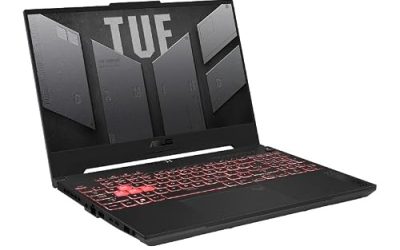
The ASUS TUF Gaming A15 is the strongest simulation machine in this guide. Its Ryzen 7 7735HS processor and RTX 4060 graphics card handle Gazebo worlds, computer vision, and CAD rendering that integrated graphics would choke on, while 16GB of DDR5 memory and a 1TB PCIe SSD give a ROS workspace room to grow. The 15.6-inch full HD display runs at 144Hz, which keeps the interface feeling responsive, and the rugged TUF build is made to survive being carried between labs and team rooms.
Watch out for: It is a heavier gaming laptop, so the charger and the machine together add real weight to a backpack.
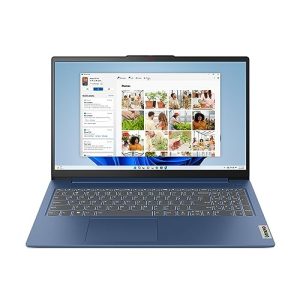
2. Lenovo ThinkPad E14 Gen 5
- Best for: A student who codes most of the day and wants a reliable, well-built daily machine.
- AMD Ryzen 7 7730U processor
- 16GB RAM
- 512GB SSD
- 14″ FHD+ display
A student who codes most of the day and wants a reliable, well-built daily machine.
The integrated graphics limit heavy simulation and vision work, so pair it with a lab machine for GPU tasks.
The Lenovo ThinkPad E14 Gen 5 is the dependable workhorse of this set, built for long coding sessions and daily lab use. Its Ryzen 7 7730U processor and 16GB of RAM compile code quickly, and the 512GB SSD loads a ROS workspace and the IDE without delay. The 14-inch full HD+ display is comfortable for writing and debugging, and the backlit keyboard and fingerprint reader make late-night lab work easier. ThinkPad keyboards are also among the best for students who type all day.
Watch out for: The integrated graphics limit heavy simulation and vision work, so pair it with a lab machine for GPU tasks.
3. Apple MacBook Air M3 13
- Best for: A student who programs mostly in Python, values silence and battery life, and works in a macOS-friendly toolchain.
- Apple M3 chip
- 13.6″ Liquid Retina display
- 16GB unified memory
- 256GB SSD storage
A student who programs mostly in Python, values silence and battery life, and works in a macOS-friendly toolchain.
Native ROS support on macOS is limited compared with Linux, so check the course toolchain before committing to this platform.
The Apple MacBook Air M3 13 is the quiet, portable option for a robotics student who mostly writes code. Its M3 chip compiles Python and C++ projects quickly, the 16GB of unified memory handles a browser, an IDE, and a terminal comfortably, and the fanless design means silent operation in lectures and libraries. The 13.6-inch Liquid Retina display is sharp for reading code and documentation, and the battery lasts through a full day of classes without hunting for an outlet.
Watch out for: Native ROS support on macOS is limited compared with Linux, so check the course toolchain before committing to this platform.
4. HP Victus 15
- Best for: A student who wants a discrete GPU for simulation and vision without stepping up to a flagship gaming laptop.
- AMD Ryzen 5 7535HS processor
- NVIDIA GeForce RTX 2050 graphics
- 16GB DDR5 RAM
- 512GB PCIe SSD
A student who wants a discrete GPU for simulation and vision without stepping up to a flagship gaming laptop.
The Ryzen 5 has fewer cores than the Ryzen 7 in the ASUS, so very large compiles and simulations take longer.
The HP Victus 15 brings a dedicated GPU to a student-friendly tier, which makes it the value pick for simulation and vision work. Its Ryzen 5 7535HS processor and RTX 2050 graphics run Gazebo and basic perception models far better than integrated graphics, while 16GB of DDR5 memory and a 512GB PCIe SSD keep a ROS workspace moving. The 15.6-inch full HD display runs at 144Hz, and Wi-Fi 6 keeps the machine connected on crowded campus networks.
Watch out for: The Ryzen 5 has fewer cores than the Ryzen 7 in the ASUS, so very large compiles and simulations take longer.
5. Dell XPS 13 AI PC
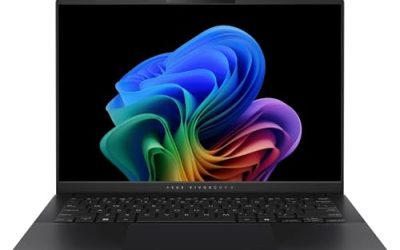
The Dell XPS 13 AI PC is the ultraportable of this group, built around the Snapdragon X Elite chip with an integrated neural processing unit for on-device AI work. Its 16GB of memory and 512GB SSD cover coding, documentation, and light simulation, while the 13.4-inch 2.8K touchscreen display is sharp for reading diagrams and schematics. Wi-Fi 7 keeps it fast on new campus networks, and the slim body disappears into a bag between lectures.
Specs
- Qualcomm Snapdragon X Elite X1E-80-100 processor
- 16GB LPDDR5X RAM
- 512GB SSD
- 13.4″ 2.8K touchscreen display
- Wi-Fi 7
- Windows 11 Pro
Best for: A student who values portability above all and works mainly with code, documentation, and light simulation.
Watch out for: The Snapdragon chip uses the ARM architecture, so some x86 robotics tools need emulation or an ARM-native build; check the course software list first.
Which One Fits Your Situation
Daily simulation and vision work
The ASUS TUF Gaming A15 is the pick when Gazebo, computer vision, or CAD rendering fills the schedule. Its RTX 4060 and 8-core Ryzen 7 handle the workloads that stall integrated graphics, and the 1TB SSD leaves room for simulation worlds and datasets. Accept the extra weight in exchange for a machine that never becomes the bottleneck in a lab session.
Coding all day in lectures and labs
The Lenovo ThinkPad E14 Gen 5 fits a student who spends most hours writing and debugging code. Its keyboard, 14-inch display, and solid build make long sessions comfortable, and the Ryzen 7 with 16GB of RAM compiles projects quickly. Heavy GPU work can run on a lab machine, so the laptop itself can stay portable and reliable.
A silent machine for libraries and meetings
The Apple MacBook Air M3 13 is the choice when silence, battery life, and portability matter most. It compiles code fast, runs all day on a charge, and makes no fan noise in a quiet room. Just confirm first that the course toolchain runs on macOS, since native ROS support there is thinner than on Linux.
Portability with an AI-ready chip
The Dell XPS 13 AI PC suits a student who carries the laptop everywhere and works with modern AI tooling. Its slim body, sharp touchscreen, and Wi-Fi 7 keep it current, but the ARM chip means checking each piece of course software for compatibility before buying. It works best as a note-taking and coding companion alongside a lab machine for heavy simulation.
Common Mistakes
- Buying a laptop with only integrated graphics and then discovering the course needs GPU-accelerated simulation or vision work.
- Choosing 8GB of RAM for a ROS workspace, then watching the machine swap to disk every time a simulator and an IDE run together.
- Ignoring Linux compatibility and spending the first weeks of the semester fighting drivers instead of building robots.
- Picking a heavy gaming laptop for a schedule that is mostly lectures, then leaving it at home because the bag is too heavy.
- Assuming macOS runs the full ROS stack natively; check the course toolchain and plan for a virtual machine or dual-boot if needed.
Frequently Asked Questions
Do robotics students need a dedicated GPU?
Not always, but it helps a lot for specific work. Writing code, running a basic simulator, and using the command line work fine on integrated graphics. A dedicated GPU becomes important for GPU-accelerated simulation, computer vision, machine learning, and CAD rendering, so students whose courses include perception or heavy simulation should prioritize one.
Is 16GB of RAM enough for ROS?
Yes, 16GB is the practical minimum and it covers a ROS workspace, a simulator, a browser, and an IDE running together. Students working with large simulations, virtual machines, or big datasets will benefit from 32GB, but 16GB is the right starting point for most coursework and competition teams.
Can a robotics student use a MacBook?
Yes, with a caveat. A MacBook handles programming, documentation, and many tools well, and its battery life and build quality are excellent. Native ROS support on macOS is limited, though, so students should check the course toolchain first and be ready to use a virtual machine, a container, or a lab machine for ROS-specific work.
What matters more for simulation: CPU or GPU?
Both matter, but for different reasons. The CPU handles physics calculations, message passing, and compiling, so core count decides how smoothly a simulation runs. The GPU handles rendering and vision workloads, so it decides how fast camera feeds and machine learning models process. A balanced machine with a strong multi-core CPU and a capable GPU covers both sides.
Related guides
More from Amazon
Programs that pair well with the guide above. Offers and eligibility are set by Amazon and may change.
Free shipping on eligible items, Prime Video and more. Eligible new members can start with a free trial.
Start a Prime free trialAd-free music streaming. Eligible new subscribers can start with a free trial.
Try Music Unlimited freeA Prime membership for ages 18-24 with a trial period. Eligibility is set by Amazon.
See Prime for Young AdultsAudiobooks and podcasts to listen to on the go. Eligible new members can start with a free trial.
Try Audible freeAs an Amazon Associate we earn from qualifying purchases.
Write Your Review
No reviews yet. Be the first to share your experience!