
Key takeaways
- Compare the best laptops for masters students on portability, battery life, memory and storage, from the MacBook Air M4 and Zenbook 14 OLED to the Swift Go 14 and XPS 13.
What's inside
- Why a masters laptop is a different purchase
- Quick picks
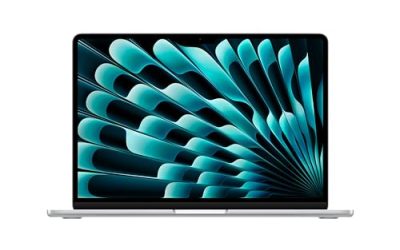
- 1. Apple MacBook Air 13-inch with M4 chip — best for all-day portability
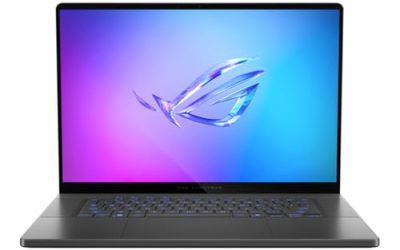
- 2. ASUS Zenbook 14 OLED — best display for reading and annotating
- 3. Acer Swift Go 14 — best storage for large project files
- 4. Dell XPS 13 9340 — best compact Windows option with a big drive
- How to choose the right laptop for your masters
- FAQs
- Conclusion
As an Amazon Associate I earn from qualifying purchases. This post may contain affiliate links at no extra cost to you.
As an Amazon Associate we earn from qualifying purchases.
Disclosure: This article contains affiliate links to Amazon. If you buy through those links, the site may earn a commission at no additional cost to you, and the specifications below are taken from the Amazon product listings for each configuration named.


Why a masters laptop is a different purchase
A masters degree compresses a lot of different kinds of work into a short, intense period. In a single week you might write a long literature survey, run statistical software or a notebook full of code, join back-to-back video seminars, build slides for a teaching session, and carry everything between the library, a supervisor meeting and home. The laptop that suits that life is not simply the fastest machine you can find, and it is not simply the lightest either. It has to balance three things at once: enough performance for research software, enough battery to survive a full day away from a desk, and a size and weight you will not resent carrying every day.
That balance shapes every pick in this guide. All four laptops below have 16GB of memory, which is a sensible floor for graduate work because it lets you keep a reference manager, dozens of browser tabs, a word processor, a spreadsheet and a video call open at the same time without constant swapping. All four use solid-state storage, so they wake quickly and open large documents and datasets without a long wait. And all four are 13-inch or 14-inch machines, because screen space matters for reading papers, but a 16-inch laptop becomes tiring to carry across campus day after day.
Where the four differ is in emphasis. One is built around battery life and silence. One puts its money into a high-quality OLED touchscreen for reading and annotating. One offers unusually generous storage for students whose projects involve large files. And one is a compact premium Windows machine with a large solid-state drive and a processor suited to heavier multitasking.
Quick picks
- Best for all-day portability: Apple MacBook Air 13-inch with M4 chip — 16GB unified memory, 256GB SSD and a 13.6-inch Liquid Retina display in a thin, fanless design.
- Best display for reading and annotating: ASUS Zenbook 14 OLED — AMD Ryzen 7 8840HS, 16GB memory, 512GB SSD and a 14-inch WUXGA OLED touchscreen.
- Best storage for large project files: Acer Swift Go 14 — AMD Ryzen 7 8845HS, 16GB memory and a 1TB PCIe Gen 4 SSD behind a 14-inch touch display.
- Best compact Windows option with a big drive: Dell XPS 13 9340 — Intel Core Ultra 7 155H, 16GB RAM, 1TB SSD and a 13.4-inch FHD+ display.
1. Apple MacBook Air 13-inch with M4 chip — best for all-day portability
For a masters student whose day is spent moving — seminar room in the morning, library in the afternoon, train home in the evening — the MacBook Air is the easiest of these four to live with. The Amazon listing for this configuration describes the 2025 MacBook Air 13-inch laptop with the M4 chip, 16GB of unified memory, 256GB of SSD storage, a 12MP Center Stage camera and Touch ID, in Silver. That combination is well matched to writing-heavy and reading-heavy degrees, and to coursework that runs in a browser, in office software and in mainstream research tools.
The 13.6-inch Liquid Retina display gives you a little more vertical room than older 13-inch panels, which helps when you are reading a journal article with footnotes or comparing a draft against a source side by side. The 12MP Center Stage camera named in the listing is relevant for remote supervision meetings and online seminars, where you want to stay framed while you move or reach for notes. Touch ID, also named in the listing, makes unlocking the machine and approving sign-ins quick, which matters when you open and close the laptop many times a day.
Performance is not the weak point here. The M4 chip with 16GB of unified memory handles large documents, reference libraries, spreadsheets and everyday data work comfortably, and the fanless design means the machine stays silent in a quiet reading room. The honest trade-off is storage and ports. At 256GB, the SSD fills faster than the other picks here if you keep local copies of datasets, recorded lectures or a large photo and video archive, so students with big local files should plan to use external or cloud storage. The listing focus is on the core machine rather than a long port list, so expect to carry an adapter if your department still relies on older wired accessories.
Specifications from the listing
- Processor: Apple M4 chip
- Memory: 16GB unified memory
- Storage: 256GB SSD
- Display: 13.6-inch Liquid Retina display
- Camera: 12MP Center Stage camera
- Security: Touch ID
- Colour named in the listing: Silver
- Operating system: macOS
Pros
- Light, thin design that suits daily carrying between classes, the library and home
- 16GB of unified memory as standard in this configuration, so multitasking stays smooth
- Silent, fanless operation that will not disturb a quiet study space
Cons
- 256GB of storage is the smallest in this guide, so large local archives need a plan
- Memory and storage are fixed in this configuration, so choose carefully at purchase
See the Apple MacBook Air 13-inch with M4 chip on Amazon
2. ASUS Zenbook 14 OLED — best display for reading and annotating
If your degree involves hours of close reading, marking up documents or working with images and slides, the screen becomes the most important part of the laptop. The Zenbook 14 OLED listing stands out here. The Amazon listing describes an ASUS Zenbook 14 laptop with an AMD Ryzen 7 8840HS processor, 16GB of memory, a 512GB SSD, AMD Radeon 780M graphics, an OLED touchscreen and Wi-Fi 6E, with the model named as UM3406HA-WS74T and a 14-inch display at 1920 x 1200 resolution.
That WUXGA resolution in a 16:10 shape gives you more vertical space than a traditional 16:9 screen, so a page of text, a table or a coding window shows more lines before you need to scroll. The touchscreen is useful for annotating PDFs and for quick navigation during presentations, and the listing identifies the panel as OLED, a technology known in this listing context for strong contrast, which helps when you are reading scanned articles or working in a dim room in the evening. For masters students in design-adjacent, media or presentation-heavy fields, that display quality is a daily benefit rather than a luxury.
The Ryzen 7 8840HS is a capable processor for graduate workloads, with the listing giving 8 cores and 16 threads and speeds up to 5.1 GHz, paired with Radeon 780M integrated graphics. That is enough headroom for statistical packages, light photo work, coding environments and many browser tabs at once, while the 512GB SSD doubles the MacBook Air storage above, giving local room for a thesis project, reference library and course files. The listing gives dimensions of 12.3 x 8.67 x 0.59 inches and a weight of about 2.82 lbs for a related configuration of this model line, so it remains a genuinely portable 14-inch machine rather than a desk-bound one.
Specifications from the listing
- Processor: AMD Ryzen 7 8840HS, 8 cores and 16 threads, up to 5.1 GHz
- Memory: 16GB LPDDR5X RAM
- Storage: 512GB M.2 NVMe PCIe 4.0 SSD
- Display: 14-inch OLED touchscreen, 1920 x 1200 resolution
- Graphics: AMD Radeon 780M integrated graphics
- Wireless: Wi-Fi 6E
- Model named in the listing: UM3406HA-WS74T
- Operating system: Windows 11 Home
Pros
- OLED touchscreen that suits long reading sessions, annotation and presentation work
- Strong multitasking specification with 16GB of memory and a Ryzen 7 processor
- 512GB SSD gives comfortable local space for a full project archive
Cons
- Windows 11 Home rather than Pro, which some university-managed setups may not prefer
- Touch and OLED features are wasted if your work is purely plain text and spreadsheets
See the ASUS Zenbook 14 OLED on Amazon
3. Acer Swift Go 14 — best storage for large project files
Some masters projects are defined by file size. Interview recordings, video material, image sets, geographic data, engineering files and local virtual environments all eat storage quickly, and running out of space mid-semester is a miserable problem to solve under deadline pressure. The Swift Go 14 answers that problem directly. Its Amazon listing record describes an Acer Swift Go 14 with a 14-inch 1920 x 1200 touch display, an AMD Ryzen 7 8845HS octa-core processor, 16GB of LPDDR5X memory and a 1TB PCIe Gen 4 SSD, model SFG14-63T-R1F4.
A 1TB drive is the largest in this guide, and it changes how you can work. You can keep your active dataset, your recording archive and your document library on the machine itself instead of constantly moving files on and off external drives. The listing also notes a microSD card reader and Wi-Fi 6E with Bluetooth 5.3 or above, which are practical details for students who move photos or field recordings from cards and who rely on campus wireless all day. The built-in AMD Radeon 780M graphics named for this processor family in the listing material handle everyday visualisation, slides and light media work.
The 14-inch 16:10 touchscreen keeps the same reading advantage as the Zenbook — more vertical lines for documents and data — while the Ryzen 7 8845HS gives you an octa-core processor for heavier multitasking, such as running analysis software while a video seminar and a large spreadsheet stay open. For a student based mostly at one university, with a mix of desk work in a lab or office and library sessions, this is a well-judged middle path: portable enough to carry daily, roomy enough to avoid storage anxiety.
Specifications from the listing
- Processor: AMD Ryzen 7 8845HS octa-core processor
- Memory: 16GB onboard LPDDR5X memory
- Storage: 1TB PCIe Gen 4 SSD
- Display: 14-inch touch display, 1920 x 1200 resolution
- Graphics: AMD Radeon 780M graphics
- Wireless: Wi-Fi 6E, Bluetooth 5.3 or above
- Card reader: microSD card reader named in the listing
- Model named in the listing: SFG14-63T-R1F4
Pros
- 1TB SSD is the most local storage here, ideal for recordings, datasets and media projects
- Octa-core Ryzen 7 processor and 16GB of memory suit busy multitasking days
- microSD card reader is handy for fieldwork, cameras and recorders
Cons
- Onboard memory in this configuration is not a part to plan on upgrading later
- A larger drive can encourage messy file habits, so a backup routine still matters
See the Acer Swift Go 14 on Amazon
4. Dell XPS 13 9340 — best compact Windows option with a big drive
The XPS 13 9340 is the pick for a masters student who wants the smallest Windows footprint in this guide without giving up storage or processing headroom. The Amazon listing describes a Dell XPS 13 9340 business laptop with a 13.4-inch FHD+ display, an Intel Core Ultra 7 155H processor, 16GB of RAM and a 1TB SSD, with a 1080p RGB webcam, backlit keyboard, fingerprint reader, Wi-Fi 7 and Windows 11 Pro, and it highlights an 18-hour long battery life figure in its title.
Take that battery figure as the listing’s own claim for this configuration rather than a promise for every workload — video calls, high brightness and heavy analysis will always use more power than light writing — but the direction is right for student life: this is a machine designed to be carried all day and used in short bursts between longer sessions. Windows 11 Pro is a genuine plus for some postgraduates, particularly those whose university IT services, research groups or part-time employers expect Pro features or domain-style management. The fingerprint reader and backlit keyboard named in the listing are small features that earn their keep daily, in dark lecture rooms and in quick unlocks between classes.
The Core Ultra 7 155H with 16GB of LPDDR5X memory and a 1TB SSD is the strongest storage-and-processor pairing among the 13-inch picks here, so students who split time between writing and heavier tools — data analysis, development environments or large spreadsheet models — get room to grow. The compromise of any very compact 13-inch design is reliance on modern compact ports, so check what your department’s rooms and your own accessories need before you commit, and budget desk space for an adapter if you use older wired equipment regularly.
Specifications from the listing
- Processor: Intel Core Ultra 7 155H
- Memory: 16GB LPDDR5X RAM
- Storage: 1TB SSD
- Display: 13.4-inch FHD+ display
- Camera: 1080p RGB webcam named in the listing
- Security and input: fingerprint reader and backlit keyboard named in the listing
- Wireless: Wi-Fi 7 named in the listing
- Operating system: Windows 11 Pro
Pros
- 1TB SSD and a Core Ultra 7 processor in a very compact 13.4-inch body
- Windows 11 Pro suits university and research-group IT expectations
- Listing highlights long battery life, matching an all-day campus routine
Cons
- Compact designs depend heavily on adapters for older wired accessories
- The smallest screen here, so split-screen reading takes more discipline
See the Dell XPS 13 9340 on Amazon
How to choose the right laptop for your masters
Start with your actual workload, not the workload you imagine. A taught masters built around essays, seminars and a dissertation rewards battery life, a comfortable keyboard and a readable screen above raw processing power, which points to the MacBook Air or the Zenbook. A research masters with local datasets, recordings or media files rewards storage first, which points to the Swift Go 14 or the XPS 13 with their 1TB drives. If your programme requires specific software, check its operating system requirements before anything else: a Windows-only statistics, engineering or business tool settles the Mac question immediately, and a macOS-only workflow does the same in reverse.
Treat 16GB of memory as your floor. Every pick here meets it, and it is the single specification that most affects how a laptop feels in the second year of use, when your reference library, cloud drives and browser habits have all grown. For storage, 256GB works only if you are disciplined and cloud-based; 512GB is comfortable for most students; 1TB is the stress-free choice for media, data and fieldwork.
FAQs
How much RAM does a masters student really need?
For most programmes, 16GB is the sensible target, and every laptop in this guide has it. It allows a reference manager, office software, many browser tabs and a video call to run together smoothly. Students running large local datasets or multiple demanding tools at once should still choose 16GB as a minimum and prioritise storage and processor strength alongside it.
Is 256GB of storage enough for a masters degree?
It can be, if your documents live in cloud storage and you do not keep large local media or datasets. The MacBook Air configuration here has 256GB, and it suits writing-focused students well. If you record interviews, shoot video, or work with local data, choose a 512GB or 1TB configuration such as the Zenbook, Swift Go 14 or XPS 13 instead of relying on external drives.
Should a masters student choose Mac or Windows?
Choose the system your software and your university support best. Check the requirements of any specialist tools in your field, and check what your department’s IT help desk supports day to day. Both platforms here handle writing, research management, spreadsheets, presentations and video seminars well, so software compatibility, not habit, should decide it.
Does screen size or weight matter more for campus life?
For most masters students, weight wins. A 13-inch or 14-inch laptop that you carry everywhere will get more use than a larger machine left at a desk. If you do long split-screen reading sessions at home, you can add an external monitor later while keeping a portable laptop for campus.
Conclusion
The best laptops for masters students are the ones that disappear into the rhythm of the degree: light enough to carry, awake instantly, and strong enough for research software without drama. Choose the MacBook Air M4 for silent, portable, all-day writing and reading. Choose the Zenbook 14 OLED if the screen is where you live and you want to annotate on a touchscreen. Choose the Swift Go 14 if your project files are large and you want 1TB of local room. Choose the XPS 13 9340 if you want compact Windows hardware with Windows 11 Pro, a big drive and a strong processor. Match the machine to your programme’s real demands, set up your backup on day one, and the laptop will stop being a decision and start being simply where your work lives.
Related guides
More from Amazon
Programs that pair well with the guide above. Offers and eligibility are set by Amazon and may change.
Free shipping on eligible items, Prime Video and more. Eligible new members can start with a free trial.
Start a Prime free trialAd-free music streaming. Eligible new subscribers can start with a free trial.
Try Music Unlimited freeA Prime membership for ages 18-24 with a trial period. Eligibility is set by Amazon.
See Prime for Young AdultsAudiobooks and podcasts to listen to on the go. Eligible new members can start with a free trial.
Try Audible freeAs an Amazon Associate we earn from qualifying purchases.
Write Your Review
No reviews yet. Be the first to share your experience!