
Key takeaways
- Find the best Linux host for laptops with VMware Workstation: strong multi-core laptops with 32GB RAM, fast SSDs and steady cooling for smooth virtual machines.
What's inside
As an Amazon Associate I earn from qualifying purchases. This post may contain affiliate links at no extra cost to you.
Finding the best Linux host for laptops with VMware Workstation starts with a simple shift in thinking: you are buying a machine that must run several operating systems at once. The laptop is the host, Linux manages the hardware, and VMware Workstation runs your guest virtual machines. Every guest needs its own share of processor cores, memory, and disk speed, so a laptop that feels fast with one operating system can feel cramped the moment two or three virtual machines run side by side.


Interpretation: here, “best Linux host for laptops with VMware Workstation” means a laptop that works well as a Linux host machine running VMware Workstation: a strong multi-core processor, plenty of memory, a fast solid-state drive, and cooling that holds up under sustained load. All five laptops below meet that bar, with at least 32GB of RAM and a 1TB SSD in the configurations listed.
Quick answer: for the strongest all-round host, the Lenovo ThinkPad P16 Gen 2 gives you a 20-core Intel processor, 32GB of DDR5 memory, a 1TB SSD, and a professional graphics card in a workstation chassis built for long, heavy sessions. The Lenovo ThinkPad P1 Gen 7 brings similar power in a lighter frame. The Lenovo Legion Pro 5i brings the most cores and a memory upgrade path to 64GB. The Lenovo ThinkPad T14 Gen 5 covers lighter workloads in a smaller frame, and the Dell XPS 15 9530 is a solid middle ground for a host that also serves as an everyday work laptop.
Quick Picks
Our Short List of 3
All 5 Picks at a Glance
| Product | Specs | Action |
|---|---|---|
| 1. Lenovo ThinkPad P16 Gen 2 (B0D8MVHPZ8) | Check price on Amazon | |
| 2. Lenovo ThinkPad P1 Gen 7 (B0F627B6DJ) | Check price on Amazon | |
 3. Lenovo Legion Pro 5i (B0G2MK96YG) | Check price on Amazon | |
 4. Lenovo ThinkPad T14 Gen 5 (B0DGKBYSL2) | Check price on Amazon | |
 5. Dell XPS 15 9530 (B0CC2566C5) | Check price on Amazon |
How to Choose
Processor Cores Matter More Than Clock Speed Alone
VMware Workstation lets you assign processor cores to each guest, so the total core count sets a ceiling on how many guests can run comfortably at once. A processor with 20 or 24 cores, such as the Intel Core i7-14700HX in the ThinkPad P16 Gen 2 or the Intel Core Ultra 9 275HX in the Legion Pro 5i, leaves room for the Linux host, two or three guests, and your host applications. An 8-core processor, such as the AMD Ryzen 7 PRO 8840U in the ThinkPad T14 Gen 5, suits one or two light guests. Leave a couple of cores for the host.
Memory: Start at 32GB and Check the Upgrade Path
Memory is usually the first limit a virtual machine host hits. Each guest needs its own allocation, and the Linux host needs memory too, so 16GB disappears quickly once you run more than one guest. Every laptop here ships with 32GB of RAM in the configuration listed, a sensible starting point for two to four modest guests. Also check whether the memory is socketed and upgradeable, and what the maximum is. The Legion Pro 5i lists a maximum of 64GB, a clear upgrade path. Some thin laptops solder part or all of their memory to the board, so confirm the layout of the exact configuration you buy.
Fast Storage for Virtual Disks
Virtual machines live or die by disk speed. Every guest reads and writes to virtual disk files, and several guests doing that at once can saturate a slow drive. A PCIe NVMe SSD is the right baseline, and 1TB is the minimum worth considering, because guest images, snapshots, and ISO files accumulate quickly. All five laptops here include a 1TB SSD in the listed configuration. If you plan to keep many guests, look for a second SSD slot or an easy storage upgrade, and keep free space for snapshots and growing virtual disks.
Cooling and Sustained Performance
A laptop that runs virtual machines all day is under sustained load, not a short burst. Thin laptops can boost to impressive speeds for a few minutes and then slow down as heat builds, which shows up as sluggish guests. Workstation and gaming chassis, such as the ThinkPad P16 Gen 2 and the Legion Pro 5i, have larger cooling systems that help them hold performance over long sessions. A thinner machine such as the ThinkPad P1 Gen 7 trades some thermal headroom for portability, so it suits focused sessions rather than full load all day.
Linux Compatibility and Driver Support
VMware Workstation runs on Linux, but the host hardware still needs solid Linux driver support for networking, Wi-Fi, and graphics. Business laptops from Lenovo and Dell have a long history of Linux use, and ThinkPad models in particular are widely used as Linux machines, so common issues tend to be documented. Before you commit, check that the Wi-Fi adapter, graphics card, and other hardware in your chosen configuration have Linux drivers for your distribution. If you need graphics passthrough to a guest, check the requirements for that feature first.
Ports, Networking, and Expansion
A virtual machine host benefits from wired networking, fast USB ports, and room for external storage. An Ethernet port gives you stable networking for guests that act as servers or test systems, and Thunderbolt or USB-C ports let you add fast external drives for guest images and backups. The ThinkPad models in this guide include Thunderbolt ports, and the Dell XPS 15 9530 includes Thunderbolt 4.
Display, Keyboard, and Everyday Comfort
You will spend long sessions switching between the host and several guests, so the screen and keyboard matter more than they do on a single-purpose laptop. A 16-inch display, such as the ones on the ThinkPad P16 Gen 2, the ThinkPad P1 Gen 7, and the Legion Pro 5i, gives you room for multiple windows and a virtual machine console side by side. A 14-inch or 15.6-inch display is easier to carry, but you will lean on virtual desktops and external monitors more often. A comfortable keyboard and a precise trackpad also matter for long terminal sessions.
The Best Linux Host for Laptops With VMware Workstation Reviewed
1. Lenovo ThinkPad P16 Gen 2 (B0D8MVHPZ8)
The ThinkPad P16 Gen 2 is the strongest all-round host in this roundup, and the pick to start with if your virtual machine lab is the main job of the laptop. The listed configuration pairs a 20-core Intel Core i7-14700HX processor with 32GB of DDR5 memory and a 1TB PCIe Gen4 SSD, so you can give each guest a meaningful share of cores and memory. The NVIDIA RTX 2000 professional graphics card helps guests that need graphics acceleration, and the 16-inch WQUXGA display gives you room to watch several guests at once. The trade-off is size and weight: at around 6.5 pounds, this is a machine you carry in a proper bag. It ships with Windows 11 Pro, so plan for a Linux installation as part of your setup.
Who it suits: anyone building a serious virtual machine lab on a laptop, running three or more guests, or using graphics-accelerated guests alongside normal host work.
Who should skip it: anyone who needs a light travel laptop above all else, or anyone whose guests are light enough that a smaller machine would do.
2. Lenovo ThinkPad P1 Gen 7 (B0F627B6DJ)
The ThinkPad P1 Gen 7 takes the workstation idea and puts it in a much lighter frame, at around 4 pounds, the best fit in this guide for a host that travels. The listed configuration uses an Intel Core Ultra 9 185H processor with 16 cores, 32GB of DDR5 memory, a 1TB SSD, and an NVIDIA GeForce RTX 4070 laptop graphics card with 8GB of dedicated memory. That combination handles a host plus two or three guests comfortably. The 16-inch display with 2560 by 1600 resolution suits managing multiple guests, and Thunderbolt 4 ports cover external storage and monitors.
One point to note: the product page for this ASIN describes the ThinkPad P1 Gen 7 with the specifications above, so that is the machine described here, even though some search listings associate the same ASIN with a different ThinkPad model name. Confirm the model name and specifications on the listing before you order. The thin chassis is also a trade-off: it will not sustain full load as calmly as the larger P16 Gen 2, so it suits focused sessions rather than maximum load all day.
Who it suits: professionals who need workstation-class hosting power in a laptop they can carry every day, and who run guests in sessions rather than at full load around the clock.
Who should skip it: anyone planning to run many guests at full load all day, who would be better served by the larger cooling of the P16 Gen 2 or the Legion Pro 5i.
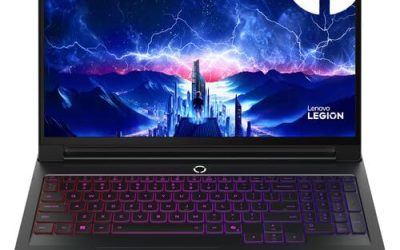
3. Lenovo Legion Pro 5i (B0G2MK96YG)
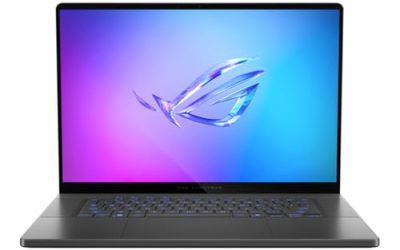
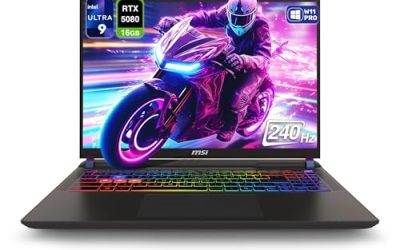
The Legion Pro 5i is the core-count leader in this roundup, and the pick for anyone whose guests are hungry for processor time. Its Intel Core Ultra 9 275HX processor has 24 cores and a maximum turbo speed of 5.4 GHz, paired with 32GB of DDR5 memory running at 5600 MHz and a 1TB SSD. The listed memory maximum is 64GB, the clearest upgrade path in this guide: if your lab grows, you can double the memory instead of replacing the laptop. The NVIDIA GeForce RTX 5070 graphics card with 8GB of GDDR7 memory also suits guests that need graphics power. This is a gaming laptop first. It is heavy at around 5.65 pounds, with an RGB backlit keyboard, a 16-inch OLED display with a 165 Hz refresh rate, and cooling built for sustained loads. It ships with Windows 11 Home in the listed configuration; as a Linux host, you will be replacing the preinstalled system anyway.
Who it suits: anyone running processor-heavy guests, test labs with several machines at once, or anyone who wants a clear memory upgrade path to 64GB.
Who should skip it: anyone who wants a quiet, understated business laptop, or anyone who needs the lightest possible machine for travel.
4. Lenovo ThinkPad T14 Gen 5 (B0DGKBYSL2)
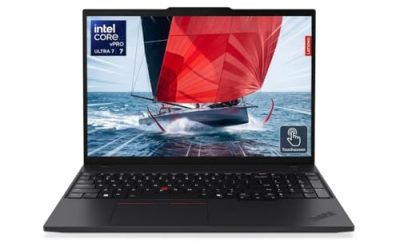
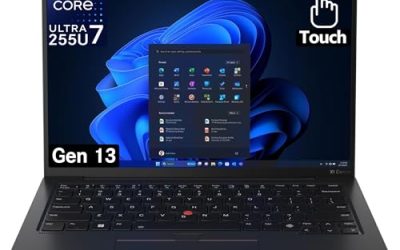
The ThinkPad T14 Gen 5 is the portable host in this guide, and the right pick if your virtual machine work is light and your laptop also needs to travel well. The listed configuration uses an 8-core AMD Ryzen 7 PRO 8840U processor, 32GB of DDR5 memory, a 1TB NVMe SSD, and AMD Radeon 780M integrated graphics, with a 14-inch touchscreen display and Windows 11 Pro. Eight cores and 32GB of memory can host one or two light guests comfortably, which covers testing and learning. The limits are honest ones. There is no discrete graphics card, so guests that need serious graphics acceleration are not a good match, and eight cores will not stretch to a large lab. Memory upgradeability also needs checking on the exact configuration you order, because some T14 Gen 5 configurations solder part of the memory. In return you get a ThinkPad keyboard, a 14-inch frame that is easy to carry, and Thunderbolt 4 ports.
Who it suits: travellers, students, and professionals who run one or two light guests and value portability over raw lab capacity.
Who should skip it: anyone building a multi-guest lab, or anyone whose guests need a discrete graphics card.
5. Dell XPS 15 9530 (B0CC2566C5)
The Dell XPS 15 9530 is the middle ground in this guide: a well-built everyday laptop that can also serve as a capable virtual machine host. The listed configuration pairs a 10-core Intel Core i7-13620H processor with 32GB of DDR5 memory and a 1TB PCIe NVMe SSD, with a 15.6-inch FHD+ display, Thunderbolt 4, and Windows 11 Pro. Ten cores and 32GB of memory give you room for the Linux host plus two guests. Ten cores and 32GB of memory give you room for the Linux host plus two guests. Two points deserve a clear flag. First, the display is FHD+ resolution, which is modest for a 15.6-inch screen when you are juggling several guest windows; plan on using an external monitor for serious lab work. Second, the 32GB and 1TB configuration in this listing is presented as a seller-configured build, so confirm the exact configuration and warranty details on the listing before you order. The processor is a 13th-generation Intel chip, a generation behind the newest models here, but it remains capable for hosting two guests.
Who it suits: anyone who wants one laptop for everyday work and virtual machine hosting, with a premium build and a 15.6-inch screen.
Who should skip it: anyone who needs a high-resolution display for multi-window lab work without an external monitor, or anyone who needs more than 10 cores for a larger lab.
What to Check Before You Buy
Start by counting your guests: each virtual machine you plan to run, how many cores and how much memory each one needs, plus memory for the Linux host itself. If the total is close to the laptop’s limits, step up to a machine with more cores or a clear memory upgrade path. Next, confirm the exact configuration on the listing, including processor model, memory amount and type, SSD size, and whether the memory is soldered or socketed. For the XPS 15 9530 and the ThinkPad P1 Gen 7, that confirmation matters more than usual, for the reasons flagged above. Then check Linux compatibility for your distribution, including drivers for Wi-Fi, graphics, and power management, plus support for hardware virtualization and any graphics passthrough you plan to use. Finally, plan your storage, keep backups of important guests on separate storage, and leave free space for snapshots.
FAQ
Can I run VMware Workstation on a Linux host?
Yes. VMware Workstation is available for Linux hosts, and it runs guest operating systems including Linux and Windows inside virtual machines. You install Linux on the laptop first, then install VMware Workstation on top of it. Check the system requirements for the version you plan to use.
How much RAM do I need for a Linux host running VMware Workstation?
32GB is a sensible starting point for a host running two to four modest guests, and every laptop in this guide ships with 32GB in the configuration listed. Memory is the limit most hosts hit first, so starting at 32GB and keeping an upgrade path open is the safer choice.
How many cores should a VMware Workstation host laptop have?
Aim for at least 8 cores for light hosting with one or two guests, and 16 or more cores for three or more guests at once. The ThinkPad P16 Gen 2 has 20 cores and the Legion Pro 5i has 24 cores, which is why they lead this guide for heavier labs. Leave a couple of cores for the Linux host.
Is a discrete graphics card necessary for VMware Workstation?
No, a discrete graphics card is not necessary for most virtual machine work. Many guests run well on integrated graphics or on a virtual graphics adapter. A discrete card helps when guests need graphics acceleration, such as for design work or video work.
Should I choose a workstation, a gaming laptop, or a business laptop as a host?
It depends on your workload. A workstation such as the ThinkPad P16 Gen 2 suits heavy, sustained hosting and graphics-accelerated guests. A gaming laptop such as the Legion Pro 5i suits processor-heavy labs, with strong cooling and a clear memory upgrade path. A business laptop such as the ThinkPad T14 Gen 5 or the Dell XPS 15 9530 suits lighter hosting and everyday work, with better portability.
Bottom Line
The best Linux host for laptops with VMware Workstation is a laptop with more cores, memory, and storage than a single operating system would ever need, because a host is really several machines sharing one chassis. For the heaviest labs, the Lenovo ThinkPad P16 Gen 2 leads this guide with its 20-core processor, 32GB of memory, and workstation cooling. The Lenovo ThinkPad P1 Gen 7 brings similar power in a lighter frame, and the Lenovo Legion Pro 5i brings the most cores and the clearest path to 64GB of memory. For lighter hosting, the Lenovo ThinkPad T14 Gen 5 is the portable pick, and the Dell XPS 15 9530 is the balanced everyday laptop that can host two guests without fuss. Count your guests, confirm the exact configuration before you order, and choose the machine whose core count and memory headroom match the lab you plan to run.
Disclosure: As an Amazon Associate, we may earn from qualifying purchases.
Related guides
More from Amazon
Programs that pair well with the guide above. Offers and eligibility are set by Amazon and may change.
Free shipping on eligible items, Prime Video and more. Eligible new members can start with a free trial.
Start a Prime free trialAd-free music streaming. Eligible new subscribers can start with a free trial.
Try Music Unlimited freeA Prime membership for ages 18-24 with a trial period. Eligibility is set by Amazon.
See Prime for Young AdultsAudiobooks and podcasts to listen to on the go. Eligible new members can start with a free trial.
Try Audible freeAs an Amazon Associate we earn from qualifying purchases.
Write Your Review
No reviews yet. Be the first to share your experience!