
Our Short List of 3

- Best for: Frontend developers who want a light, quiet laptop with a color-true screen for coding and client demos.
- 13.6-inch Liquid Retina display
- Apple M4 chip
- 16GB unified memory
- 256GB SSD storage
- Best for: Design-led frontend developers who need a high-resolution touch display and generous memory for heavy multitasking.
- 14.5-inch 3.2K OLED touch display, 48-120Hz
- Intel Core Ultra 7 255H processor
- Intel Arc Graphics
- 32GB memory

- Best for: Students and beginners learning frontend development who want a large screen and a simple setup.
- 15.6-inch Full HD IPS display
- AMD Ryzen 3 7320U quad-core processor
- AMD Radeon Graphics
- 8GB LPDDR5 memory
All 3 Picks at a Glance
| Product | Specs | Action |
|---|---|---|
| Apple MacBook Air 13 with M4 |
| Check price on Amazon |
| Dell XPS 14 Premium DA14250 |
| Check price on Amazon |
| Acer Aspire 3 A315-24P-R7VH |
| Check price on Amazon |
Key takeaways
- Find the right laptop for frontend website design, with a color-true display, enough memory for dev tools, and a keyboard built for long coding days.
What's inside
As an Amazon Associate I earn from qualifying purchases. This post may contain affiliate links at no extra cost to you.
Choosing a laptop for frontend website design is a decision about what you see and how fast you can change it, not about raw gaming power. You spend the day moving between a code editor, a browser, and a design tool, and the machine has to keep all three open without stuttering while showing colors the way your visitors will see them. A dim panel or a keyboard that fights you will cost more time than any processor upgrade saves.
This guide is for frontend developers, freelance web designers, and students building portfolio sites who need one machine for coding, previewing, and presenting work. Every laptop below was picked from the specifications stated on its Amazon product page: the display, processor, memory, storage, and keyboard, so you can compare what the listing itself promises before you buy.
Quick Picks
As an Amazon Associate we earn from qualifying purchases.
| Product | Best for | Key spec |
|---|---|---|
| Apple MacBook Air 13 with M4 | Frontend work on the move with a sharp, color-true screen | 13.6-inch Liquid Retina display |
| Dell XPS 14 Premium DA14250 | Judging fine design detail on a high-resolution touch display | 14.5-inch 3.2K OLED touch display |
| Lenovo ThinkPad E14 Gen 6 | Long typing sessions and reliable everyday development work | 14-inch WUXGA display |
| Acer Aspire 3 A315-24P-R7VH | Learning frontend basics on a large, simple Windows laptop | 15.6-inch Full HD IPS display |
How to Choose
Start with display color accuracy and resolution
Frontend work is visual work, and the screen is where your judgment happens. A panel that shifts color between viewing angles or crushes shadow detail will quietly mislead you about the site you are building, and you will only notice when a client opens it on another display. Look for the resolution and panel type stated plainly on the listing: a high-resolution display shows code, browser tools, and design canvases side by side without constant scrolling, and an OLED or wide-gamut panel makes it easier to judge color, contrast, and spacing the way visitors will experience them.
Match the processor and memory to your dev tools
A code editor alone runs on almost anything, but real frontend work is never just an editor. You will have a local development server running, a browser open with a dozen tabs, developer tools inspecting the page, and often a design tool or a terminal beside them. That stack rewards memory more than clock speed, so treat 16GB as the practical floor and confirm the exact figure on the listing rather than trusting a family name. A modern multi-core processor keeps builds, live reloads, and hot module replacement feeling instant instead of laggy.
Take the keyboard seriously
You will type on this machine for hours every day, so the keyboard is a working tool, not a detail. Look for well-spaced keys with clear travel and a layout that puts the keys you reach for constantly, such as brackets, slashes, and function keys, where your fingers expect them. Backlighting matters for late sessions and dim rooms, and a precise trackpad saves you from carrying a mouse everywhere. If possible, read the listing for the exact keyboard description, and remember that a cramped or shallow keyboard becomes a daily annoyance long before a slow processor does.
Check ports and battery for the way you actually work
Frontend developers rarely work on the laptop screen alone. An external monitor, a phone for testing responsive layouts, and a hard drive for project backups all need somewhere to plug in, so count the ports on the listing and note whether they carry video output. A machine with only one or two ports will push you toward a hub or a dock, which is fine at a desk but awkward in a cafe. Battery life matters just as much: long unplugged sessions let you review a site, run a local server, and show a client a prototype without hunting for an outlet.
The 4 Best Options
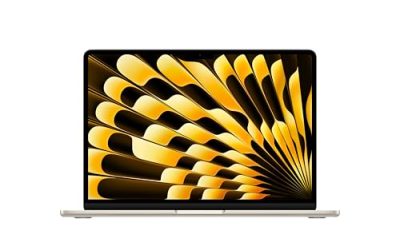
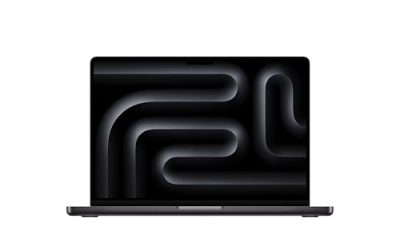
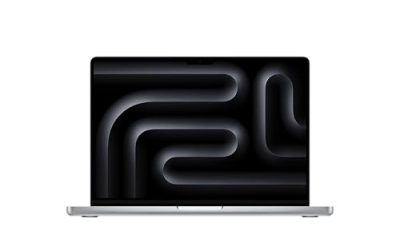
Apple MacBook Air 13 with M4
- Best for: Frontend developers who want a light, quiet laptop with a color-true screen for coding and client demos.
- 13.6-inch Liquid Retina display
- Apple M4 chip
- 16GB unified memory
- 256GB SSD storage
Frontend developers who want a light, quiet laptop with a color-true screen for coding and client demos.
The 256GB of storage fills quickly once local projects, design assets, and browser caches pile up, so confirm the exact 16GB memory and 256GB storage configuration at checkout, since the listing family includes other configurations.
The MacBook Air 13 with the M4 chip is the most portable serious option here, and it suits frontend developers who move between a desk, a cafe, and a client meeting in the same day. Its sharp Liquid Retina display keeps text crisp in the editor and colors consistent in the browser, while the silent, fanless design means nothing interrupts a call or a focused session. The unified memory architecture handles an editor, a local server, and a browser full of tabs without the slowdowns that make live preview feel sluggish.
Watch out for: The 256GB of storage fills quickly once local projects, design assets, and browser caches pile up, so confirm the exact 16GB memory and 256GB storage configuration at checkout, since the listing family includes other configurations.
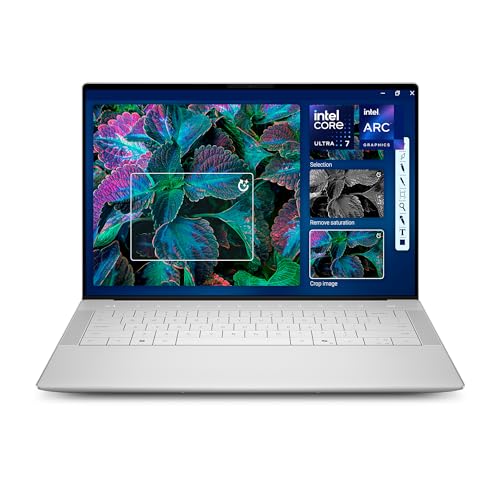
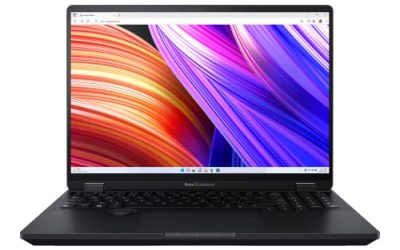
Dell XPS 14 Premium DA14250
- Best for: Design-led frontend developers who need a high-resolution touch display and generous memory for heavy multitasking.
- 14.5-inch 3.2K OLED touch display, 48-120Hz
- Intel Core Ultra 7 255H processor
- Intel Arc Graphics
- 32GB memory
Design-led frontend developers who need a high-resolution touch display and generous memory for heavy multitasking.
The memory is built into the system board and cannot be upgraded later, so choose the configuration you need up front. Dell also uses both the XPS 14 and Dell 14 Premium names for this machine, so verify the model number DA14250 before ordering.
The Dell XPS 14 Premium is the pick for designers who judge their work by the screen, because its 3.2K OLED touch display shows fine typography, gradients, and spacing with a level of detail that standard panels cannot match. The touch layer is genuinely useful for frontend work too, letting you tap through responsive layouts and test touch interactions directly on the machine you built them on. With 32GB of memory and a fast 1TB SSD, it keeps a full development stack, a design tool, and a browser running side by side without forcing you to close anything.
Watch out for: The memory is built into the system board and cannot be upgraded later, so choose the configuration you need up front. Dell also uses both the XPS 14 and Dell 14 Premium names for this machine, so verify the model number DA14250 before ordering.
Lenovo ThinkPad E14 Gen 6
The ThinkPad E14 Gen 6 is the workhorse of this list, built for developers who type all day and want a machine that simply keeps up. The keyboard is the standout: full-sized, comfortable, and made for long sessions of writing code, and the 14-inch WUXGA display gives you enough room for an editor beside a browser window. Its Ryzen processor and 16GB of memory handle a local server, developer tools, and a design app at the same time, and the business-class build is made to survive being carried to the office every day.
Specs
- 14-inch WUXGA display
- AMD Ryzen 5 7535U processor
- 16GB RAM
- 256GB SSD storage
- Windows 11 Pro
- 3.17 pounds
Best for: Developers who spend most of their day typing and want a durable laptop with a great keyboard.
Watch out for: The 256GB SSD is modest once you keep several local projects, node module folders, and design files on the machine, so plan for external storage or a larger configuration if your project library keeps growing.
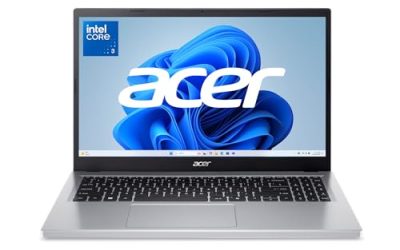
Acer Aspire 3 A315-24P-R7VH
- Best for: Students and beginners learning frontend development who want a large screen and a simple setup.
- 15.6-inch Full HD IPS display
- AMD Ryzen 3 7320U quad-core processor
- AMD Radeon Graphics
- 8GB LPDDR5 memory
Students and beginners learning frontend development who want a large screen and a simple setup.
Windows 11 Home in S mode only installs apps from the Microsoft Store until you switch out of S mode, so check that your editor and browser are available before you start. The 128GB of storage also fills fast, so keep project files backed up elsewhere.
The Acer Aspire 3 is the straightforward starting point for anyone learning frontend development or building their first portfolio sites. Its large 15.6-inch Full HD IPS display gives a beginner room to keep a tutorial, an editor, and a browser visible at once, and the backlit keyboard makes evening study sessions easier. It runs the standard Windows workflow for learning HTML, CSS, and JavaScript, and its slim design means it travels easily between classes, a library, and home without feeling like a burden.
Watch out for: Windows 11 Home in S mode only installs apps from the Microsoft Store until you switch out of S mode, so check that your editor and browser are available before you start. The 128GB of storage also fills fast, so keep project files backed up elsewhere.
Which One Fits Your Situation
You work from cafes, co-working spaces, and client meetings
Pick the MacBook Air 13 with M4. Its light weight, silent operation, and sharp display make it the easiest machine to carry and the most pleasant to open in front of a client. The long battery life and fanless design mean you can run a local server and demo a site without fan noise or a hunt for an outlet.
You judge designs by the screen and test touch layouts yourself
Pick the Dell XPS 14 Premium DA14250. The 3.2K OLED touch display shows your work with the detail and color depth that frontend design decisions depend on, and tapping through a responsive layout on the same screen you built it on catches interaction problems a mouse never reveals. The 32GB of memory keeps everything open at once.
You type for hours and want a machine that lasts for years
Pick the Lenovo ThinkPad E14 Gen 6. The keyboard is built for exactly this kind of day, and the business-class construction is made to be carried, opened, and closed thousands of times. It is the right choice when reliability and typing comfort matter more than having the sharpest display on the list.
You are learning frontend development and building a first portfolio
Pick the Acer Aspire 3 A315-24P-R7VH. The large screen keeps tutorials, code, and a live preview visible together, which makes learning faster, and the simple Windows setup gets you writing HTML and CSS on the first day. Just remember the S mode limit and the small storage, and plan around both from the start.
Common Mistakes
- Buying the dimmest, lowest-resolution screen available and then wondering why colors and spacing look different on every other display.
- Choosing 8GB of memory for a workflow that really runs an editor, a local server, a browser full of tabs, and a design tool at the same time.
- Ignoring the keyboard and trackpad, then discovering that a cramped layout slows down every coding session.
- Forgetting to count ports, and ending up unable to connect an external monitor and a test phone at the same time.
- Picking a laptop with barely enough storage, then filling it with project folders, cached assets, and local environments within a few months.
Frequently Asked Questions
How much memory does a frontend developer need?
For most frontend work, 16GB is the practical starting point, because you are rarely running one app at a time. An editor, a local development server, a browser with developer tools open, and a design tool all share memory at once, and 16GB keeps that stack responsive. If you also run virtual machines, containers, or heavy design files, look for a machine with more memory.
Does a frontend developer need a dedicated graphics card?
Usually not. Frontend work is driven by the processor, memory, and display, and integrated graphics handle code editors, browsers, and design tools comfortably. A dedicated graphics card only becomes relevant if you also do 3D work, video editing, or GPU-heavy rendering alongside your web projects, so spend the budget on a better screen and more memory first.
Is a touchscreen useful for frontend website design?
A touchscreen is useful but not essential. It lets you tap through responsive layouts and test touch interactions directly on the machine, which catches problems a mouse can hide. The Dell XPS 14 in this guide has a touch display for exactly that reason, but if your budget points elsewhere, you can test touch behavior on a phone or tablet instead.
Can I do frontend development on a laptop with Windows in S mode?
You can, but you need to check your tools first. S mode only allows apps from the Microsoft Store, so your code editor, browser, and terminal may not be available until you switch out of S mode. Switching out is a one-time, free change in settings, but it cannot be reversed, so confirm that the tools you rely on are covered before you commit to an S mode machine.
Related guides
More from Amazon
Programs that pair well with the guide above. Offers and eligibility are set by Amazon and may change.
Free shipping on eligible items, Prime Video and more. Eligible new members can start with a free trial.
Start a Prime free trialAd-free music streaming. Eligible new subscribers can start with a free trial.
Try Music Unlimited freeA Prime membership for ages 18-24 with a trial period. Eligibility is set by Amazon.
See Prime for Young AdultsAudiobooks and podcasts to listen to on the go. Eligible new members can start with a free trial.
Try Audible freeAs an Amazon Associate we earn from qualifying purchases.
Write Your Review
No reviews yet. Be the first to share your experience!